> ## Documentation Index
> Fetch the complete documentation index at: https://docs.tracecat.com/llms.txt
> Use this file to discover all available pages before exploring further.
# LLM providers
> Connect built-in LLM providers to Tracecat, enable their models for your organization, and choose the default model that agents use.
Tracecat ships with built-in connections for the major model providers. Connect a provider once at the organization level, allow the models you want to expose, and pick an organization-wide default.
 ## Supported providers
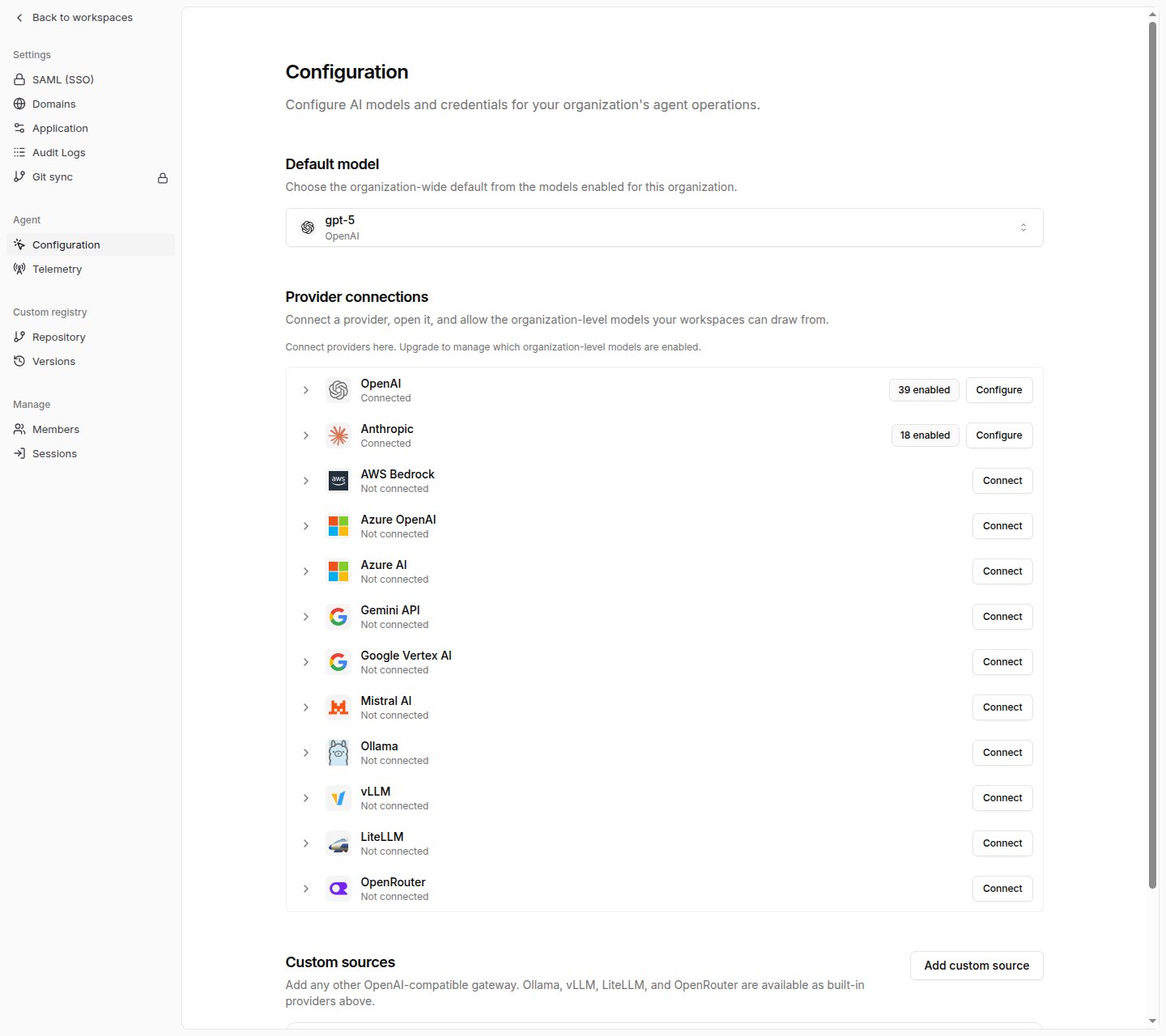
Tracecat lists providers in this order in Organization settings > Agent > Configuration.
| Provider | Credentials | Base URL | Passthrough default |
| ---------------- | ------------------------------------------------------- | ------------------------------------------------------------- | ------------------- |
| OpenAI | API key | Optional override | — |
| Anthropic | API key | Optional override | — |
| AWS Bedrock | Role ARN or access key pair, region | — | — |
| Azure OpenAI | API base URL, API version, API key or Entra credentials | Required | — |
| Azure AI | API base URL, API key or Entra credentials | Required | — |
| Gemini API | API key | — | — |
| Google Vertex AI | Service account JSON, project, location | — | — |
| Mistral AI | API key | Optional override | — |
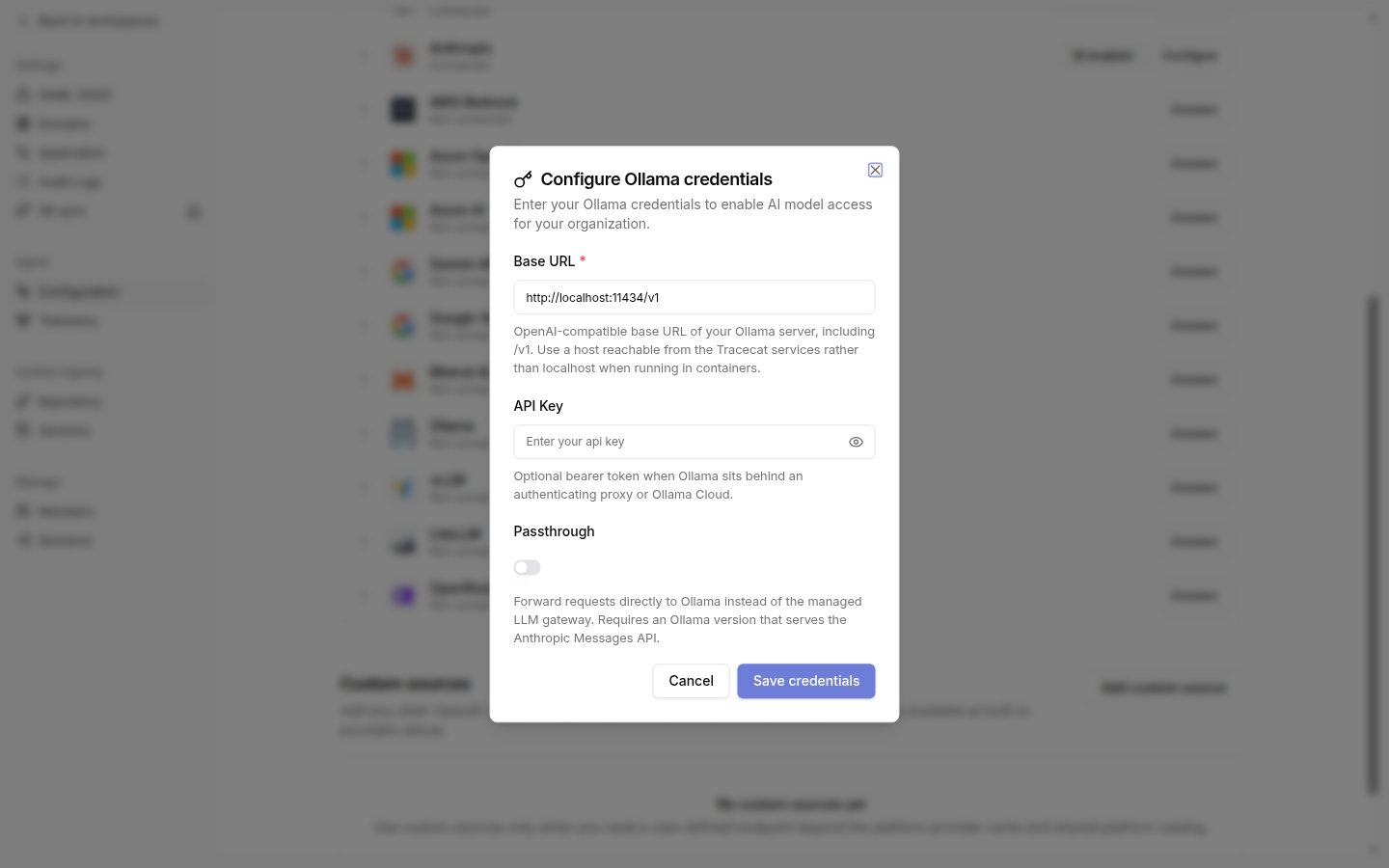
| Ollama | Optional API key | Defaults to `http://localhost:11434/v1` | Off |
| vLLM | Optional API key | Required, e.g. `http://vllm:8000/v1` | Off |
| LiteLLM | Optional API key | Required, e.g. `http://litellm:4000/v1` | On |
| OpenRouter | API key | Defaults to `https://openrouter.ai/api/v1`, optional override | Off |
Ollama, vLLM, and LiteLLM base URLs must include the `/v1` segment and be reachable from the Tracecat services. Inside a container, `localhost` points at the container itself, not your host.
Can't find the provider you're using? Add it as a custom source instead. See [Custom LLM providers](/agents/custom-llm-providers) to connect any OpenAI-compatible gateway.
## Connect a provider
Go to Organization settings, open Agent, then click Configuration.
Click Connect next to the provider. Fill in the fields the dialog asks for, then click Save credentials.
## Supported providers
Tracecat lists providers in this order in Organization settings > Agent > Configuration.
| Provider | Credentials | Base URL | Passthrough default |
| ---------------- | ------------------------------------------------------- | ------------------------------------------------------------- | ------------------- |
| OpenAI | API key | Optional override | — |
| Anthropic | API key | Optional override | — |
| AWS Bedrock | Role ARN or access key pair, region | — | — |
| Azure OpenAI | API base URL, API version, API key or Entra credentials | Required | — |
| Azure AI | API base URL, API key or Entra credentials | Required | — |
| Gemini API | API key | — | — |
| Google Vertex AI | Service account JSON, project, location | — | — |
| Mistral AI | API key | Optional override | — |
| Ollama | Optional API key | Defaults to `http://localhost:11434/v1` | Off |
| vLLM | Optional API key | Required, e.g. `http://vllm:8000/v1` | Off |
| LiteLLM | Optional API key | Required, e.g. `http://litellm:4000/v1` | On |
| OpenRouter | API key | Defaults to `https://openrouter.ai/api/v1`, optional override | Off |
Ollama, vLLM, and LiteLLM base URLs must include the `/v1` segment and be reachable from the Tracecat services. Inside a container, `localhost` points at the container itself, not your host.
Can't find the provider you're using? Add it as a custom source instead. See [Custom LLM providers](/agents/custom-llm-providers) to connect any OpenAI-compatible gateway.
## Connect a provider
Go to Organization settings, open Agent, then click Configuration.
Click Connect next to the provider. Fill in the fields the dialog asks for, then click Save credentials.
 Expand the provider row and click Allow next to each model you want to expose. The pill on the row shows how many models are enabled.
Ollama, vLLM, LiteLLM, and OpenRouter discover models from the provider's `/models` endpoint when you save credentials. Click Refresh models on the row after you add or remove models upstream.
Under Default model, pick one of the enabled models. Agents and AI actions use it whenever a preset or action does not set its own model.
Click Configure on a connected provider to rotate credentials, or expand the row and click Disconnect to remove them.
## Passthrough
Ollama, vLLM, LiteLLM, and OpenRouter expose a Passthrough toggle that controls how agent requests reach the provider.
| Passthrough | Request route |
| ----------- | -------------------------------------------------------------------- |
| Off | Tracecat's managed LiteLLM gateway forwards requests to the provider |
| On | The agent sandbox sends requests directly to the configured base URL |
Leave passthrough off unless the endpoint serves the Anthropic Messages API itself. LiteLLM defaults to on because a LiteLLM proxy already handles routing; a second gateway in front of it adds a hop without adding capability.
## Related pages
* See [Custom LLM providers](/agents/custom-llm-providers) for connecting an OpenAI-compatible gateway that is not listed above.
* See [AI agent](/agents/ai-agent) for the `ai.agent` and `ai.preset_agent` action reference, including per-agent model overrides.
* See [AI action](/agents/ai-action) for single-call LLM workflow actions.
* See [Air-gapped deployment](/self-hosting/air-gapped) for running Ollama or vLLM without internet access.
Expand the provider row and click Allow next to each model you want to expose. The pill on the row shows how many models are enabled.
Ollama, vLLM, LiteLLM, and OpenRouter discover models from the provider's `/models` endpoint when you save credentials. Click Refresh models on the row after you add or remove models upstream.
Under Default model, pick one of the enabled models. Agents and AI actions use it whenever a preset or action does not set its own model.
Click Configure on a connected provider to rotate credentials, or expand the row and click Disconnect to remove them.
## Passthrough
Ollama, vLLM, LiteLLM, and OpenRouter expose a Passthrough toggle that controls how agent requests reach the provider.
| Passthrough | Request route |
| ----------- | -------------------------------------------------------------------- |
| Off | Tracecat's managed LiteLLM gateway forwards requests to the provider |
| On | The agent sandbox sends requests directly to the configured base URL |
Leave passthrough off unless the endpoint serves the Anthropic Messages API itself. LiteLLM defaults to on because a LiteLLM proxy already handles routing; a second gateway in front of it adds a hop without adding capability.
## Related pages
* See [Custom LLM providers](/agents/custom-llm-providers) for connecting an OpenAI-compatible gateway that is not listed above.
* See [AI agent](/agents/ai-agent) for the `ai.agent` and `ai.preset_agent` action reference, including per-agent model overrides.
* See [AI action](/agents/ai-action) for single-call LLM workflow actions.
* See [Air-gapped deployment](/self-hosting/air-gapped) for running Ollama or vLLM without internet access.