> ## Documentation Index
> Fetch the complete documentation index at: https://docs.tracecat.com/llms.txt
> Use this file to discover all available pages before exploring further.
# Workspace chat
> Chat with Tracecat across your workspace, select tools and MCP integrations, and mention preset agents.
Open source
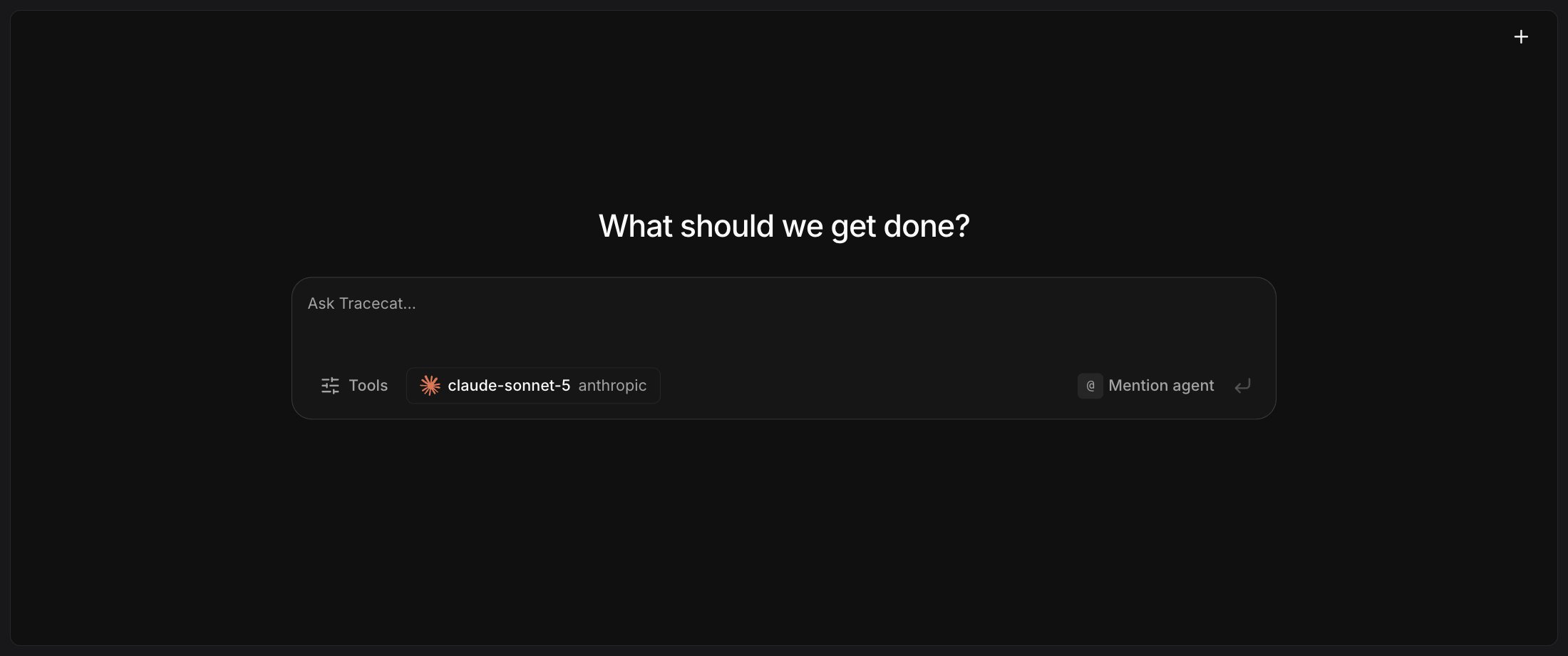
Workspace chat is a workspace-level assistant that is separate from the copilot inside each case. Open it from `Chat` in the workspace sidebar or as a side panel over the Tables pages.
 ## Set the default model
Go to `Organization > Settings > Agent`, connect a [provider](/agents/custom-llm-providers), and choose an organization default model. Until you set one, Tracecat disables the composer and links you to agent settings.
## Choose tools and MCP integrations
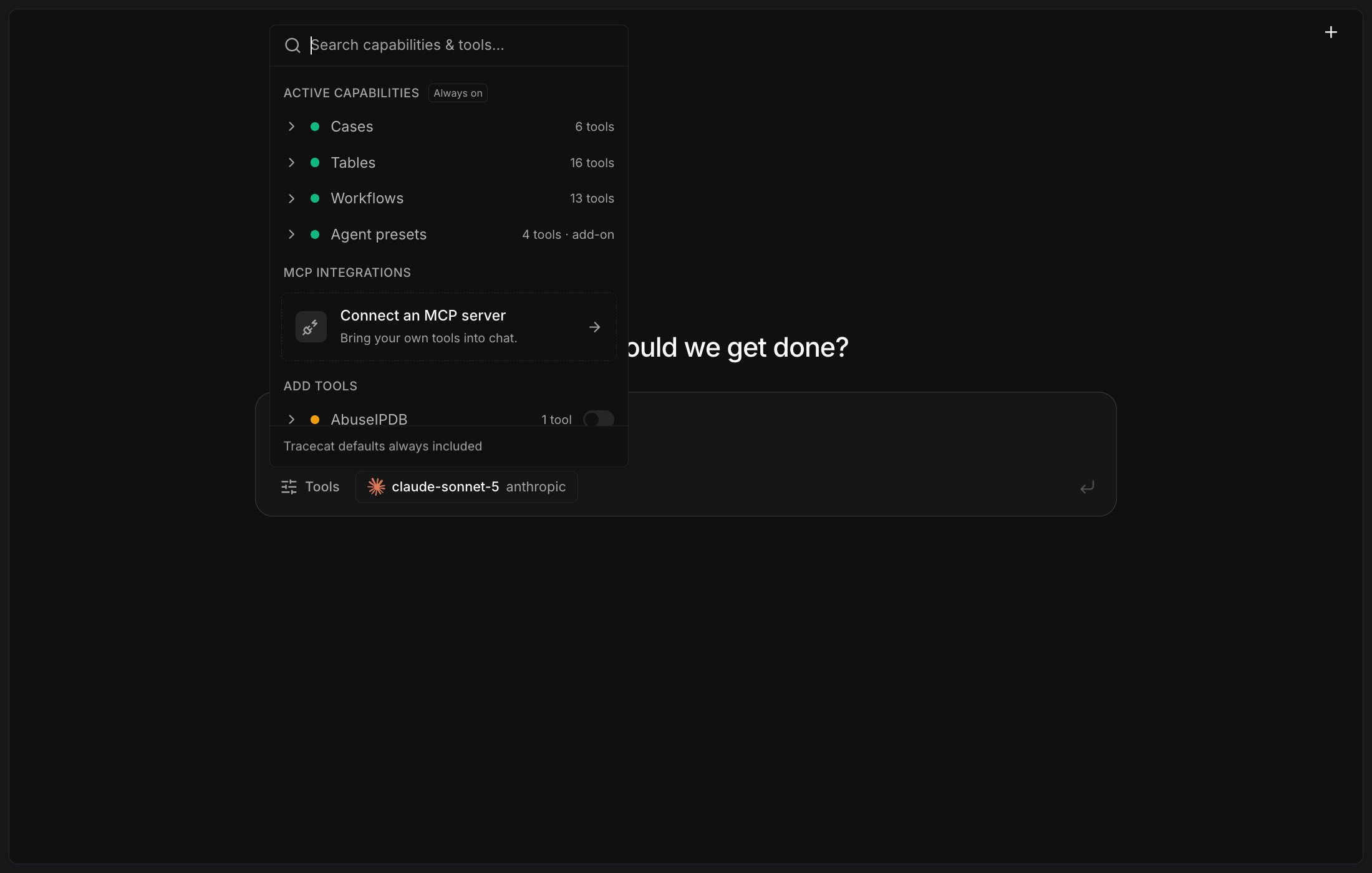
Select `Tools` to open the picker. Tracecat defaults are always included.
* In `Active capabilities`, `Cases`, `Tables`, and `Workflows` are on by default. Tracecat drops any tool your workspace role could not run itself, so a restricted role sees fewer.
* In `Add tools`, toggle individual tool groups on or off.
`MCP integrations` lists the servers your workspace configured itself, and `Connect an MCP server` adds one; see [MCP servers](/automations/integrations/mcp-integrations) to connect a remote or local one. Your workspace role needs `integration:read` to see the section.
The agent add-ons entitlement adds `Agent presets` to `Active capabilities`, as shown below, and the Tracecat-managed catalog connectors to `MCP integrations`.
## Set the default model
Go to `Organization > Settings > Agent`, connect a [provider](/agents/custom-llm-providers), and choose an organization default model. Until you set one, Tracecat disables the composer and links you to agent settings.
## Choose tools and MCP integrations
Select `Tools` to open the picker. Tracecat defaults are always included.
* In `Active capabilities`, `Cases`, `Tables`, and `Workflows` are on by default. Tracecat drops any tool your workspace role could not run itself, so a restricted role sees fewer.
* In `Add tools`, toggle individual tool groups on or off.
`MCP integrations` lists the servers your workspace configured itself, and `Connect an MCP server` adds one; see [MCP servers](/automations/integrations/mcp-integrations) to connect a remote or local one. Your workspace role needs `integration:read` to see the section.
The agent add-ons entitlement adds `Agent presets` to `Active capabilities`, as shown below, and the Tracecat-managed catalog connectors to `MCP integrations`.
 ## Mention an agent
Enterprise
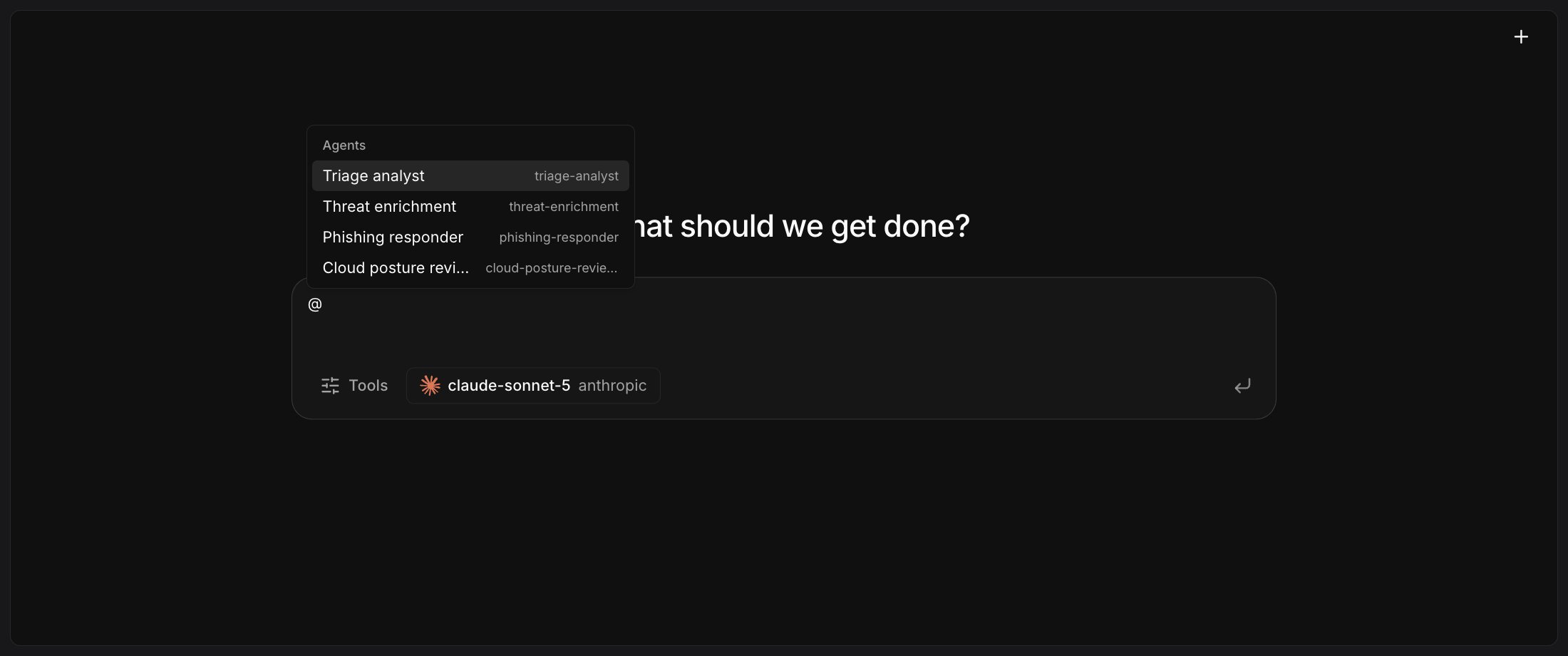
Focus the empty composer to show the `@ Mention agent` hint, then type `@` and select a preset agent from the list. Selecting the result sets that preset for the entire conversation, and the `@Agent name` text remains in the message you send.
The list keeps filtering as you type, including across the spaces in a name. It matches the agent name or its slug, which each row shows on the right.
Selecting a result is what binds the agent; typing a name as plain text does not.
A badge with the agent name replaces the hint until you clear it with `×`. A preset supplies its own tools, so `Tools` is unavailable while an agent is set.
Your workspace role needs `agent:read` and `agent:execute`. Without the agent add-ons entitlement, `@` opens the list with an Enterprise notice instead of agent names.
## Mention an agent
Enterprise
Focus the empty composer to show the `@ Mention agent` hint, then type `@` and select a preset agent from the list. Selecting the result sets that preset for the entire conversation, and the `@Agent name` text remains in the message you send.
The list keeps filtering as you type, including across the spaces in a name. It matches the agent name or its slug, which each row shows on the right.
Selecting a result is what binds the agent; typing a name as plain text does not.
A badge with the agent name replaces the hint until you clear it with `×`. A preset supplies its own tools, so `Tools` is unavailable while an agent is set.
Your workspace role needs `agent:read` and `agent:execute`. Without the agent add-ons entitlement, `@` opens the list with an Enterprise notice instead of agent names.
 ## Related pages
* See [Mention agents in case comments](/automations/cases/agent-mentions) to invoke a preset agent from a case thread.
* See [AI preset agent](/agents/ai-preset-agent) to configure a reusable agent preset.
## Related pages
* See [Mention agents in case comments](/automations/cases/agent-mentions) to invoke a preset agent from a case thread.
* See [AI preset agent](/agents/ai-preset-agent) to configure a reusable agent preset.