> ## Documentation Index
> Fetch the complete documentation index at: https://docs.tracecat.com/llms.txt
> Use this file to discover all available pages before exploring further.
# SCIM provisioning
> Provision users and groups from Okta, Microsoft Entra ID, or any SCIM 2.0 identity provider, and map synced groups onto Tracecat groups.
Enterprise Edition
## Overview
SCIM lets your identity provider (IdP) create, update, and remove Tracecat users and sync group membership. You manage it in Organization settings > SCIM.
SCIM provisioning requires the access control add-on and the `org:scim:manage` scope. Organization owners and admins hold this scope by default.
## How provisioning works
1. You generate a SCIM token in Tracecat and paste it, with the SCIM base URL, into your IdP.
2. Your IdP pushes users and groups. The connection stays pending; these pushes grant no new access until activation.
3. You map IdP groups onto Tracecat groups. While the connection is pending, mappings are drafts.
4. You review and activate. Tracecat admits active pushed users, revokes their pending invitations, removes inactive pushed users from the organization, and applies the draft mappings.
After activation, Tracecat applies IdP changes as they arrive. Mapping changes stay drafts until you review and apply them together.
## Connect your identity provider
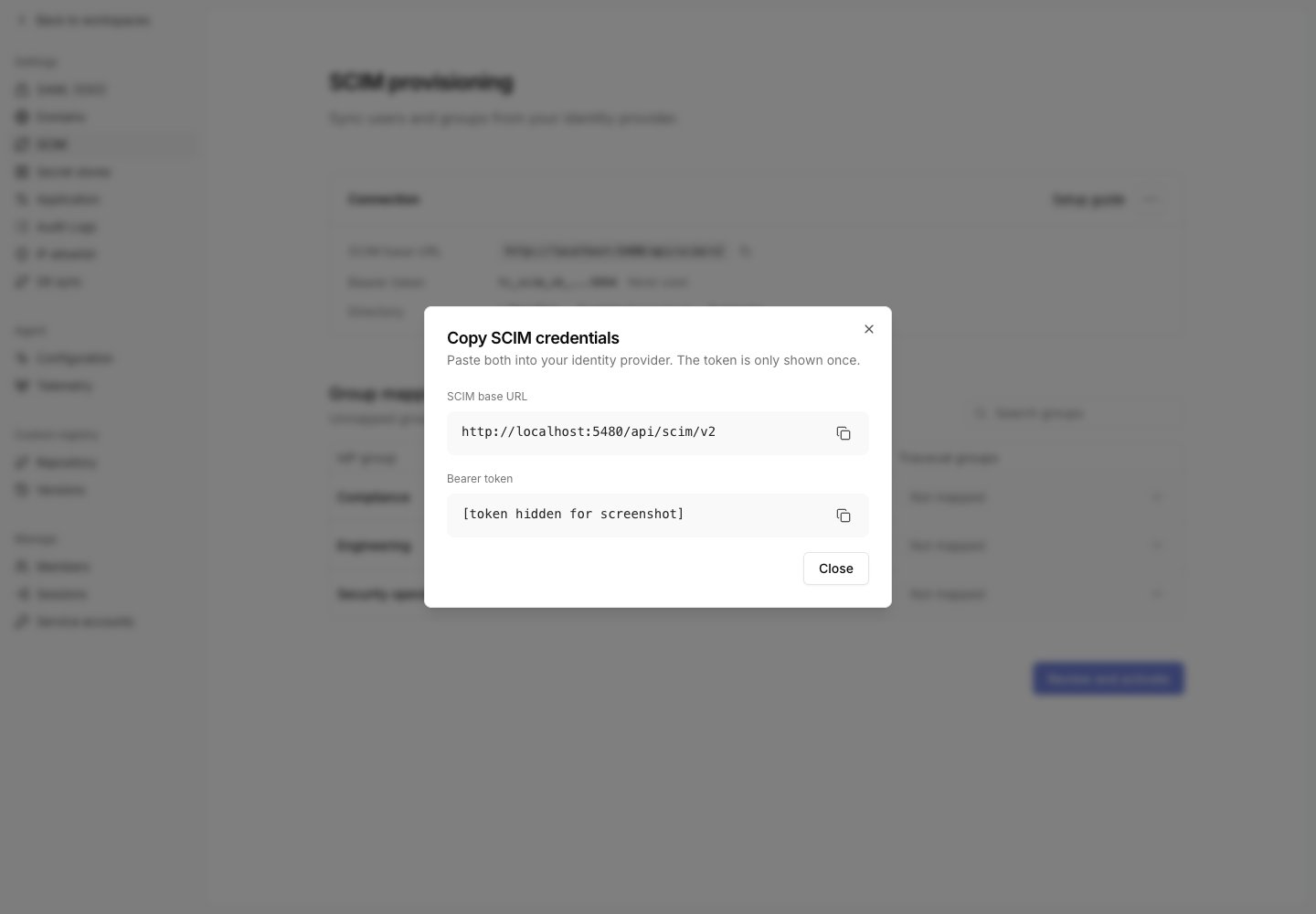
In Organization settings > SCIM, select `Generate token`. The `Copy SCIM credentials` dialog shows two values:
* `SCIM base URL`: `https:///api/scim/v2`
* `Bearer token`: shown once. Copy it before you close the dialog.
Your IdP sends the token as `Authorization: Bearer ` on every request. If your organization enforces an [IP allowlist](/manage-platform/ip-allowlist), add your IdP's egress addresses to it; Tracecat rejects SCIM requests from other addresses with `403`.
 ### Okta
Okta adds SCIM provisioning to an existing app integration. Create a SAML app for Tracecat first, as described in [SAML SSO](/authentication/saml#okta).
Open the Tracecat app, go to the **General** tab, and select **Edit** under **App Settings**.
Set **Provisioning** to **SCIM** and select **Save**.
Go to the **Provisioning** tab and select **Edit** under **Settings > Integration**.
* Set **SCIM connector base URL** to your SCIM base URL.
* Set **Unique identifier field for users** to `userName`.
* Select **Push New Users**, **Push Profile Updates**, and **Push Groups**.
* Set **Authentication Mode** to **HTTP Header** and paste the bearer token into **Authorization**.
Select **Test Connector Configuration**, then **Save**.
Under **Settings > To App**, select **Edit** and enable **Create Users**, **Update User Attributes**, and **Deactivate Users**.
Assign users or groups on the **Assignments** tab.
On the **Push Groups** tab, push the groups you want to map in Tracecat.
### Microsoft Entra ID
In the Microsoft Entra admin center, go to **Entra ID > Enterprise apps**.
Select **New application > Create your own application**, choose **Integrate any other application you don't find in the gallery**, and select **Add**.
Select **Provisioning** and create a new configuration.
* Set **Tenant URL** to your SCIM base URL.
* Paste the bearer token into **Secret Token**.
Select **Test Connection**, then save the configuration.
Under **Attribute mapping**, open the user mapping. Tracecat uses `userName` as the login email.
If your user principal names differ from email addresses, map `userName` to `mail`.
On the **Users and groups** tab, assign the users and groups to provision.
Go to **Overview** and select **Start provisioning**.
Entra ID syncs on a fixed cycle, so pushed users and groups can take up to 40 minutes to appear.
### Other providers
Any IdP that speaks SCIM 2.0 with bearer token authentication works. Configure it with:
* Base URL: your SCIM base URL.
* Authentication: HTTP header, `Authorization: Bearer `.
* User identifier: `userName`, set to the user's email address.
* Resources: `Users` and `Groups`.
Tracecat supports `GET`, `POST`, `PUT`, `PATCH`, and `DELETE` on both resources, `userName eq` filters on users, and `displayName eq` filters on groups.
## Map groups
Create your target groups and assign their roles in [Custom roles and groups](/manage-platform/custom-roles) first.
The `Group mappings` table lists pushed IdP groups, with an arrow pointing to each group's Tracecat targets. The Connection card shows the directory's user, inactive-user, and group counts.
1. Find your IdP group in the table. Use `Load more groups` when available; `Search groups` filters the groups already loaded.
2. Open the dropdown in the `Tracecat groups` column and select one or more target groups. Each selected target appears by name, in alphabetical order. Select a checked group again to remove that mapping.
3. Check the draft count below the table. Select `Discard drafts` to undo your changes.
You can map several IdP groups to the same Tracecat group. Their memberships combine. An unmapped IdP group grants no group access.
### Okta
Okta adds SCIM provisioning to an existing app integration. Create a SAML app for Tracecat first, as described in [SAML SSO](/authentication/saml#okta).
Open the Tracecat app, go to the **General** tab, and select **Edit** under **App Settings**.
Set **Provisioning** to **SCIM** and select **Save**.
Go to the **Provisioning** tab and select **Edit** under **Settings > Integration**.
* Set **SCIM connector base URL** to your SCIM base URL.
* Set **Unique identifier field for users** to `userName`.
* Select **Push New Users**, **Push Profile Updates**, and **Push Groups**.
* Set **Authentication Mode** to **HTTP Header** and paste the bearer token into **Authorization**.
Select **Test Connector Configuration**, then **Save**.
Under **Settings > To App**, select **Edit** and enable **Create Users**, **Update User Attributes**, and **Deactivate Users**.
Assign users or groups on the **Assignments** tab.
On the **Push Groups** tab, push the groups you want to map in Tracecat.
### Microsoft Entra ID
In the Microsoft Entra admin center, go to **Entra ID > Enterprise apps**.
Select **New application > Create your own application**, choose **Integrate any other application you don't find in the gallery**, and select **Add**.
Select **Provisioning** and create a new configuration.
* Set **Tenant URL** to your SCIM base URL.
* Paste the bearer token into **Secret Token**.
Select **Test Connection**, then save the configuration.
Under **Attribute mapping**, open the user mapping. Tracecat uses `userName` as the login email.
If your user principal names differ from email addresses, map `userName` to `mail`.
On the **Users and groups** tab, assign the users and groups to provision.
Go to **Overview** and select **Start provisioning**.
Entra ID syncs on a fixed cycle, so pushed users and groups can take up to 40 minutes to appear.
### Other providers
Any IdP that speaks SCIM 2.0 with bearer token authentication works. Configure it with:
* Base URL: your SCIM base URL.
* Authentication: HTTP header, `Authorization: Bearer `.
* User identifier: `userName`, set to the user's email address.
* Resources: `Users` and `Groups`.
Tracecat supports `GET`, `POST`, `PUT`, `PATCH`, and `DELETE` on both resources, `userName eq` filters on users, and `displayName eq` filters on groups.
## Map groups
Create your target groups and assign their roles in [Custom roles and groups](/manage-platform/custom-roles) first.
The `Group mappings` table lists pushed IdP groups, with an arrow pointing to each group's Tracecat targets. The Connection card shows the directory's user, inactive-user, and group counts.
1. Find your IdP group in the table. Use `Load more groups` when available; `Search groups` filters the groups already loaded.
2. Open the dropdown in the `Tracecat groups` column and select one or more target groups. Each selected target appears by name, in alphabetical order. Select a checked group again to remove that mapping.
3. Check the draft count below the table. Select `Discard drafts` to undo your changes.
You can map several IdP groups to the same Tracecat group. Their memberships combine. An unmapped IdP group grants no group access.
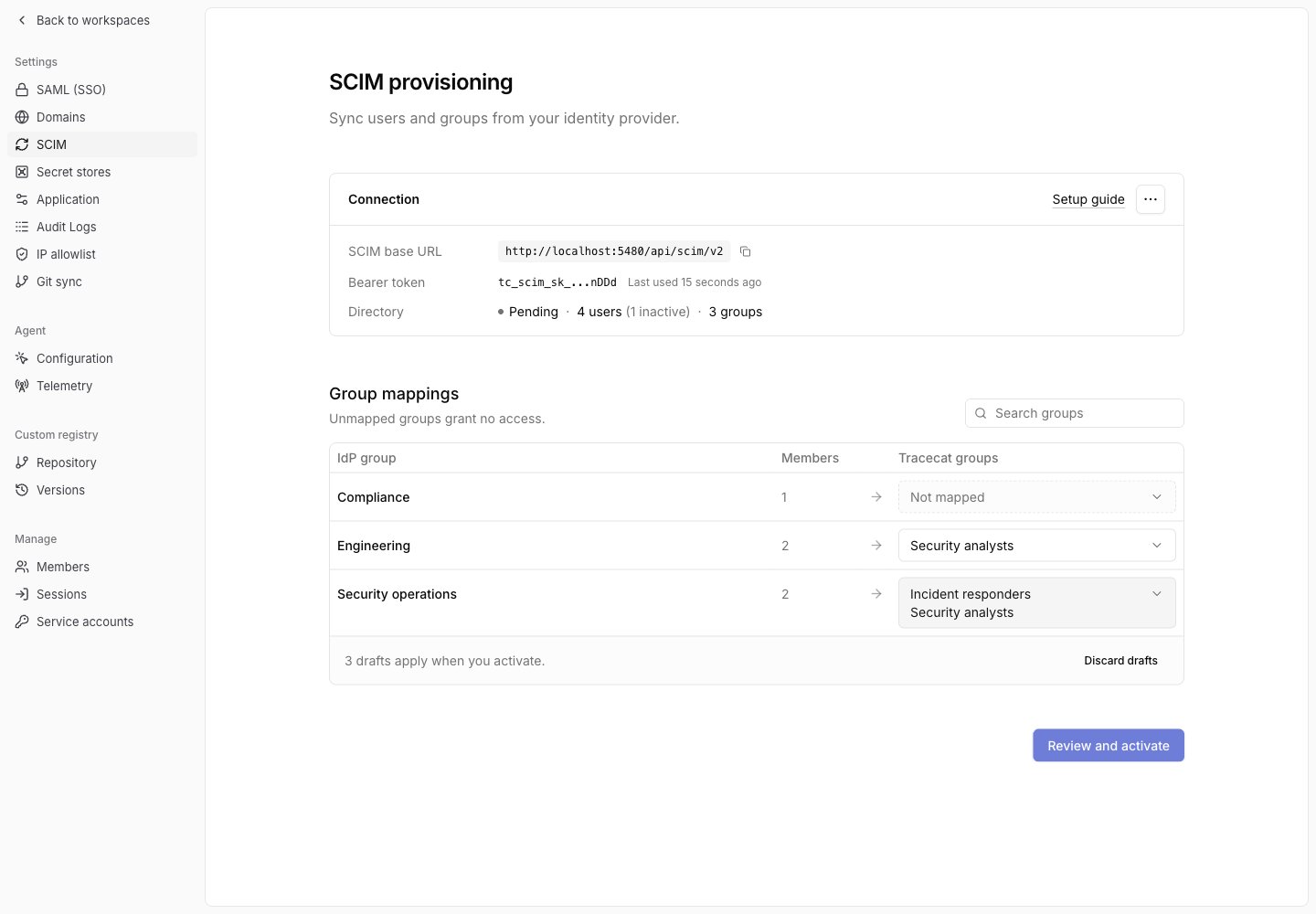 Drafts remain on the current page until you apply or discard them. Reloading or leaving the page discards unapplied changes.
When a mapping applies, your IdP takes over membership of the Tracecat group:
* Manual members who are also in the IdP group keep access through the IdP group.
* Manual members who are not in the IdP group lose access through that Tracecat group.
* Access from other roles and groups is unchanged.
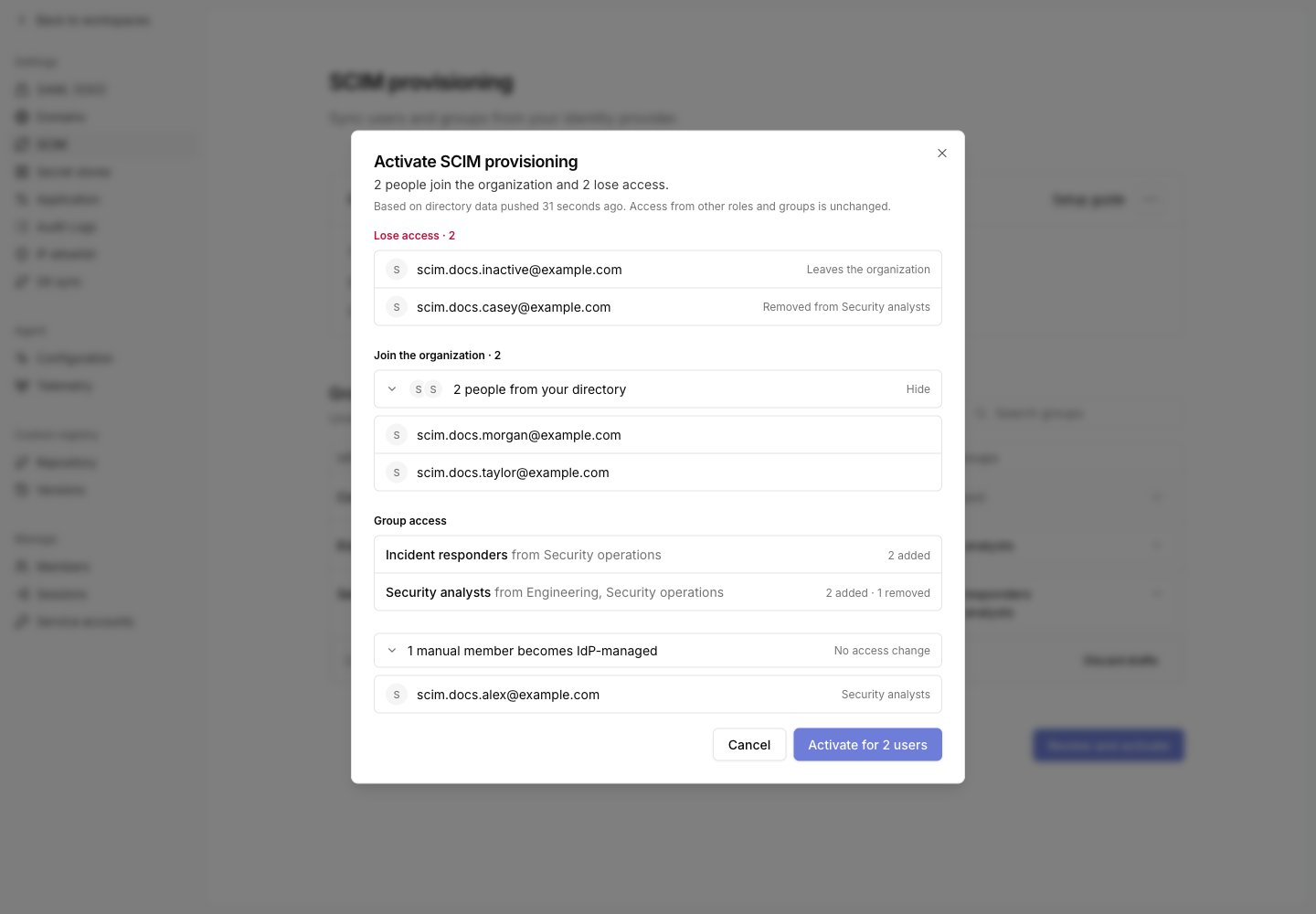
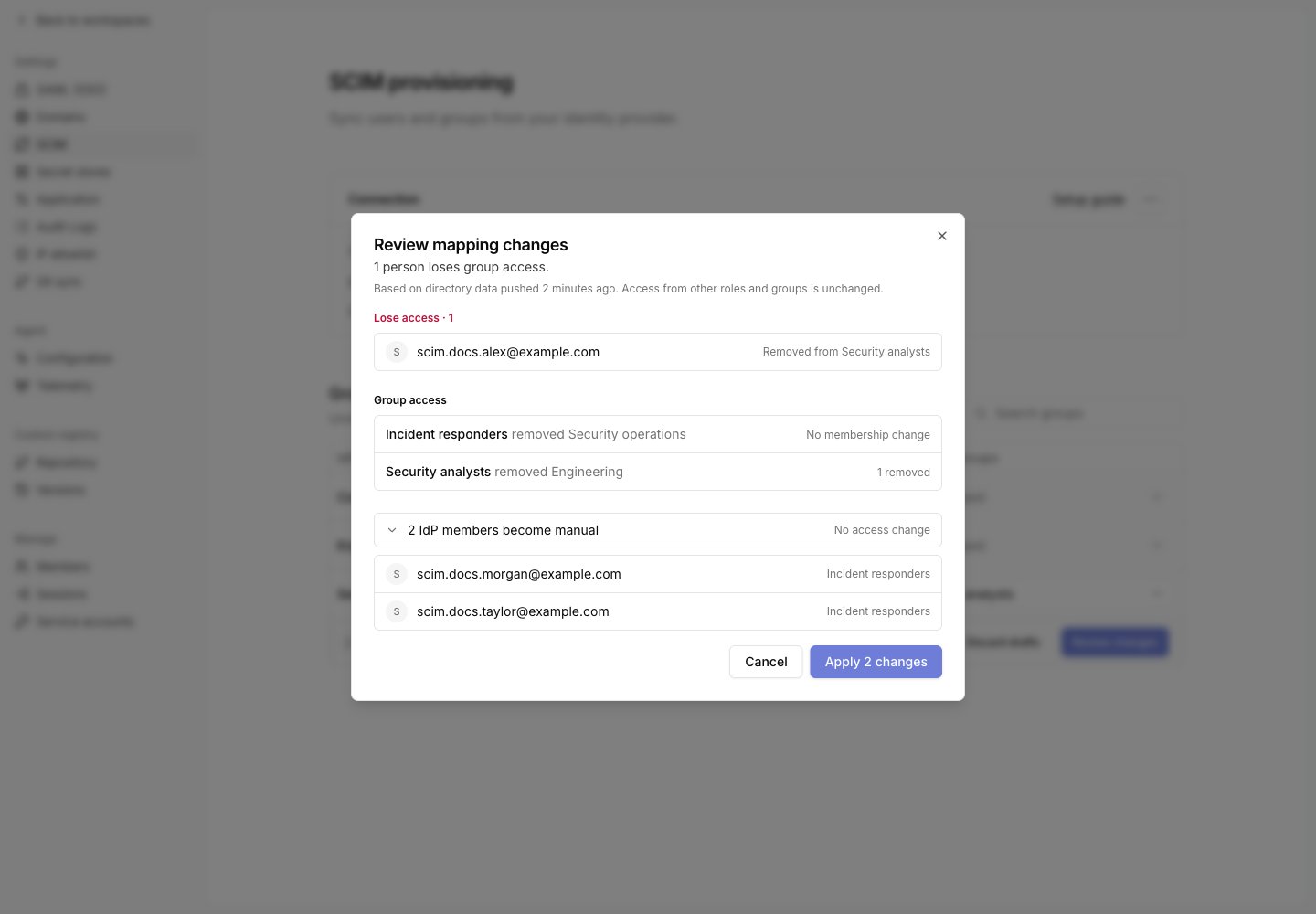
The review dialog groups changes by outcome. Everyone who loses access is listed first, then people joining the organization, then each Tracecat group with its added and removed member counts. Lists show the first 10 people; select `Show all` to load everyone.
Removing the last mapping for a Tracecat group keeps its current members as manual members. Removing one of several mappings removes only the members that mapping supplied.
## Review and activate
While the status is `Pending`, select `Review and activate` at the bottom of the page.
1. Check `Lose access` for inactive users who will leave the organization and members who will lose a Tracecat group.
2. Expand `Join the organization` to see the active users activation admits.
3. Review `Group access` for each Tracecat group's added and removed member counts.
4. Select `Activate for N users` to apply the directory and mappings together.
Activation removes existing organization members that your IdP pushed as inactive, including their direct roles and manual group memberships in this organization.
Drafts remain on the current page until you apply or discard them. Reloading or leaving the page discards unapplied changes.
When a mapping applies, your IdP takes over membership of the Tracecat group:
* Manual members who are also in the IdP group keep access through the IdP group.
* Manual members who are not in the IdP group lose access through that Tracecat group.
* Access from other roles and groups is unchanged.
The review dialog groups changes by outcome. Everyone who loses access is listed first, then people joining the organization, then each Tracecat group with its added and removed member counts. Lists show the first 10 people; select `Show all` to load everyone.
Removing the last mapping for a Tracecat group keeps its current members as manual members. Removing one of several mappings removes only the members that mapping supplied.
## Review and activate
While the status is `Pending`, select `Review and activate` at the bottom of the page.
1. Check `Lose access` for inactive users who will leave the organization and members who will lose a Tracecat group.
2. Expand `Join the organization` to see the active users activation admits.
3. Review `Group access` for each Tracecat group's added and removed member counts.
4. Select `Activate for N users` to apply the directory and mappings together.
Activation removes existing organization members that your IdP pushed as inactive, including their direct roles and manual group memberships in this organization.
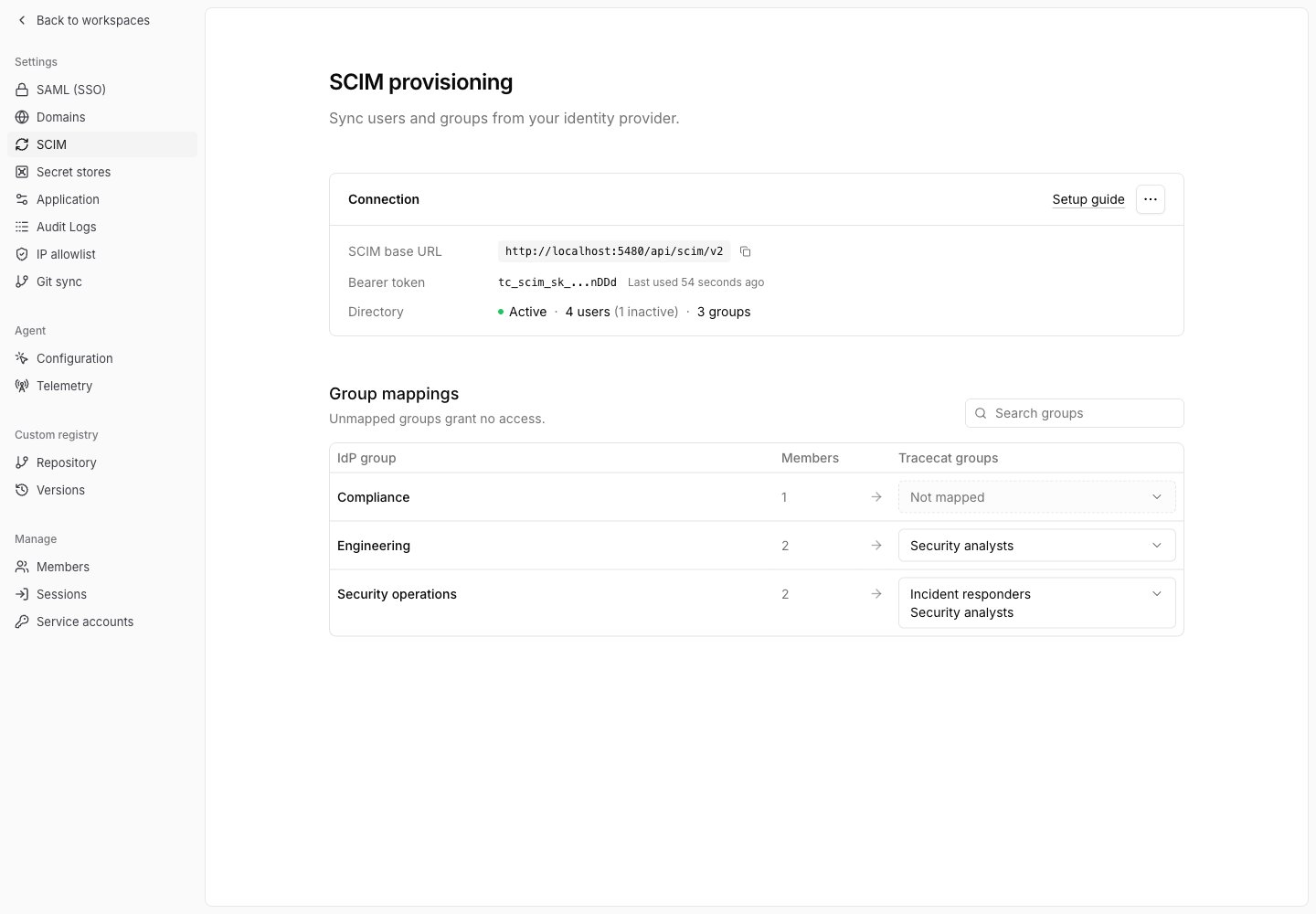
 The status changes to `Active`. Subsequent IdP pushes apply as they arrive.
 ## Change active mappings
Use the same group dropdowns to add or remove mappings. Changes stay as drafts until you select `Review changes` below the table.
Check who loses access and each Tracecat group's added and removed member counts, then select `Apply N changes`. Select `Cancel` to return to your drafts.
## Change active mappings
Use the same group dropdowns to add or remove mappings. Changes stay as drafts until you select `Review changes` below the table.
Check who loses access and each Tracecat group's added and removed member counts, then select `Apply N changes`. Select `Cancel` to return to your drafts.
 ## Deprovisioning
When your IdP deactivates a user, sets `active` to `false`, or deletes the user, Tracecat removes that user from this organization. The user keeps any membership in other organizations.
## Manage the connection
Open the three-dot `Connection actions` menu in the Connection card.
* Rotate token: issues a new token. The current token stops working immediately, so provisioning fails until you paste the new token into your IdP.
* Disconnect: revokes the token, removes every group mapping, deletes the SCIM records for the users and groups your IdP pushed, and marks the connection disconnected. Members of mapped groups stay as manual members, and pushed users stay in the organization. To reconnect, generate a new token, push users and groups from your IdP again, then review and activate.
## Limitations
* Changing `userName` renames the user's Tracecat sign-in email in every organization. The new address must be at a domain this organization owns and unused by another account, and any primary `emails` value must equal `userName`.
* Tracecat rejects provisioning or renaming a platform superuser with `403`. Leave superusers out of your IdP's SCIM assignment; they keep signing in without SCIM.
* Bulk operations, sorting, ETags, and password changes are not supported.
* Each organization has one SCIM connection.
## Related pages
* See [SAML SSO](/authentication/saml) to set up sign-in for the users you provision.
* See [Custom roles and groups](/manage-platform/custom-roles) to create the Tracecat groups you map IdP groups onto.
## Deprovisioning
When your IdP deactivates a user, sets `active` to `false`, or deletes the user, Tracecat removes that user from this organization. The user keeps any membership in other organizations.
## Manage the connection
Open the three-dot `Connection actions` menu in the Connection card.
* Rotate token: issues a new token. The current token stops working immediately, so provisioning fails until you paste the new token into your IdP.
* Disconnect: revokes the token, removes every group mapping, deletes the SCIM records for the users and groups your IdP pushed, and marks the connection disconnected. Members of mapped groups stay as manual members, and pushed users stay in the organization. To reconnect, generate a new token, push users and groups from your IdP again, then review and activate.
## Limitations
* Changing `userName` renames the user's Tracecat sign-in email in every organization. The new address must be at a domain this organization owns and unused by another account, and any primary `emails` value must equal `userName`.
* Tracecat rejects provisioning or renaming a platform superuser with `403`. Leave superusers out of your IdP's SCIM assignment; they keep signing in without SCIM.
* Bulk operations, sorting, ETags, and password changes are not supported.
* Each organization has one SCIM connection.
## Related pages
* See [SAML SSO](/authentication/saml) to set up sign-in for the users you provision.
* See [Custom roles and groups](/manage-platform/custom-roles) to create the Tracecat groups you map IdP groups onto.