> ## Documentation Index
> Fetch the complete documentation index at: https://docs.tracecat.com/llms.txt
> Use this file to discover all available pages before exploring further.
# Cases
> Track and resolve Tracecat cases: triage alerts, run agents and workflows on case events, manage tasks and comments, and report on outcomes.
Cases give you a shared place to triage, investigate, and resolve work.
You can use them to keep status, evidence, comments, and follow-up work together in one record.
## Features
Create, update, search, assign, tag, and delete cases.
Add comments, replies, and thread lookups.
Upload, list, download, and delete case attachments.
EE
Add todo items with attachable workflows.
EE
Link structured data to cases.
EE
Track custom case metrics.
## Working with cases
Use a case when you need a durable investigation record instead of a single workflow run.
Your workflows can create or update a case, attach evidence, add comments, and move the case forward as new context arrives.
* Track the current owner, severity, priority, and status in one place
* Add comments and replies so analysts and workflows share the same timeline
* Store evidence as attachments instead of passing large blobs between actions
* Link structured rows, tasks, and metrics to keep investigation context organized
## Tags
Tags help you group and find related cases.
You can use them to label incidents by team, detection source, campaign, environment, or any other shared dimension.
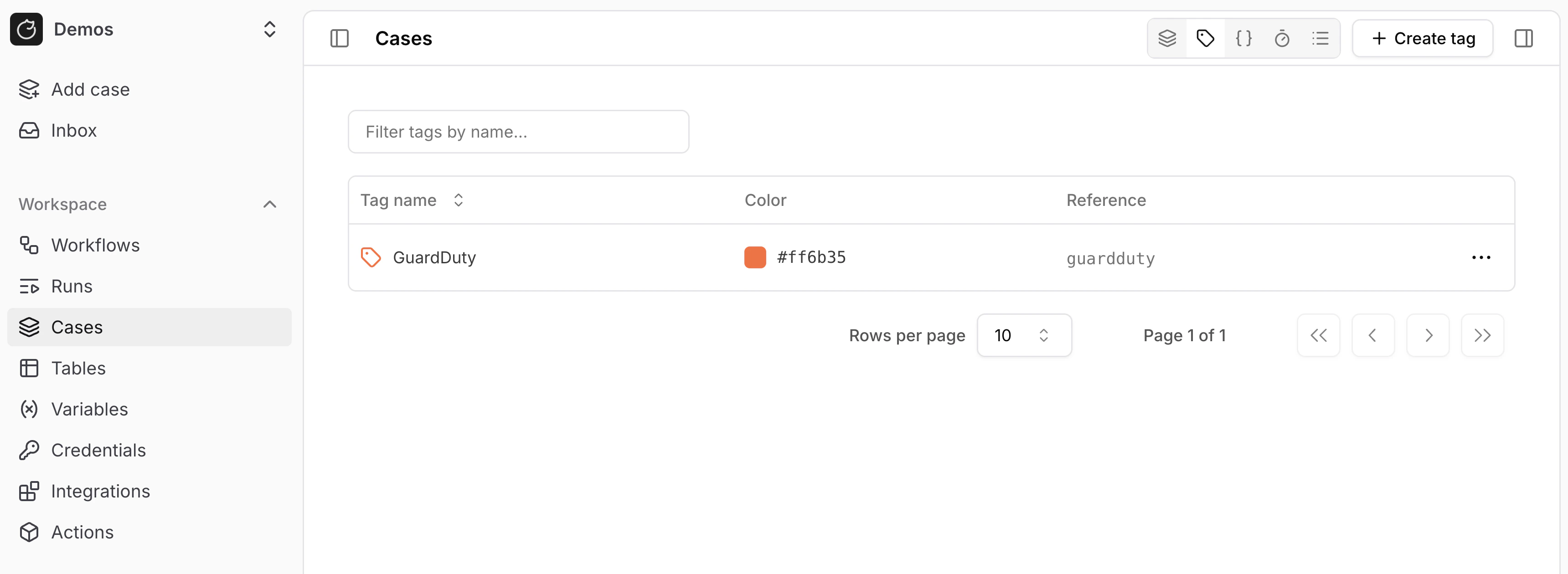 Tags work well when you want lightweight organization across many cases.
You can also set tags from workflows with `core.cases.create_case` and `core.cases.update_case`.
## Custom fields
Custom fields let you store case-specific data that does not fit into the default case properties.
You can use them for values such as ticket IDs, affected systems, request metadata, or triage notes.
Tags work well when you want lightweight organization across many cases.
You can also set tags from workflows with `core.cases.create_case` and `core.cases.update_case`.
## Custom fields
Custom fields let you store case-specific data that does not fit into the default case properties.
You can use them for values such as ticket IDs, affected systems, request metadata, or triage notes.
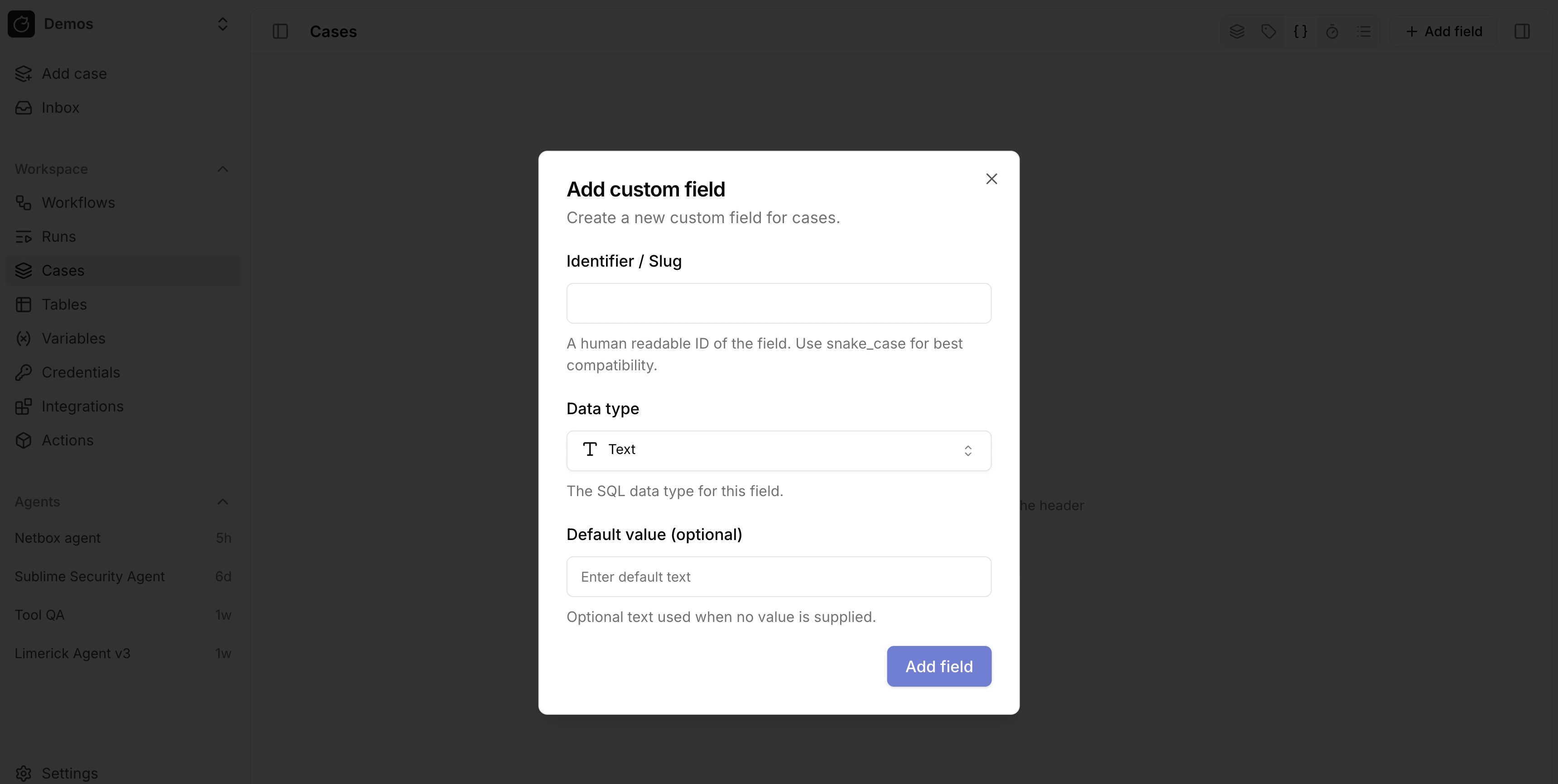 Use custom fields when you need flexible structured data on a case.
Your workflows can read and update them through the `fields` input on case actions.
Case custom fields use the same storage type family as tables: `TEXT`, `INTEGER`, `NUMERIC`, `BOOLEAN`, `DATE`, `TIMESTAMPTZ`, `JSONB`, `SELECT`, and `MULTI_SELECT`.
In the case field picker, raw `JSONB` is currently surfaced through the case-only `URL` kind, and the picker also exposes `Long text`, which is layered on top of `TEXT`.
## AI copilot in a case
Open source
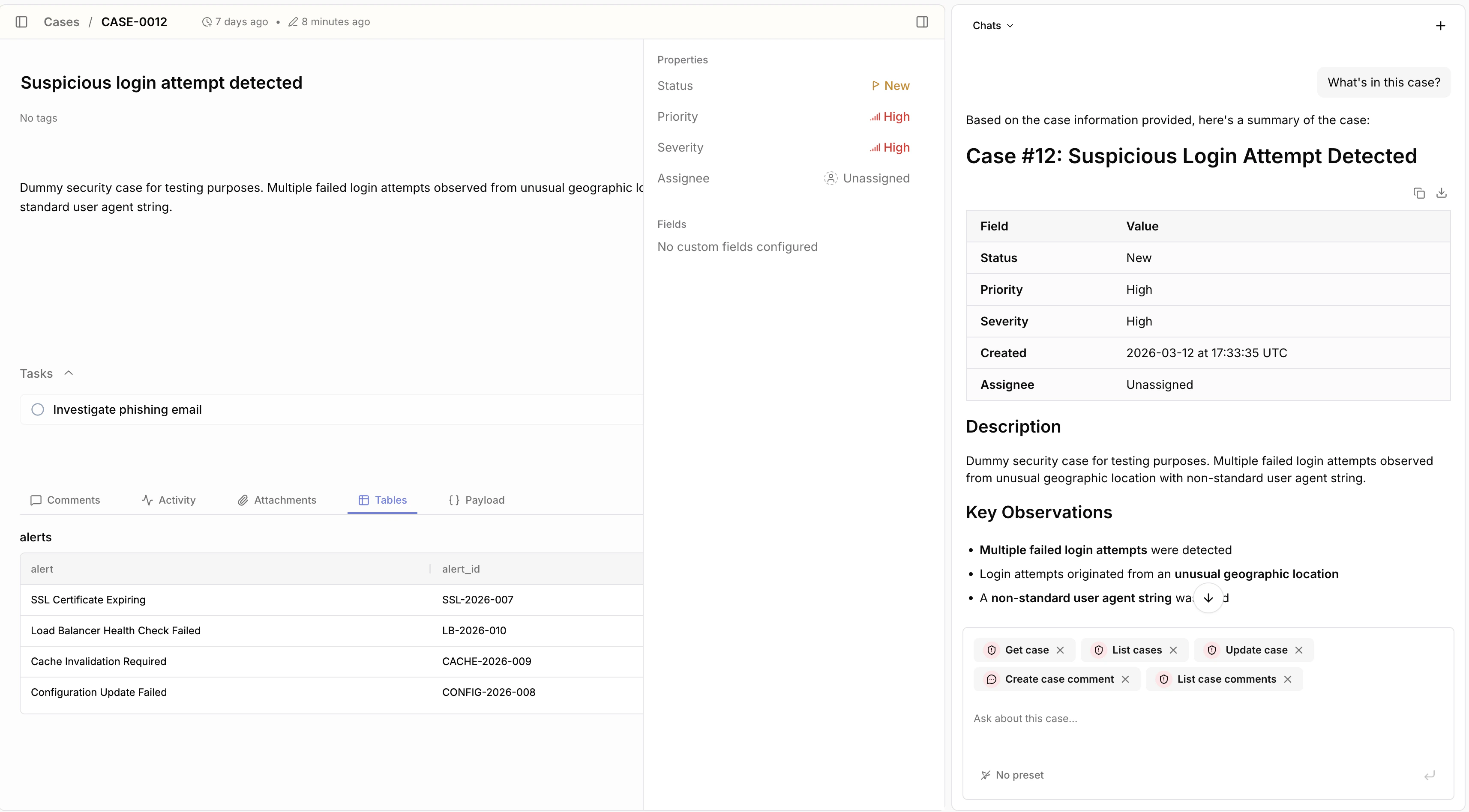
The AI copilot lets you work inside a case instead of switching to a separate chat tool.
You can use it to summarize activity, answer questions, and draft next steps from the case timeline, linked evidence, and workflow output.
Use custom fields when you need flexible structured data on a case.
Your workflows can read and update them through the `fields` input on case actions.
Case custom fields use the same storage type family as tables: `TEXT`, `INTEGER`, `NUMERIC`, `BOOLEAN`, `DATE`, `TIMESTAMPTZ`, `JSONB`, `SELECT`, and `MULTI_SELECT`.
In the case field picker, raw `JSONB` is currently surfaced through the case-only `URL` kind, and the picker also exposes `Long text`, which is layered on top of `TEXT`.
## AI copilot in a case
Open source
The AI copilot lets you work inside a case instead of switching to a separate chat tool.
You can use it to summarize activity, answer questions, and draft next steps from the case timeline, linked evidence, and workflow output.
 ## AI copilot across cases
Enterprise
Enterprise extends the copilot beyond a single case.
You can use it to correlate related cases, compare investigation history, and surface patterns across incidents.
This is useful when you want to:
* Correlate repeated alerts across multiple cases
* Spot shared indicators, assets, or actors
* Find similar investigations before you start a new one
* Build broader investigation context across your case queue
## Dropdowns
Enterprise
Dropdowns add custom top-level case filters alongside built-in filters such as status, priority, and severity.
You can use them to add workspace-specific classifications such as queue, business unit, incident type, or escalation path.
## AI copilot across cases
Enterprise
Enterprise extends the copilot beyond a single case.
You can use it to correlate related cases, compare investigation history, and surface patterns across incidents.
This is useful when you want to:
* Correlate repeated alerts across multiple cases
* Spot shared indicators, assets, or actors
* Find similar investigations before you start a new one
* Build broader investigation context across your case queue
## Dropdowns
Enterprise
Dropdowns add custom top-level case filters alongside built-in filters such as status, priority, and severity.
You can use them to add workspace-specific classifications such as queue, business unit, incident type, or escalation path.
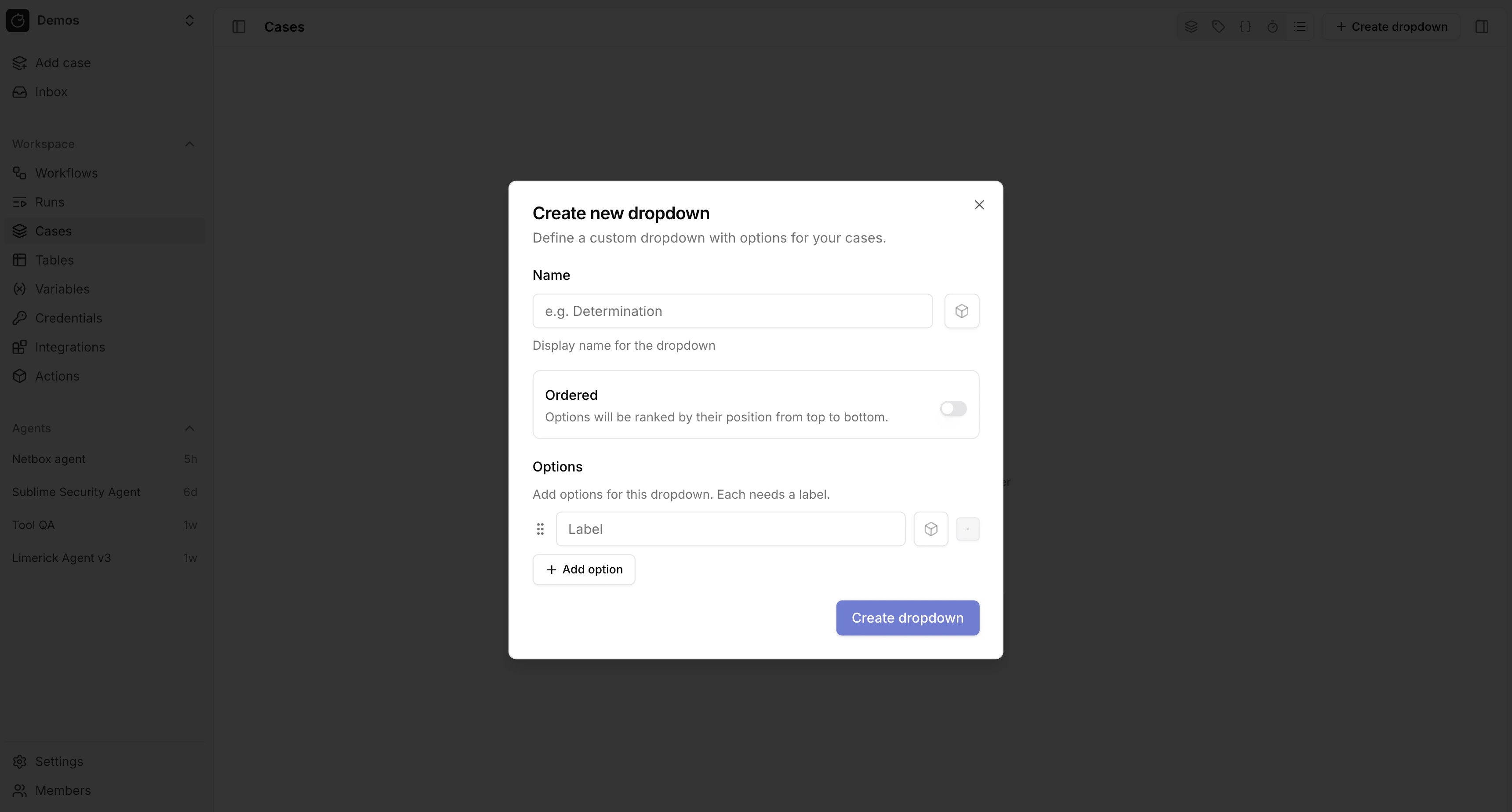 Unlike free-form fields, dropdowns give you a fixed set of options.
This makes them useful when you want consistent filtering, routing, and reporting across your case queue.
## Durations
Enterprise
Durations track elapsed time between case events.
You can use them to measure intervals such as time to triage, time to assign, or time to resolution.
Unlike free-form fields, dropdowns give you a fixed set of options.
This makes them useful when you want consistent filtering, routing, and reporting across your case queue.
## Durations
Enterprise
Durations track elapsed time between case events.
You can use them to measure intervals such as time to triage, time to assign, or time to resolution.
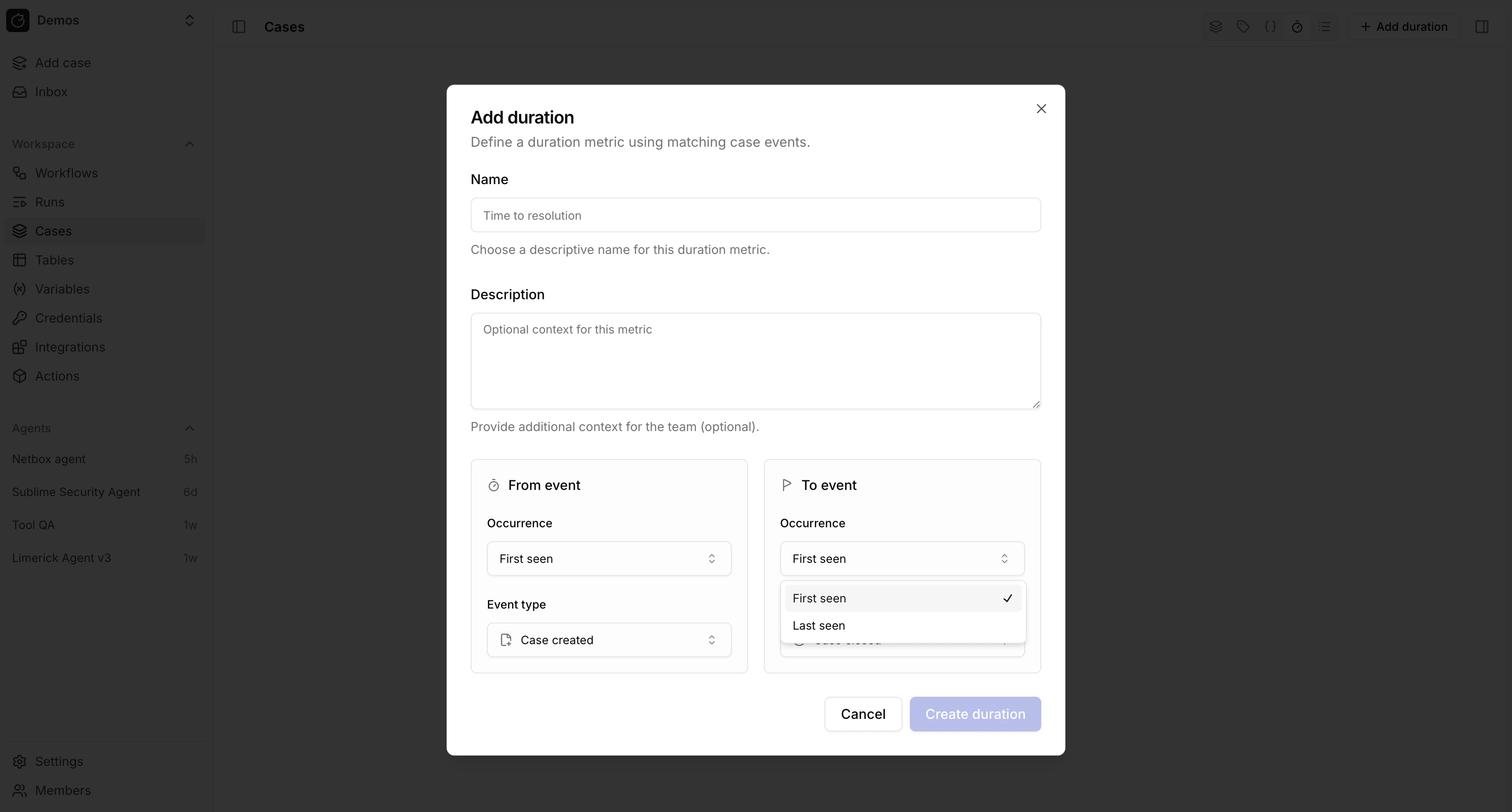 Durations help you understand how cases move through your process.
They are useful when you want operational reporting or workflow triggers based on how long a case has been in a given state.
## Tasks
Enterprise
Tasks let you break an investigation into concrete follow-up work.
They work well for analyst handoffs, evidence requests, and repeatable remediation steps.
Durations help you understand how cases move through your process.
They are useful when you want operational reporting or workflow triggers based on how long a case has been in a given state.
## Tasks
Enterprise
Tasks let you break an investigation into concrete follow-up work.
They work well for analyst handoffs, evidence requests, and repeatable remediation steps.
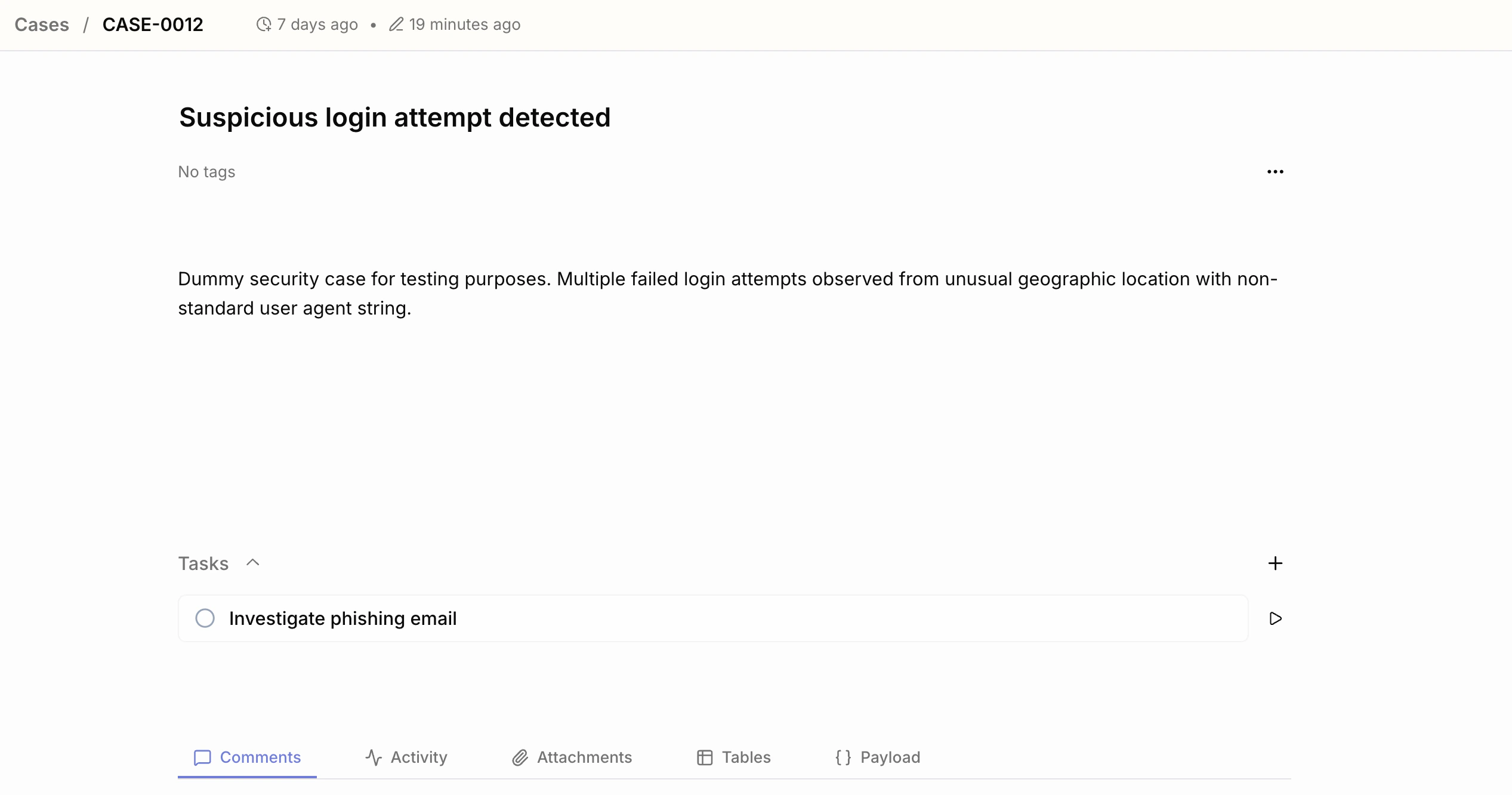 Use tasks to:
* Assign work to a person or queue
* Capture checklist-style next steps
* Attach workflows to routine case operations
* Keep completion state visible alongside comments and evidence
## Linked rows
Enterprise
Linked rows connect a case to structured data in tables.
Use them when a case needs more than free-form notes, such as indicators, assets, or external detections.
Use tasks to:
* Assign work to a person or queue
* Capture checklist-style next steps
* Attach workflows to routine case operations
* Keep completion state visible alongside comments and evidence
## Linked rows
Enterprise
Linked rows connect a case to structured data in tables.
Use them when a case needs more than free-form notes, such as indicators, assets, or external detections.
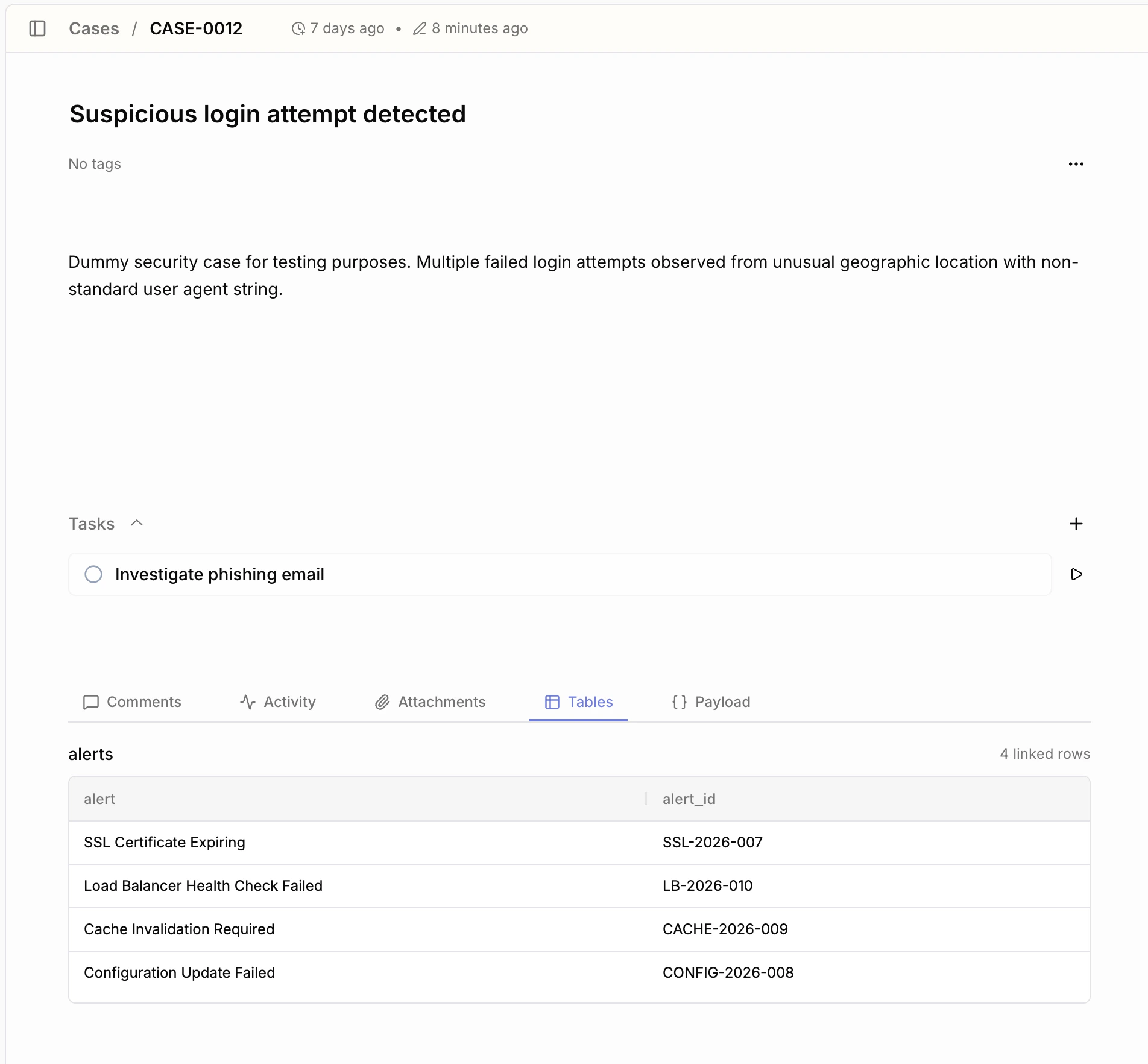 For example, you can link:
* Related SIEM alerts
* Indicators of compromise (IoCs)
* Affected assets such as hosts, users, or devices
* Threat intelligence matches
* Evidence artifacts such as domains, IPs, or hashes
Linked rows are especially useful when workflows enrich a case over time.
You can insert new rows as evidence arrives or link existing rows that are already part of another workflow or lookup table.
Linked rows use regular tables.
When you create a table for case-linked evidence, use the same `columns` JSON schema documented in [Tables](/automations/tables) and [Table actions](/automations/core-actions/memory-actions/tables).
## Case actions
Use `core.cases.*` actions when you want your workflows to create or update cases.
* [Cases](/automations/core-actions/case-actions/cases) to create, fetch, update, search, and delete cases
* [Comments](/automations/core-actions/case-actions/comments) to add analyst or workflow notes
* [Attachments](/automations/core-actions/case-actions/attachments) to upload and retrieve evidence files
* [Tasks](/automations/core-actions/case-actions/tasks) for case task management in Enterprise
* [Linked rows](/automations/core-actions/case-actions/linked-rows) to connect case records to tables in Enterprise
* [Metrics](/automations/core-actions/case-actions/metrics) for custom case measurements in Enterprise
For example:
```yaml theme={null}
- ref: create_case
action: core.cases.create_case
args:
summary: "Investigate alert ${{ TRIGGER.alert_id }}"
description: "Created from the SIEM alert pipeline."
priority: high
severity: high
tags:
- triage
- ref: add_triage_note
action: core.cases.create_comment
args:
case_id: ${{ ACTIONS.create_case.result.id }}
content: "Automated triage started."
```
For example, you can link:
* Related SIEM alerts
* Indicators of compromise (IoCs)
* Affected assets such as hosts, users, or devices
* Threat intelligence matches
* Evidence artifacts such as domains, IPs, or hashes
Linked rows are especially useful when workflows enrich a case over time.
You can insert new rows as evidence arrives or link existing rows that are already part of another workflow or lookup table.
Linked rows use regular tables.
When you create a table for case-linked evidence, use the same `columns` JSON schema documented in [Tables](/automations/tables) and [Table actions](/automations/core-actions/memory-actions/tables).
## Case actions
Use `core.cases.*` actions when you want your workflows to create or update cases.
* [Cases](/automations/core-actions/case-actions/cases) to create, fetch, update, search, and delete cases
* [Comments](/automations/core-actions/case-actions/comments) to add analyst or workflow notes
* [Attachments](/automations/core-actions/case-actions/attachments) to upload and retrieve evidence files
* [Tasks](/automations/core-actions/case-actions/tasks) for case task management in Enterprise
* [Linked rows](/automations/core-actions/case-actions/linked-rows) to connect case records to tables in Enterprise
* [Metrics](/automations/core-actions/case-actions/metrics) for custom case measurements in Enterprise
For example:
```yaml theme={null}
- ref: create_case
action: core.cases.create_case
args:
summary: "Investigate alert ${{ TRIGGER.alert_id }}"
description: "Created from the SIEM alert pipeline."
priority: high
severity: high
tags:
- triage
- ref: add_triage_note
action: core.cases.create_comment
args:
case_id: ${{ ACTIONS.create_case.result.id }}
content: "Automated triage started."
```