> ## Documentation Index
> Fetch the complete documentation index at: https://docs.tracecat.com/llms.txt
> Use this file to discover all available pages before exploring further.
# Linked tables
> Link table rows to a case to keep structured evidence such as indicators, assets, and detections with the investigation.
Enterprise Edition
Link table rows to a case to connect it to structured data.
Use them when a case needs more than free-form notes, such as indicators, assets, or external detections.
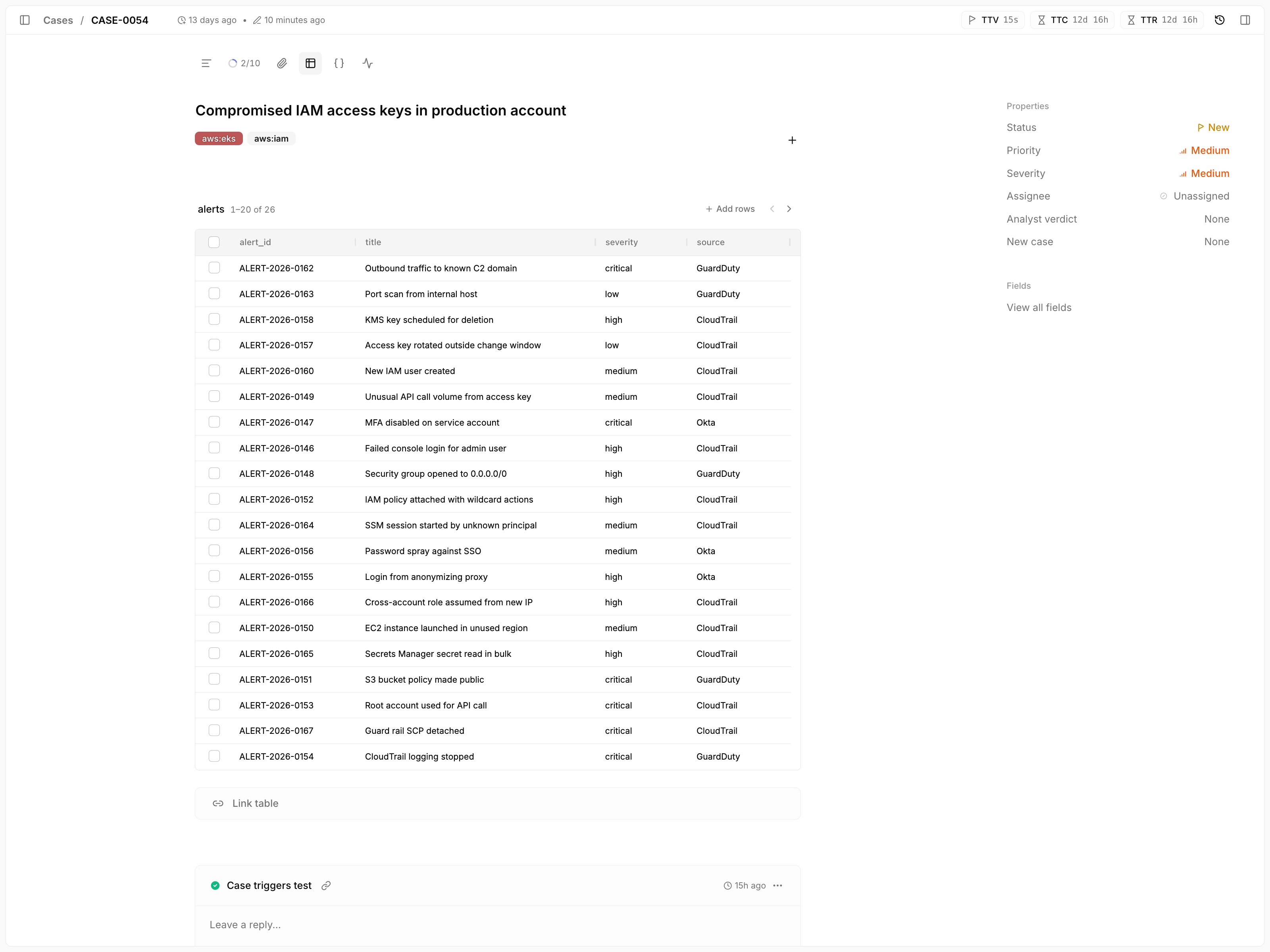 Each linked table renders as its own grid in the case's Tables tab, 20 rows at a time; page with the arrows in the table header. To link rows from the case page:
Open the case and select the Tables tab.
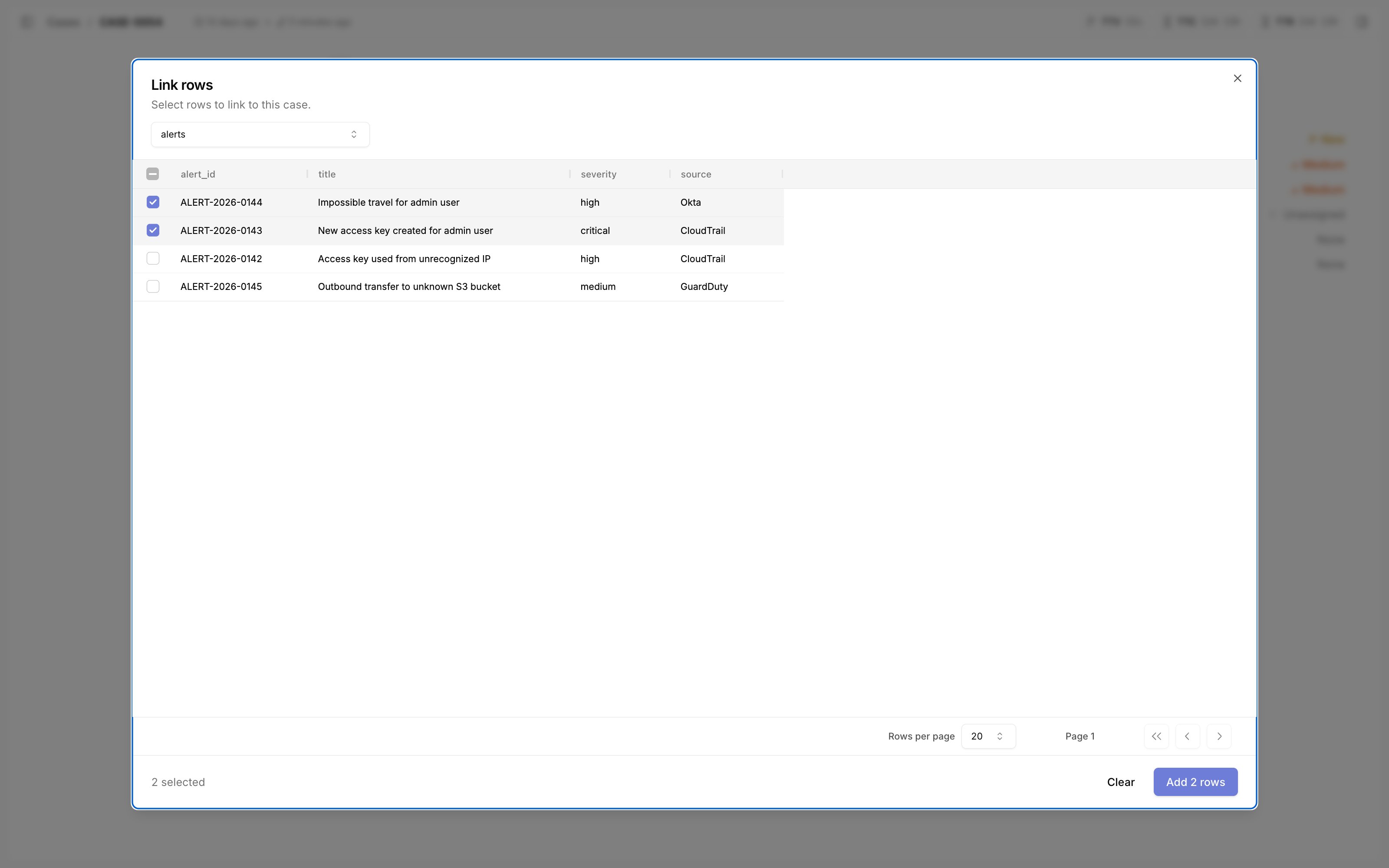
Click `Link table`, choose a table, and tick the rows to link.
Your selection is kept while you page through the table or switch to another table, so you can pick rows from several tables at once.
Click `Add rows`. Tracecat skips rows that are already linked to the case.
Each linked table renders as its own grid in the case's Tables tab, 20 rows at a time; page with the arrows in the table header. To link rows from the case page:
Open the case and select the Tables tab.
Click `Link table`, choose a table, and tick the rows to link.
Your selection is kept while you page through the table or switch to another table, so you can pick rows from several tables at once.
Click `Add rows`. Tracecat skips rows that are already linked to the case.
 To link more rows from a table that is already linked, click `Add rows` on that table's grid. To unlink rows, tick them in the grid and click `Unlink`.
A case can link up to 250 rows from each table and rows from up to 10 tables. Each link or unlink request takes at most 100 row IDs.
For example, you can link:
* Related SIEM alerts
* Indicators of compromise (IoCs)
* Affected assets such as hosts, users, or devices
* Threat intelligence matches
* Evidence artifacts such as domains, IPs, or hashes
Linked rows are especially useful when workflows enrich a case over time.
You can insert new rows as evidence arrives or link existing rows that are already part of another workflow or lookup table.
Linked rows use regular tables.
When you create a table for case-linked evidence, use the same `columns` JSON schema documented in [Tables](/automations/tables) and [Table actions](/automations/core-actions/memory-actions/tables).
## Related pages
* See [Case management](/automations/cases) for an overview of case features.
* See [Linked rows](/automations/core-actions/case-actions/linked-rows) to link table rows to a case from a workflow.
This documentation is built and hosted on [Mintlify](https://mintlify.com), a developer documentation platform.
To link more rows from a table that is already linked, click `Add rows` on that table's grid. To unlink rows, tick them in the grid and click `Unlink`.
A case can link up to 250 rows from each table and rows from up to 10 tables. Each link or unlink request takes at most 100 row IDs.
For example, you can link:
* Related SIEM alerts
* Indicators of compromise (IoCs)
* Affected assets such as hosts, users, or devices
* Threat intelligence matches
* Evidence artifacts such as domains, IPs, or hashes
Linked rows are especially useful when workflows enrich a case over time.
You can insert new rows as evidence arrives or link existing rows that are already part of another workflow or lookup table.
Linked rows use regular tables.
When you create a table for case-linked evidence, use the same `columns` JSON schema documented in [Tables](/automations/tables) and [Table actions](/automations/core-actions/memory-actions/tables).
## Related pages
* See [Case management](/automations/cases) for an overview of case features.
* See [Linked rows](/automations/core-actions/case-actions/linked-rows) to link table rows to a case from a workflow.
This documentation is built and hosted on [Mintlify](https://mintlify.com), a developer documentation platform.