> ## Documentation Index
> Fetch the complete documentation index at: https://docs.tracecat.com/llms.txt
> Use this file to discover all available pages before exploring further.
# Case tasks
> Add follow-up work to a case, track completion, and start workflows from tasks.
Enterprise Edition
Add a task to a case to track one follow-up step.
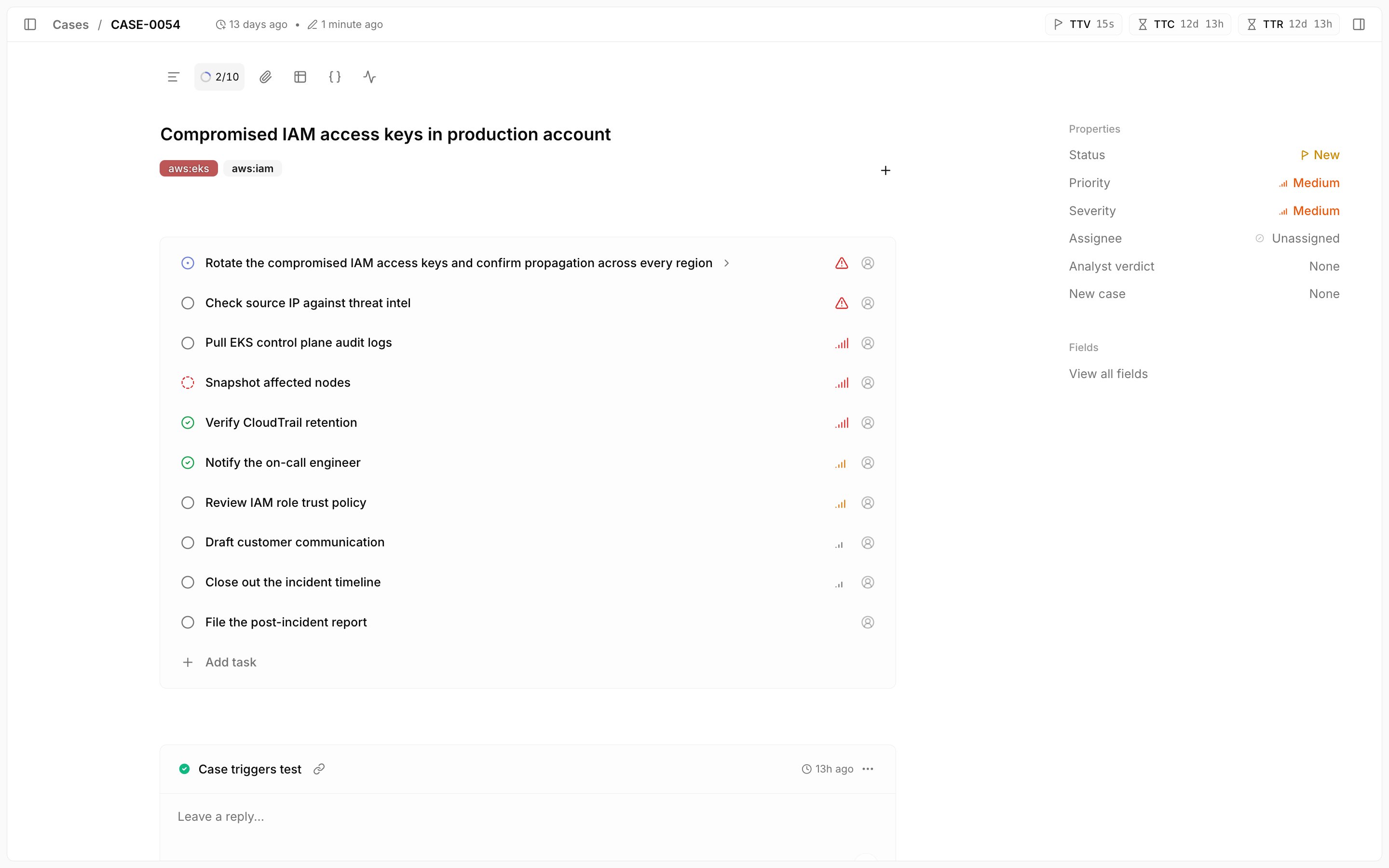
The `Tasks` control shows completed and total task counts.
## Add a task
Set a task's title, description, status, priority, assignee, and optional workflow.
Use `To do`, `In progress`, `Completed`, or `Blocked` to show the task state, which the case keeps alongside comments and evidence.
 ## Trigger workflows from cases
Set a workflow on a task, then start it from the task UI. If the workflow has an Input schema, enter those inputs in the dialog; otherwise, Tracecat shows [generated case inputs](/automations/triggers/task-triggers).
## Related pages
* See [Case management](/automations/cases) to manage the case record around a task.
* See [Task triggers](/automations/triggers/task-triggers) to reference the task trigger payload.
* See [Comment triggers](/automations/triggers/comment-triggers) to run a published workflow with `/` from a case comment.
## Trigger workflows from cases
Set a workflow on a task, then start it from the task UI. If the workflow has an Input schema, enter those inputs in the dialog; otherwise, Tracecat shows [generated case inputs](/automations/triggers/task-triggers).
## Related pages
* See [Case management](/automations/cases) to manage the case record around a task.
* See [Task triggers](/automations/triggers/task-triggers) to reference the task trigger payload.
* See [Comment triggers](/automations/triggers/comment-triggers) to run a published workflow with `/` from a case comment.