> ## Documentation Index
> Fetch the complete documentation index at: https://docs.tracecat.com/llms.txt
> Use this file to discover all available pages before exploring further.
# Tables
> Store and manage structured data inside Tracecat: define tables, query rows from workflows and agents, and link records to cases and workflow runs.
## Tables
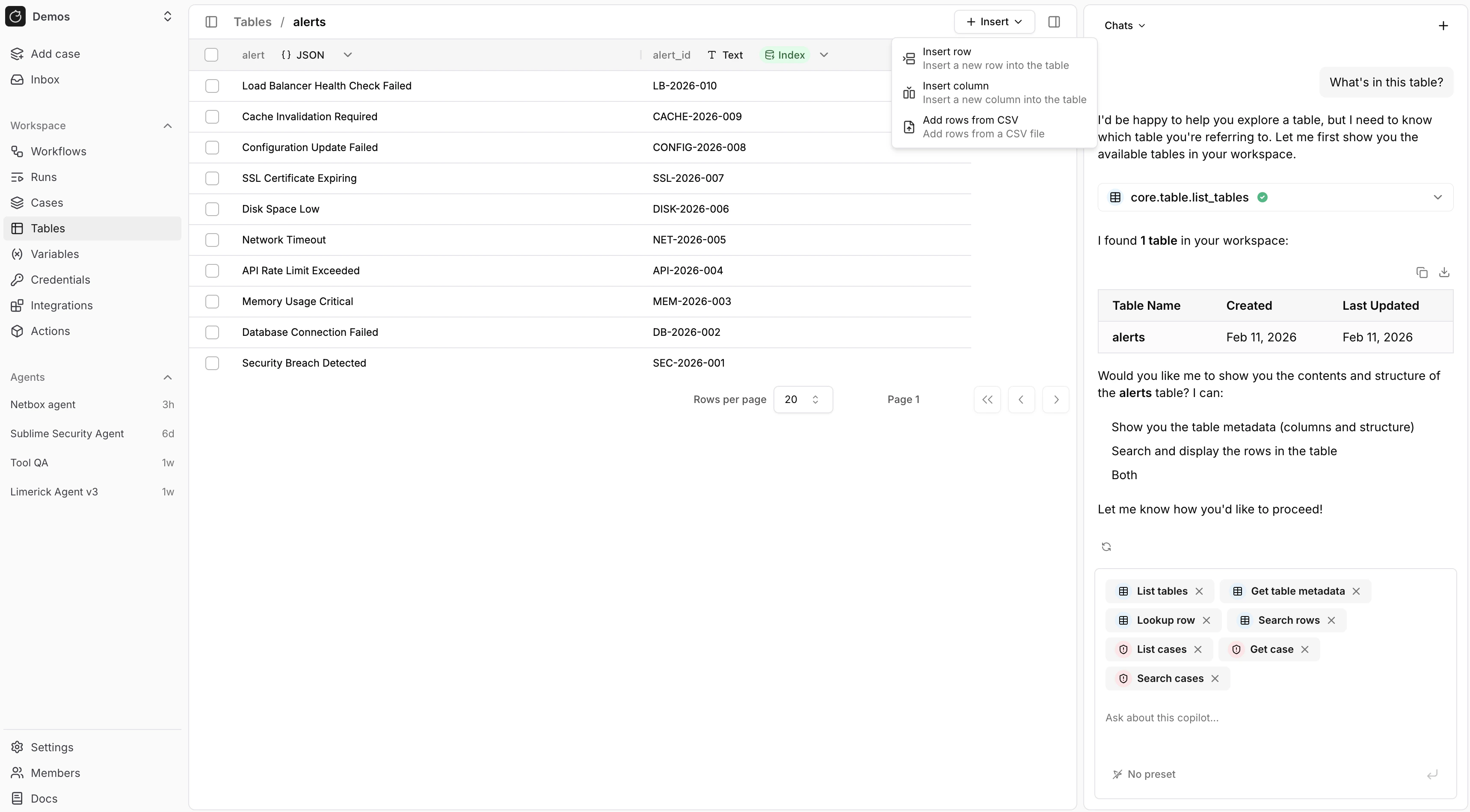 Tables let you store structured data in your workspace.
You can use them from the UI or from `core.table.*` actions in a workflow definition.
Use tables when you want to:
* Keep durable records across workflow runs
* Look up known values such as users, hosts, or indicators
* Search and export structured data for investigation or reporting
* Reuse the same dataset across multiple workflows
## Columns
Each table has a schema that defines its columns.
Choose column types based on the data you want to store and query.
When you define columns in the UI or in `core.table.create_table`, use the same uppercase `type` values exposed in the custom tables picker:
You can create tables with the following column types:
* TEXT
* INTEGER
* NUMERIC
* BOOLEAN
* DATE
* TIMESTAMPTZ
* JSONB
* SELECT
* MULTI\_SELECT
Use `TEXT`, `INTEGER`, `NUMERIC`, and `BOOLEAN` for simple fields.
Use `DATE` or `TIMESTAMPTZ` for time-based values, `JSONB` for nested structured data, and `SELECT` or `MULTI_SELECT` when the value must come from a fixed list.
Case custom fields use the same storage type family: `TEXT`, `INTEGER`, `NUMERIC`, `BOOLEAN`, `DATE`, `TIMESTAMPTZ`, `JSONB`, `SELECT`, and `MULTI_SELECT`.
In the case field picker, raw `JSONB` is currently surfaced through the `URL` kind, and `Long text` is layered on top of `TEXT`.
## Rows
Rows hold the actual records in a table.
You can insert, update, delete, look up, and search rows as your workflows process new events.
This works well for data such as:
* Asset inventories
* User allowlists
* Enrichment results
* Investigation evidence
* External system references
If you already know the field and value you want, use `core.table.lookup`.
If you need broader filtering or text search, use `core.table.search_rows`.
For example, use `core.table.lookup` when you know the exact value:
```yaml theme={null}
- ref: lookup_asset
action: core.table.lookup
args:
table: asset_inventory
column: hostname
value: ${{ TRIGGER.hostname }}
```
For example, use `core.table.search_rows` when you want to search across rows:
```yaml theme={null}
- ref: search_assets
action: core.table.search_rows
args:
table: asset_inventory
search_term: production
limit: 25
```
## Index and upsert
You'll often need to deduplicate data or require all values in a column to be unique.
You can do that by creating an index and then using `core.table.insert_row` with `upsert: true`.
Tables let you store structured data in your workspace.
You can use them from the UI or from `core.table.*` actions in a workflow definition.
Use tables when you want to:
* Keep durable records across workflow runs
* Look up known values such as users, hosts, or indicators
* Search and export structured data for investigation or reporting
* Reuse the same dataset across multiple workflows
## Columns
Each table has a schema that defines its columns.
Choose column types based on the data you want to store and query.
When you define columns in the UI or in `core.table.create_table`, use the same uppercase `type` values exposed in the custom tables picker:
You can create tables with the following column types:
* TEXT
* INTEGER
* NUMERIC
* BOOLEAN
* DATE
* TIMESTAMPTZ
* JSONB
* SELECT
* MULTI\_SELECT
Use `TEXT`, `INTEGER`, `NUMERIC`, and `BOOLEAN` for simple fields.
Use `DATE` or `TIMESTAMPTZ` for time-based values, `JSONB` for nested structured data, and `SELECT` or `MULTI_SELECT` when the value must come from a fixed list.
Case custom fields use the same storage type family: `TEXT`, `INTEGER`, `NUMERIC`, `BOOLEAN`, `DATE`, `TIMESTAMPTZ`, `JSONB`, `SELECT`, and `MULTI_SELECT`.
In the case field picker, raw `JSONB` is currently surfaced through the `URL` kind, and `Long text` is layered on top of `TEXT`.
## Rows
Rows hold the actual records in a table.
You can insert, update, delete, look up, and search rows as your workflows process new events.
This works well for data such as:
* Asset inventories
* User allowlists
* Enrichment results
* Investigation evidence
* External system references
If you already know the field and value you want, use `core.table.lookup`.
If you need broader filtering or text search, use `core.table.search_rows`.
For example, use `core.table.lookup` when you know the exact value:
```yaml theme={null}
- ref: lookup_asset
action: core.table.lookup
args:
table: asset_inventory
column: hostname
value: ${{ TRIGGER.hostname }}
```
For example, use `core.table.search_rows` when you want to search across rows:
```yaml theme={null}
- ref: search_assets
action: core.table.search_rows
args:
table: asset_inventory
search_term: production
limit: 25
```
## Index and upsert
You'll often need to deduplicate data or require all values in a column to be unique.
You can do that by creating an index and then using `core.table.insert_row` with `upsert: true`.
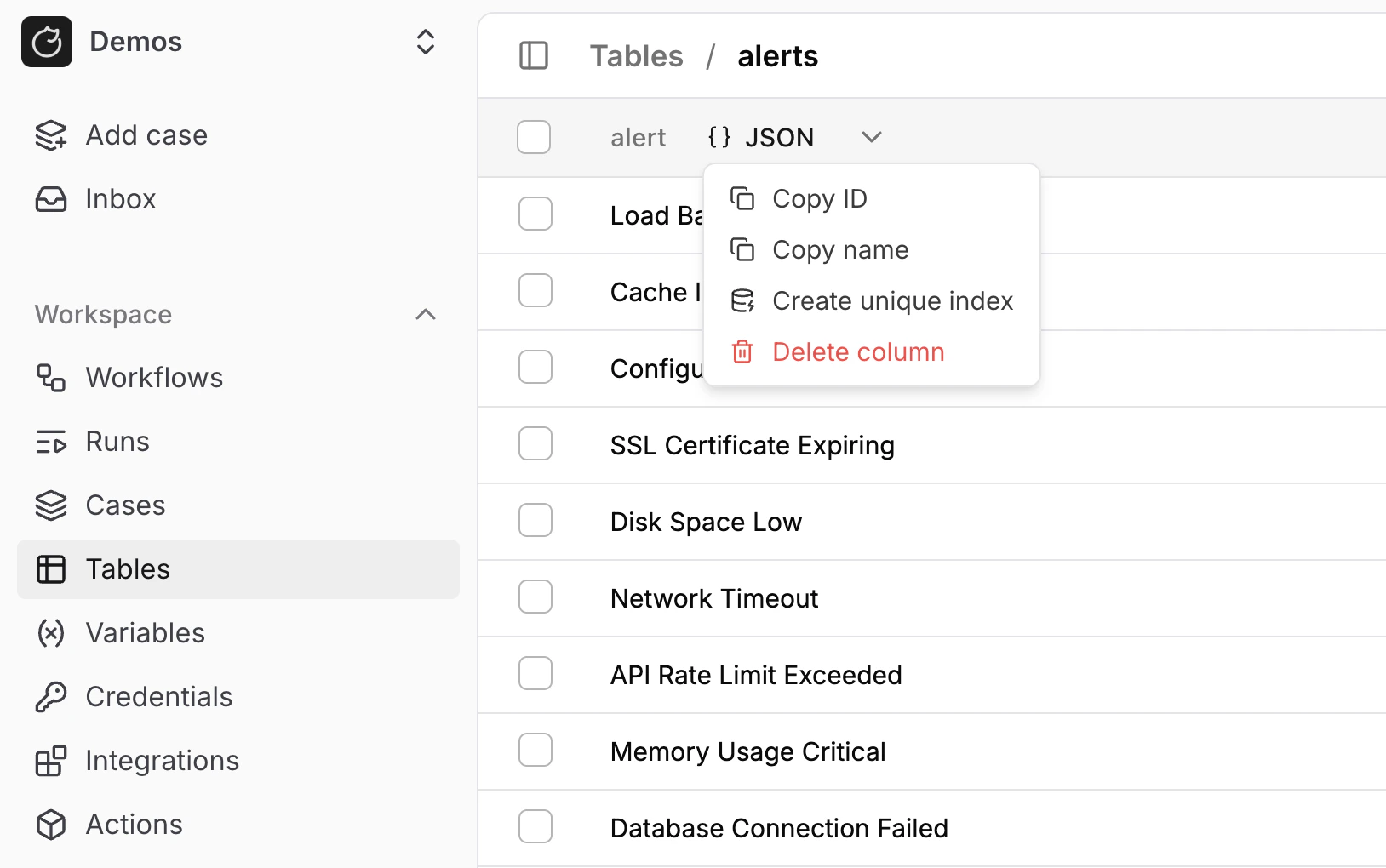 For example:
* One row per hostname
* One row per email address
* One row per alert ID
* One row per hash value
A unique index enforces that rule, and `core.table.insert_row` with `upsert: true` updates the existing row instead of creating a duplicate.
## Table actions
Use `core.table.*` actions when you want your workflows to work with tables directly.
* [Tables](/automations/core-actions/memory-actions/tables) to create tables, inspect metadata, insert rows, search rows, and export data
* Use `core.table.insert_row` with `upsert: true` when you want to update an existing row that matches a unique index
`core.table.create_table` takes `columns` as a JSON array of column objects.
This is the same schema you use for tables that you later link to cases.
* `name`: Required string. Use letters, numbers, and underscores, and start with a letter or underscore.
* `type`: Required uppercase string. Use `TEXT`, `INTEGER`, `NUMERIC`, `BOOLEAN`, `DATE`, `TIMESTAMPTZ`, `JSONB`, `SELECT`, or `MULTI_SELECT`.
* `nullable`: Optional boolean. Defaults to `true`.
* `default`: Optional value. It must match the column type.
* `options`: Optional array of strings. Required for `SELECT` and `MULTI_SELECT`, and invalid for other types.
For example:
```yaml theme={null}
- ref: ensure_inventory_table
action: core.table.create_table
args:
name: asset_inventory
columns:
- name: hostname
type: TEXT
- name: owner
type: TEXT
raise_on_duplicate: false
- ref: upsert_asset
action: core.table.insert_row
args:
table: asset_inventory
upsert: true
row_data:
hostname: ${{ TRIGGER.hostname }}
owner: ${{ TRIGGER.owner }}
- ref: lookup_asset
action: core.table.lookup
args:
table: asset_inventory
column: hostname
value: ${{ TRIGGER.hostname }}
```
For example, this upserts one row per alert ID:
```yaml theme={null}
- ref: upsert_alert
action: core.table.insert_row
args:
table: alerts
upsert: true
row_data:
alert_id: ${{ TRIGGER.alert_id }}
status: ${{ TRIGGER.status }}
severity: ${{ TRIGGER.severity }}
```
For example:
* One row per hostname
* One row per email address
* One row per alert ID
* One row per hash value
A unique index enforces that rule, and `core.table.insert_row` with `upsert: true` updates the existing row instead of creating a duplicate.
## Table actions
Use `core.table.*` actions when you want your workflows to work with tables directly.
* [Tables](/automations/core-actions/memory-actions/tables) to create tables, inspect metadata, insert rows, search rows, and export data
* Use `core.table.insert_row` with `upsert: true` when you want to update an existing row that matches a unique index
`core.table.create_table` takes `columns` as a JSON array of column objects.
This is the same schema you use for tables that you later link to cases.
* `name`: Required string. Use letters, numbers, and underscores, and start with a letter or underscore.
* `type`: Required uppercase string. Use `TEXT`, `INTEGER`, `NUMERIC`, `BOOLEAN`, `DATE`, `TIMESTAMPTZ`, `JSONB`, `SELECT`, or `MULTI_SELECT`.
* `nullable`: Optional boolean. Defaults to `true`.
* `default`: Optional value. It must match the column type.
* `options`: Optional array of strings. Required for `SELECT` and `MULTI_SELECT`, and invalid for other types.
For example:
```yaml theme={null}
- ref: ensure_inventory_table
action: core.table.create_table
args:
name: asset_inventory
columns:
- name: hostname
type: TEXT
- name: owner
type: TEXT
raise_on_duplicate: false
- ref: upsert_asset
action: core.table.insert_row
args:
table: asset_inventory
upsert: true
row_data:
hostname: ${{ TRIGGER.hostname }}
owner: ${{ TRIGGER.owner }}
- ref: lookup_asset
action: core.table.lookup
args:
table: asset_inventory
column: hostname
value: ${{ TRIGGER.hostname }}
```
For example, this upserts one row per alert ID:
```yaml theme={null}
- ref: upsert_alert
action: core.table.insert_row
args:
table: alerts
upsert: true
row_data:
alert_id: ${{ TRIGGER.alert_id }}
status: ${{ TRIGGER.status }}
severity: ${{ TRIGGER.severity }}
```