> ## Documentation Index
> Fetch the complete documentation index at: https://docs.tracecat.com/llms.txt
> Use this file to discover all available pages before exploring further.
# Git sync
> Export workspace configuration to a GitHub or GitLab repository as a pull request, then pull a reviewed commit into another workspace.
Enterprise Edition
## Overview
Git sync commits a workspace's configuration to a repository you own and imports a chosen commit back into a workspace. Exports open a pull request and pulls target one explicit commit, so your repository's review rules and branch protection decide what reaches production.
Git sync covers workspace configuration. The custom actions registry has its own sync, documented in [Custom registry](/custom-actions/custom-registry).
## Connect a repository
Open `Git sync` in the organization sidebar at `/organization/vcs`. The entry appears for users with `org:settings:read` and stays locked until the `git_sync` entitlement is active.
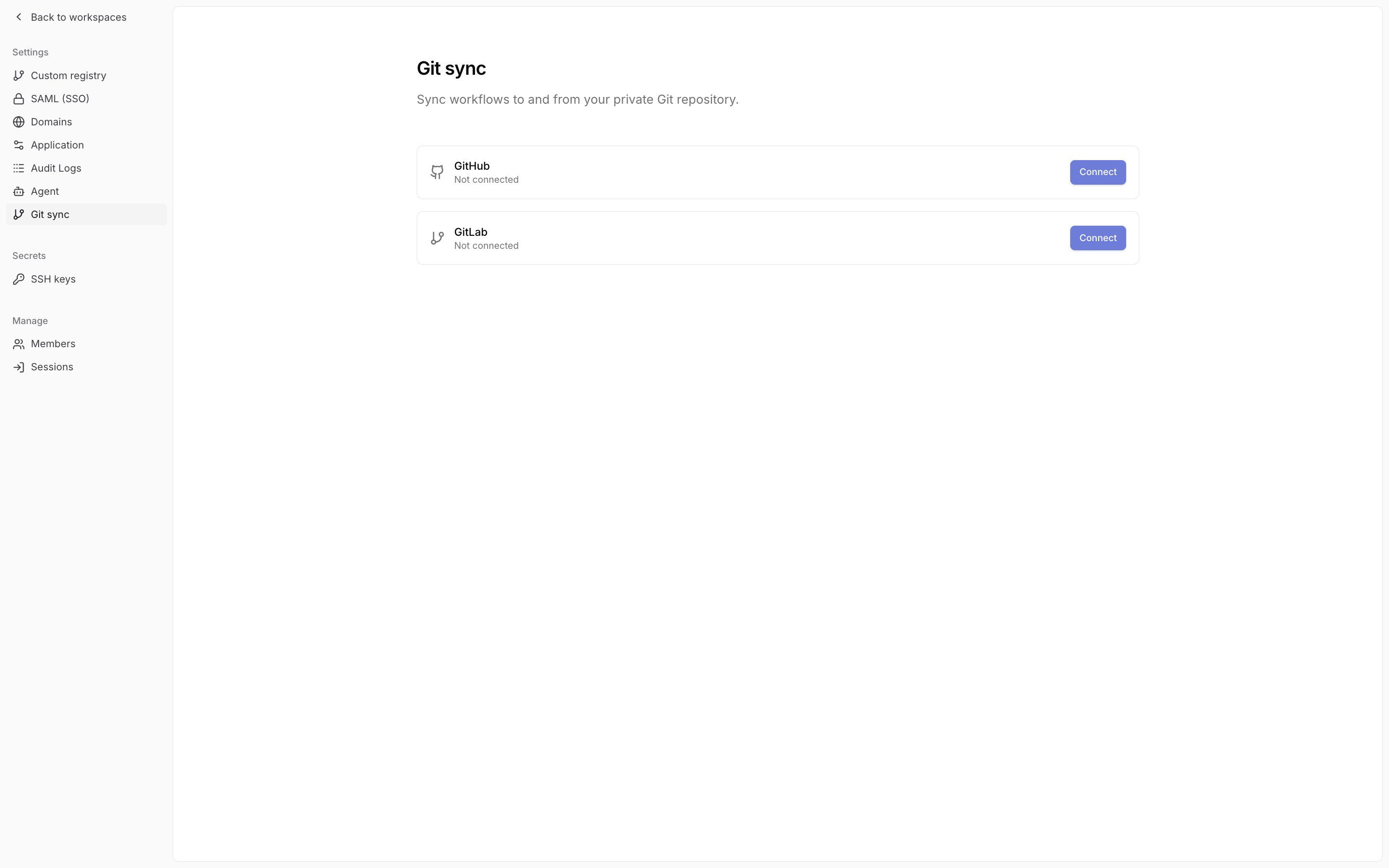 The page shows a GitHub card and a GitLab card, each with a `Connect` button.
For GitHub, `Connect` opens the `Connect GitHub App` dialog with two tabs. `Create new` takes an organization name and a GitHub host URL, and `Create GitHub App` starts GitHub's manifest flow. GitHub then redirects back to Tracecat, which stores the app credentials and forwards you to GitHub's installation page.
`Use existing` takes a GitHub App ID and private key, with an optional webhook secret and client ID, and `Save credentials` stores them. Install the app on the organization or repositories you want to sync. Tracecat resolves the installation for each bound repository at sync time.
For GitLab, `Connect` opens the `GitLab workspace sync credential` dialog. Enter the base URL (`https://gitlab.com` or your self-managed host) and a project or group access token with the `api` scope, then click `Save`.
The API equivalents are `POST /organization/vcs/github/credentials` and `POST /organization/vcs/gitlab/credentials`, each with a matching `GET .../credentials/status` and `DELETE .../credentials`. Saving requires `org:settings:update`.
## Bind a workspace
Open workspace `Settings` from the sidebar and select `Git sync`. With no repository bound, the panel shows the connection form: a `Provider` toggle (`GitHub` or `GitLab`) and a `Remote repository URL` field.
For GitHub, `Select` lists repositories granted to the app installation, and `Manual` accepts any git+ssh URL. For GitLab, enter the git+ssh URL directly. Nested groups and self-managed hosts work.
The URL form is `git+ssh://git@github.com/example-org/example-repo.git`. An `@branch` suffix pins the base branch for exports and the commit list for pulls. Without it, Tracecat uses the repository default branch.
`Save` writes `git_provider` and `git_repo_url` to the workspace settings, the same fields `PATCH /workspaces/{workspace_id}` accepts under `settings`. The panel then shows the repository, its connection status, the base branch, and the latest commit, plus `Push` and `Pull` tabs and an `Edit connection` button.
## Export as a pull request
A full export writes `tracecat.json` and one directory per resource type: `workflows`, `agent_presets`, `skills`, `tables`, `case_tags`, `case_fields`, `case_dropdowns`, `case_durations`, `variables`, and `secret_metadata`. The `case_dropdowns` and `case_durations` directories are written only when the organization holds the `case_addons` entitlement. Tables export their column schema and no rows. Variables export key names and no values. Each workflow lands at `workflows//definition.yml`.
Secrets export as metadata only: name, environment, type, key names, and tags. A secret file that carries a `value` or `values` key fails validation on import.
On the `Push` tab, enter a `Commit message` and choose a `Branch`. `Create new branch...` names a branch `sync/workspace-` cut from the base branch. Picking an existing branch updates it, and picking the base branch itself blocks the push.
`Preview changes` diffs the export against the target branch without writing. `Push & open PR` (or `Update branch & open PR` for an existing branch) commits and opens a pull request into the base branch. GitLab connections label these `MR`.
Tracecat commits only files whose content changed and deletes stale files under the exported directories. When nothing changed, the response reports `no_op`, and Tracecat reuses an open pull request from the same branch.
The pull request body reads `Automated workspace sync from Tracecat` with the workspace name and the publishing user's email. Exports from this tab exclude schedules.
Each resource list page (workflows, agents, skills, tables, credentials, and the case tag, field, dropdown, and duration views) has its own `Push` button. It exports that resource type plus everything it references, on a branch prefixed `sync/`.
The workflow builder's `Publish` dropdown pushes a single workflow through `POST /workflows/{workflow_id}/publish` and offers `Open PR` or `Push directly`. A direct push commits to the selected branch with no pull request.
The API is `POST /workflows/sync/export` with `message`, `branch`, `create_pr`, optional `pr_base_branch`, optional `resources`, and `include_schedules`. `POST /workflows/sync/export/preview` takes `resources`, `include_schedules`, and `compare_ref` and returns the files an export would write, without writing them. Both require `workspace_sync:sync`, which `workspace-editor` and `workspace-admin` hold.
## Pull a commit
On the `Pull` tab, `Pull from commit` lists the newest commits on the base branch and defaults to the newest. `Preview changes` runs a dry run and shows added and modified resources, and `Apply pull` unlocks only after a successful preview for the same commit and options.
A pull overwrites existing resources with the same ID and leaves schedules untouched unless `Overwrite schedules` is checked. When a preset or action references a model or MCP integration with more than one match in this workspace, the preview asks you to choose the target before `Apply pull` unlocks.
Every pull names one commit SHA, and a request without `commit_sha` fails validation. Tracecat pulls only when you or your pipeline call it, so a merged pull request changes nothing in a workspace until someone pulls that commit.
Pulled workflows carry no registry lock, so each run resolves actions against the workspace's current registry versions. Publishing the workflow in the target workspace records the lock.
The API is `POST /workflows/sync/pull` with `commit_sha`, `dry_run`, `sync_schedules`, `catalog_mappings`, and `mcp_integration_mappings`. `GET /workflows/sync/commits?branch=` and `GET /workflows/sync/branches` list what you can target. The response carries `success`, `commit_sha`, `workflows_found`, `workflows_imported`, `diagnostics`, `resource_counts`, and `resource_diffs`, and a service account with `workspace_sync:sync` can call it from CI.
## Staging to production
1. Bind a staging workspace and a production workspace to the same repository.
2. Build and test in staging, then `Push & open PR` from the staging `Push` tab.
3. Review and merge the pull request in your repository, where branch protection and required reviews apply.
4. In production, select the merged commit under `Pull from commit` and click `Preview changes`.
5. Click `Apply pull`, then publish any workflow that needs a registry lock.
Role assignments are per workspace, so a staging editor holds no `workspace_sync:sync` in production until you grant a role there. See [Roles and permissions](/manage-platform/rbac) for the built-in roles.
## Related pages
* See [Security architecture](/security/architecture#workspace-gitops) for the GitOps model and how registry versions resolve after a pull.
* See [Custom registry](/custom-actions/custom-registry) for syncing custom actions from a Git repository, which is separate from workspace Git sync.
* See [Roles and permissions](/manage-platform/rbac) for the scopes that gate connecting, exporting, and pulling.
* See [Workflows](/automations/workflows) for YAML export and import without Git.
The page shows a GitHub card and a GitLab card, each with a `Connect` button.
For GitHub, `Connect` opens the `Connect GitHub App` dialog with two tabs. `Create new` takes an organization name and a GitHub host URL, and `Create GitHub App` starts GitHub's manifest flow. GitHub then redirects back to Tracecat, which stores the app credentials and forwards you to GitHub's installation page.
`Use existing` takes a GitHub App ID and private key, with an optional webhook secret and client ID, and `Save credentials` stores them. Install the app on the organization or repositories you want to sync. Tracecat resolves the installation for each bound repository at sync time.
For GitLab, `Connect` opens the `GitLab workspace sync credential` dialog. Enter the base URL (`https://gitlab.com` or your self-managed host) and a project or group access token with the `api` scope, then click `Save`.
The API equivalents are `POST /organization/vcs/github/credentials` and `POST /organization/vcs/gitlab/credentials`, each with a matching `GET .../credentials/status` and `DELETE .../credentials`. Saving requires `org:settings:update`.
## Bind a workspace
Open workspace `Settings` from the sidebar and select `Git sync`. With no repository bound, the panel shows the connection form: a `Provider` toggle (`GitHub` or `GitLab`) and a `Remote repository URL` field.
For GitHub, `Select` lists repositories granted to the app installation, and `Manual` accepts any git+ssh URL. For GitLab, enter the git+ssh URL directly. Nested groups and self-managed hosts work.
The URL form is `git+ssh://git@github.com/example-org/example-repo.git`. An `@branch` suffix pins the base branch for exports and the commit list for pulls. Without it, Tracecat uses the repository default branch.
`Save` writes `git_provider` and `git_repo_url` to the workspace settings, the same fields `PATCH /workspaces/{workspace_id}` accepts under `settings`. The panel then shows the repository, its connection status, the base branch, and the latest commit, plus `Push` and `Pull` tabs and an `Edit connection` button.
## Export as a pull request
A full export writes `tracecat.json` and one directory per resource type: `workflows`, `agent_presets`, `skills`, `tables`, `case_tags`, `case_fields`, `case_dropdowns`, `case_durations`, `variables`, and `secret_metadata`. The `case_dropdowns` and `case_durations` directories are written only when the organization holds the `case_addons` entitlement. Tables export their column schema and no rows. Variables export key names and no values. Each workflow lands at `workflows//definition.yml`.
Secrets export as metadata only: name, environment, type, key names, and tags. A secret file that carries a `value` or `values` key fails validation on import.
On the `Push` tab, enter a `Commit message` and choose a `Branch`. `Create new branch...` names a branch `sync/workspace-` cut from the base branch. Picking an existing branch updates it, and picking the base branch itself blocks the push.
`Preview changes` diffs the export against the target branch without writing. `Push & open PR` (or `Update branch & open PR` for an existing branch) commits and opens a pull request into the base branch. GitLab connections label these `MR`.
Tracecat commits only files whose content changed and deletes stale files under the exported directories. When nothing changed, the response reports `no_op`, and Tracecat reuses an open pull request from the same branch.
The pull request body reads `Automated workspace sync from Tracecat` with the workspace name and the publishing user's email. Exports from this tab exclude schedules.
Each resource list page (workflows, agents, skills, tables, credentials, and the case tag, field, dropdown, and duration views) has its own `Push` button. It exports that resource type plus everything it references, on a branch prefixed `sync/`.
The workflow builder's `Publish` dropdown pushes a single workflow through `POST /workflows/{workflow_id}/publish` and offers `Open PR` or `Push directly`. A direct push commits to the selected branch with no pull request.
The API is `POST /workflows/sync/export` with `message`, `branch`, `create_pr`, optional `pr_base_branch`, optional `resources`, and `include_schedules`. `POST /workflows/sync/export/preview` takes `resources`, `include_schedules`, and `compare_ref` and returns the files an export would write, without writing them. Both require `workspace_sync:sync`, which `workspace-editor` and `workspace-admin` hold.
## Pull a commit
On the `Pull` tab, `Pull from commit` lists the newest commits on the base branch and defaults to the newest. `Preview changes` runs a dry run and shows added and modified resources, and `Apply pull` unlocks only after a successful preview for the same commit and options.
A pull overwrites existing resources with the same ID and leaves schedules untouched unless `Overwrite schedules` is checked. When a preset or action references a model or MCP integration with more than one match in this workspace, the preview asks you to choose the target before `Apply pull` unlocks.
Every pull names one commit SHA, and a request without `commit_sha` fails validation. Tracecat pulls only when you or your pipeline call it, so a merged pull request changes nothing in a workspace until someone pulls that commit.
Pulled workflows carry no registry lock, so each run resolves actions against the workspace's current registry versions. Publishing the workflow in the target workspace records the lock.
The API is `POST /workflows/sync/pull` with `commit_sha`, `dry_run`, `sync_schedules`, `catalog_mappings`, and `mcp_integration_mappings`. `GET /workflows/sync/commits?branch=` and `GET /workflows/sync/branches` list what you can target. The response carries `success`, `commit_sha`, `workflows_found`, `workflows_imported`, `diagnostics`, `resource_counts`, and `resource_diffs`, and a service account with `workspace_sync:sync` can call it from CI.
## Staging to production
1. Bind a staging workspace and a production workspace to the same repository.
2. Build and test in staging, then `Push & open PR` from the staging `Push` tab.
3. Review and merge the pull request in your repository, where branch protection and required reviews apply.
4. In production, select the merged commit under `Pull from commit` and click `Preview changes`.
5. Click `Apply pull`, then publish any workflow that needs a registry lock.
Role assignments are per workspace, so a staging editor holds no `workspace_sync:sync` in production until you grant a role there. See [Roles and permissions](/manage-platform/rbac) for the built-in roles.
## Related pages
* See [Security architecture](/security/architecture#workspace-gitops) for the GitOps model and how registry versions resolve after a pull.
* See [Custom registry](/custom-actions/custom-registry) for syncing custom actions from a Git repository, which is separate from workspace Git sync.
* See [Roles and permissions](/manage-platform/rbac) for the scopes that gate connecting, exporting, and pulling.
* See [Workflows](/automations/workflows) for YAML export and import without Git.