

Overview
Tracecat calls the Google Workspace Admin APIs with a Google Cloud service account that impersonates a Workspace admin user through domain-wide delegation. Setup spans three places:
This setup covers these integrations:
- Google Workspace Reports: audit logs (activities) for
login,admin,token,drive,gmail,saml,user_accounts, and other applications, plus usage reports. - Google Workspace Alert Center: phishing, suspicious login, malware, government-backed attack, DLP, and other Alert Center alerts.
- Google Workspace Directory: users, groups, devices, third-party OAuth tokens, app passwords, and sign-in sessions.
How domain-wide delegation works
Domain-wide delegation lets a service account mint tokens as any user in your Workspace domain without that user’s consent. You authorize it in the Admin console by pairing the service account’s client ID with a list of OAuth scopes. Each token Tracecat requests names a subject (the user to impersonate) and a list of scopes:- Scopes decide which APIs the token can call. Every requested scope must be on the delegated list, or Google rejects the token request with
unauthorized_client. - The subject’s admin privileges decide what those calls return. Admin SDK calls run as the subject, so the subject must hold the matching admin privilege.
Before you begin
- A Google Workspace super admin. Only super admins can create admin roles and authorize domain-wide delegation.
- A Google Cloud user who can create a project, enable APIs, create a service account, and create a service account key.
Choose scopes
Start with the read-only scopes a security bot needs for triage, then add response scopes only for the actions your workflows run.Triage scopes
The Alert Center API exposes a single
apps.alerts scope for both reading and updating alerts.
Optional scopes
admin.directory.user.security has no read-only variant: the same scope that lists tokens also revokes them, signs users out, and turns off 2-Step Verification. Add it, and the Security > User Security Management privilege, only when your workflows run these actions. Use tools.google_reports.list_activities with application_name: token to audit third-party app grants without it.
Gmail actions (tools.gmail) such as pulling or trashing a reported phishing email use the separate google_gmail integration and the gmail.readonly or gmail.modify scope. Gmail delegation impersonates the mailbox owner, not the bot user, and gives the service account access to every mailbox in the domain. Authorize those scopes on a separate service account only if your workflows remediate mailboxes.
Set up Google Cloud
1
Create a dedicated project
Open Create a project and create a project used only for the Tracecat service account, such as
tracecat-workspace. Limit who has Owner, Editor, Service Account Admin, Service Account Key Admin, or Service Account Token Creator on it: anyone with these roles can use the delegation.2
Enable the APIs
In the new project, enable:
- Admin SDK API for Directory and Reports.
- Google Workspace Alert Center API for Alert Center.
- Gmail API, only if you use Gmail actions.
3
Create the service account
Open Create service account, enter a name such as
tracecat-workspace, and click Create and continue. Skip the project roles: domain-wide delegation does not use Google Cloud IAM roles. Click Done.4
Create a JSON key
Open Service accounts, select the service account, then go to
Keys > Add key > Create new key > JSON > Create. Google downloads the only copy of the key.If key creation is blocked by the iam.disableServiceAccountKeyCreation organization policy, ask your Google Cloud organization policy admin for an exception on this project.5
Copy the client ID
On the service account’s
Details tab, expand Advanced settings and copy the Client ID under Domain-wide delegation. It is a 21-digit number and matches client_id in the JSON key.Set up the Google Admin console
1
Create a dedicated bot user
Open Users and click
Add new user, for example tracecat-bot@example.com. Use a dedicated account rather than a person’s account so that offboarding a person does not break your workflows and audit logs attribute Tracecat’s actions to the bot.Give the account a long random password, enforce 2-Step Verification with a security key, and keep it out of day-to-day sign-in. Tracecat never signs in as this user; it only impersonates it.2
Create a custom admin role
Open Admin roles, click
Create new role, and name it, for example Tracecat security automation. Select the privileges that match your scopes from Choose scopes:ReportsServices>Alert Center(full access to update or delete alerts, view access for read-only)Security>User Security Management, only if you delegateadmin.directory.user.securityUsers>Read, orUsers>Updateto suspend users or reset passwords
Super Admin role. User Security Management and Users privileges only apply to users who are not admins; only a super admin can sign out or revoke tokens for another admin.3
Assign the role to the bot user
In Admin roles, open the role, click
Admins assigned > Assign users, and add the bot user.4
Authorize domain-wide delegation
Sign in as a super admin and open Manage Domain Wide Delegation (Click
Security > Access and data control > API controls > Manage Domain Wide Delegation). Click Add new, paste the client ID, and enter your scopes as a comma-separated list:Authorize, then hover over the client, click View details, and confirm every scope is listed. Changes usually apply within minutes and can take up to 24 hours. If your organization uses multi-party approval, a second super admin must approve the change.Connect Tracecat
Choose one credential. Thegoogle_admin integration is the default for workflows and agents; use the google_api credential when an action needs a different subject per call.
The
Google Cloud (Service account) integration (google) defaults to the cloud-platform scope with no subject and is for Google Cloud APIs such as Cloud Logging and Security Command Center. Do not use it for Workspace Admin APIs.
Google Workspace Admin integration
1
Open the integration
Go to 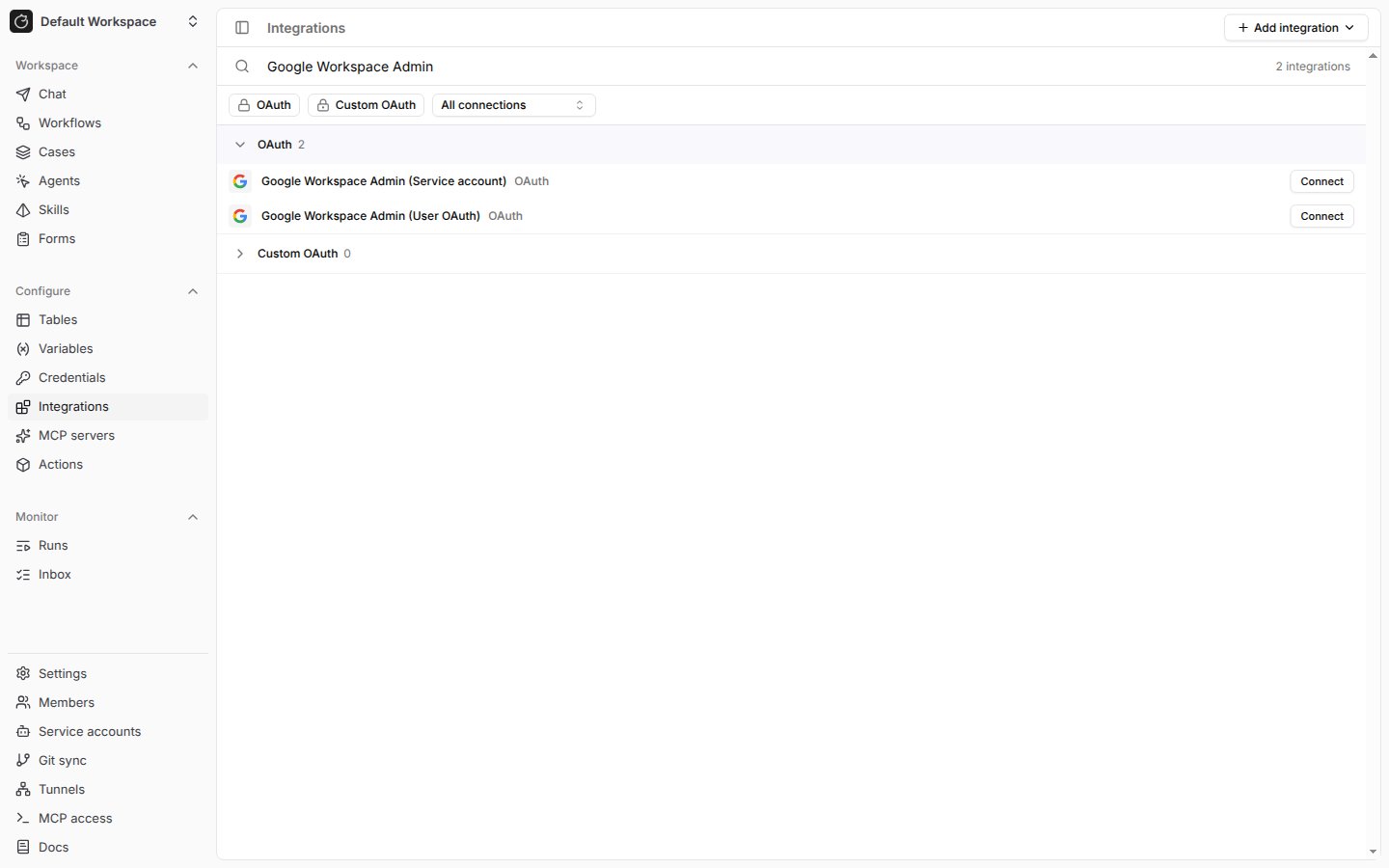
Integrations, search for Google Workspace Admin, and open Google Workspace Admin (Service account).2
Upload the key and set the subject
Under 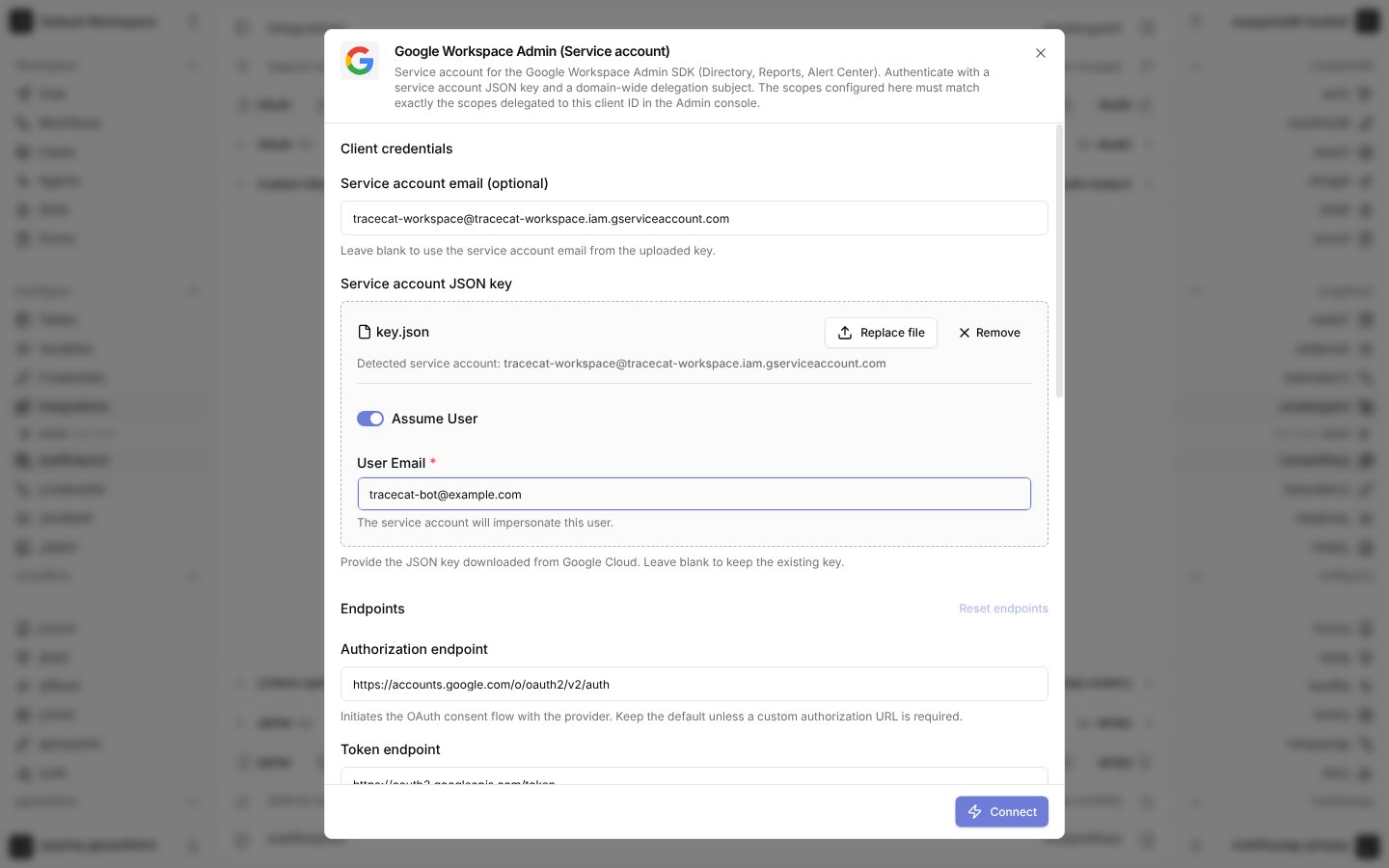
Service account JSON key, click Choose JSON and select the key from Create a JSON key. Tracecat fills Service account email (optional) from the key’s client_email. Turn on Assume User and enter the bot user’s email in User Email.3
Match the scopes
Under 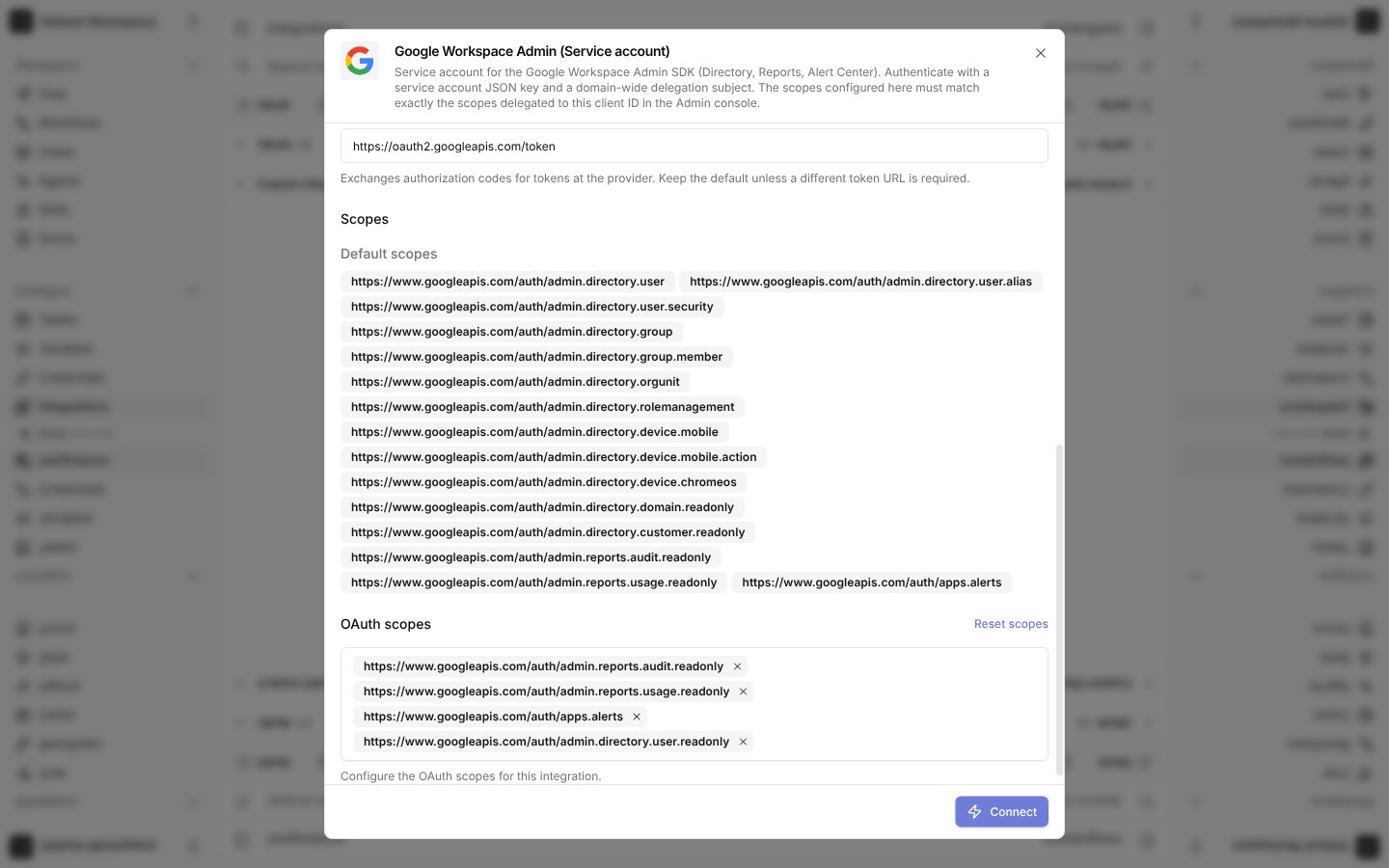
Scopes, edit OAuth scopes until it lists exactly the scopes you delegated. It starts with every default Directory, Reports, and Alert Center scope; if any of them is not delegated, Google rejects the token with unauthorized_client.Click the x on each scope you did not delegate. To add a scope that is not in the defaults, such as admin.directory.user.readonly, type the full scope URL and select Add "<scope>".4
Connect
Click
Connect. Tracecat mints a token as the bot user and refreshes it before it expires.google_api credential
Go toCredentials, search for google_api, and click Configure. Under Keys, enter:
GOOGLE_API_CREDENTIALS: the full contents of the JSON key.GOOGLE_API_SUBJECT: the bot user’s email.
Create credential.
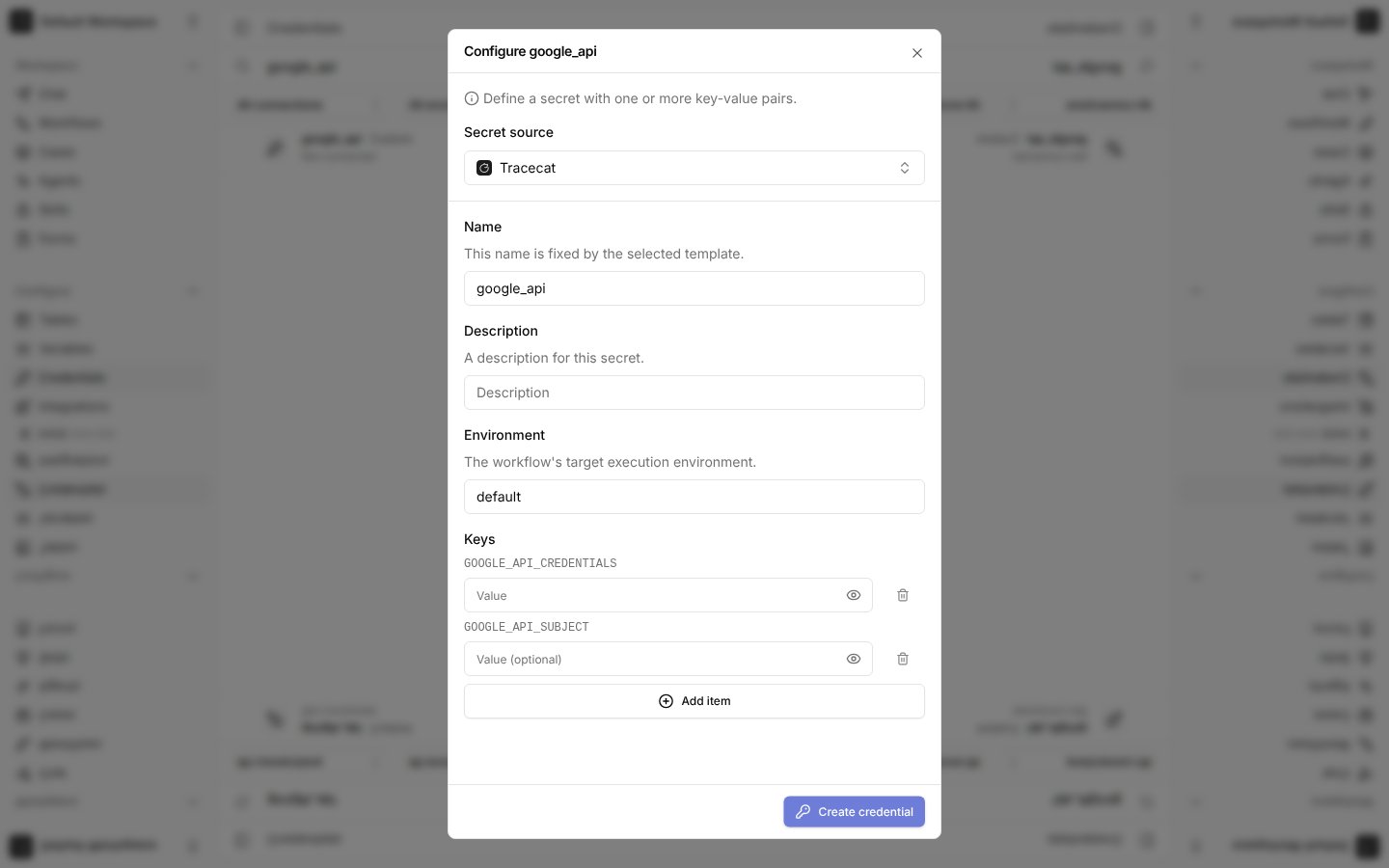
google_admin integration first; see Google credentials for the full resolution order.
Test the connection
Run these actions in a workflow:Maintain the connection
- Rotate the JSON key on a schedule: create a new key, update Tracecat, then delete the old key in
Keys. - Review Manage Domain Wide Delegation regularly and remove scopes your workflows no longer use.
- Keep the key only in Tracecat; delete the downloaded file after you upload it.
Related pages
- See Google credentials for the order in which Google actions resolve credentials.
- See OAuth for how Tracecat stores and refreshes OAuth tokens.
- See Google Workspace Reports, Google Workspace Alert Center, and Google Workspace Directory for action inputs.
- See Google’s Control API access with domain-wide delegation and Domain-wide delegation best practices for the Admin console reference.