

agent:update in the workspace and permission to install apps in your Slack workspace.
Capabilities
- Direct messages: the agent answers every message.
- Channels: the agent answers messages that mention it, in channels you invited it to.
- Threads: each thread is one agent session, so the agent remembers earlier turns in that thread.
- Channel routing: each channel can have its own agent. The default agent answers direct messages and channels without their own agent.
- Tool approvals: approve or deny a tool call from the thread. The card then shows who decided.
Choose a bot
OpenAgents → Channels and click Add bot.
Tracecat: one shared@Tracecatbot. Pick the agent for each channel. Recommended.Custom bot: a Slack app with its own name and icon that answers for one agent. Add several to run more than one agent in a channel. See Connect a custom bot.
Tracecat shows Not set up on this instance.
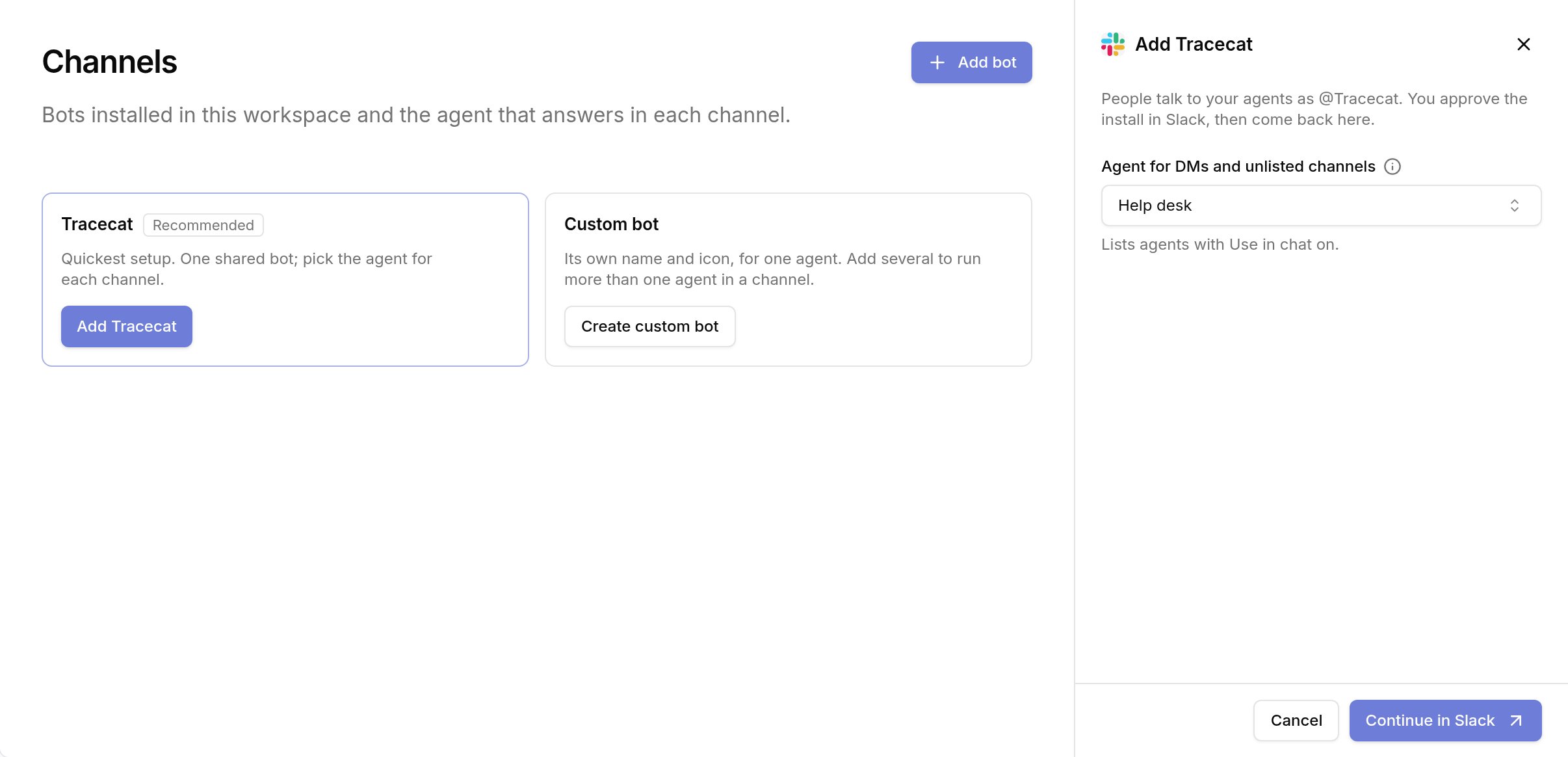
Add Tracecat to Slack
- In
Agents → Channels, clickAdd bot → Tracecat. - Under
Agent for DMs and unlisted channels, choose an agent. The list shows agents withUse in chaton. - Click
Continue in Slack. Select your Slack workspace and clickAllow.
/invite @Tracecat in a channel, then send @Tracecat What can you help me with?. Mention the bot in the thread to continue.
Choose which agent answers
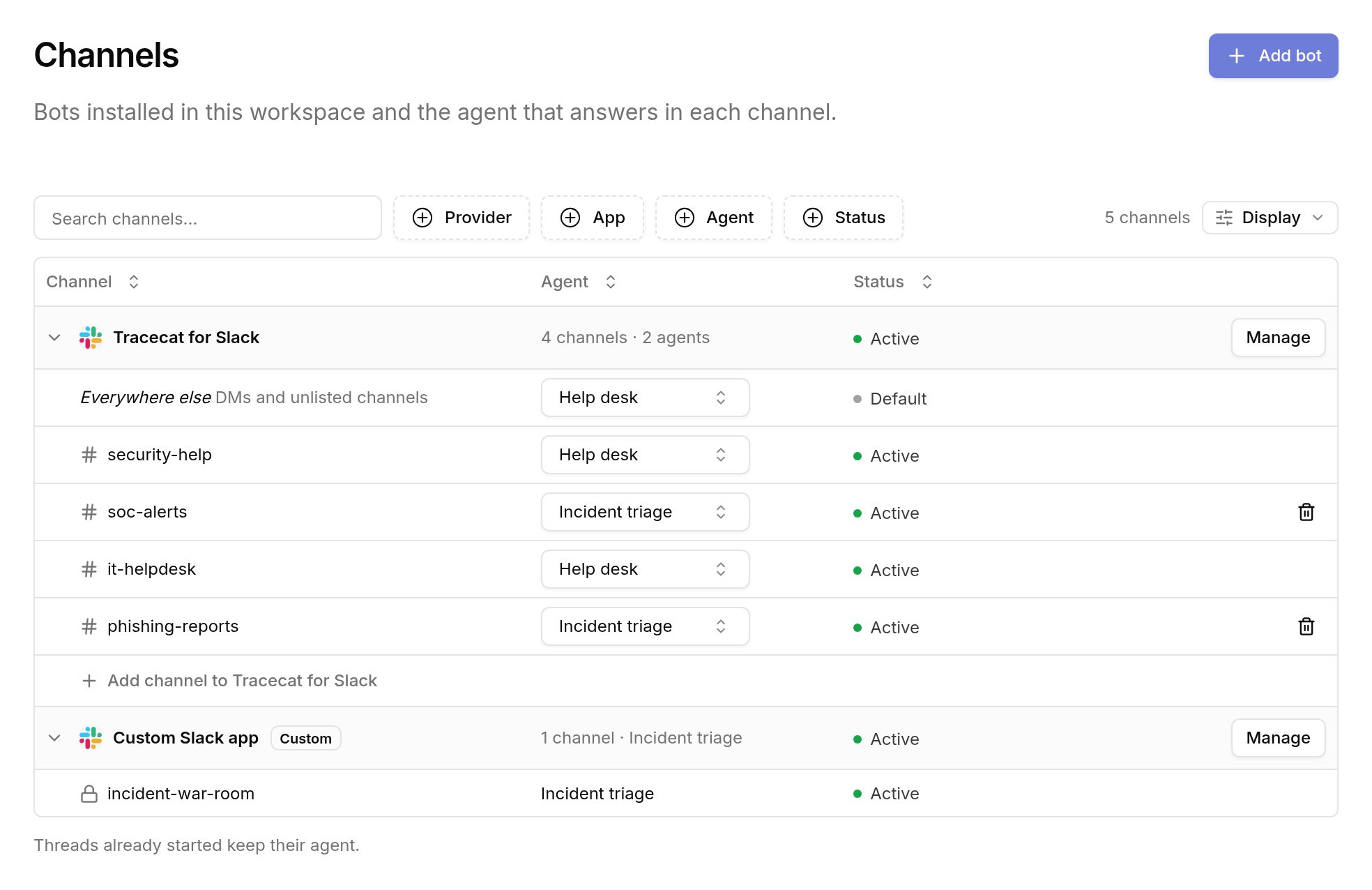
Agents → Channels lists every bot in the workspace and the channels it is in. Everywhere else sets the default agent, which answers direct messages and channels without their own agent.
- To change the agent for a channel, choose a different agent on its row.
- To add a channel the bot isn’t in yet, click
Add channel to Tracecat for Slack, pick the channel, choose the agent, and clickAdd channel. Then run/invite @Tracecatin that channel. - To return a channel to the default agent, click its delete icon.
Manage a bot
ClickManage on a bot to change its default agent, who can use it, and its connection.
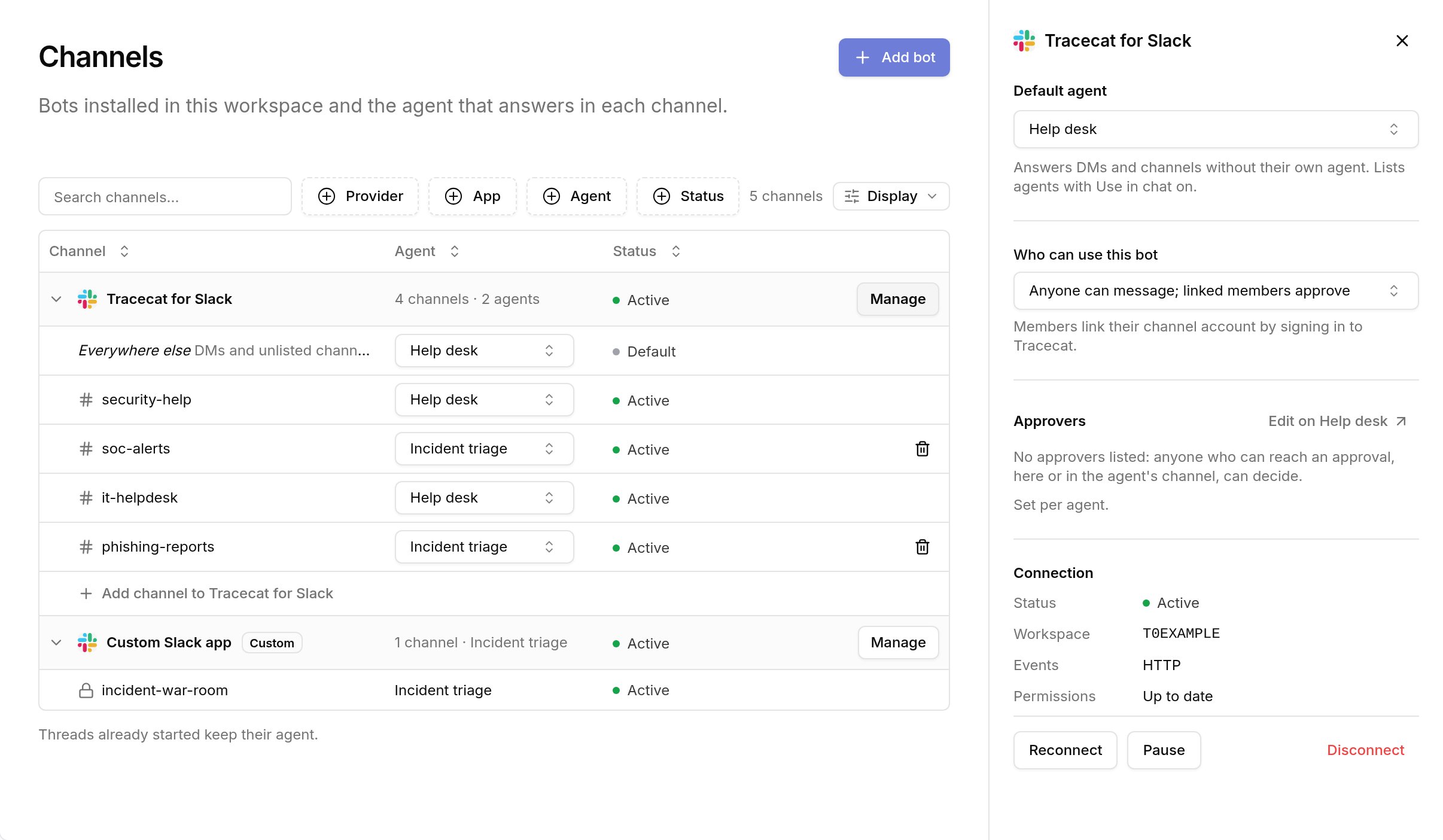
Who can use this bot applies to every agent the bot serves. Members link their Slack account by signing in to Tracecat.
Under
Connection:
- Click
Pauseto stop replies andResumeto restart them. - If the status shows
Needs reconnectorUpdate needed, clickReconnectand approve the app in Slack. - To connect the Slack workspace to a different Tracecat workspace, first click
Disconnectin the current one.
Connect a custom bot
Each custom bot is its own Slack app and counts toward Slack’s installation limit.- Open the agent’s
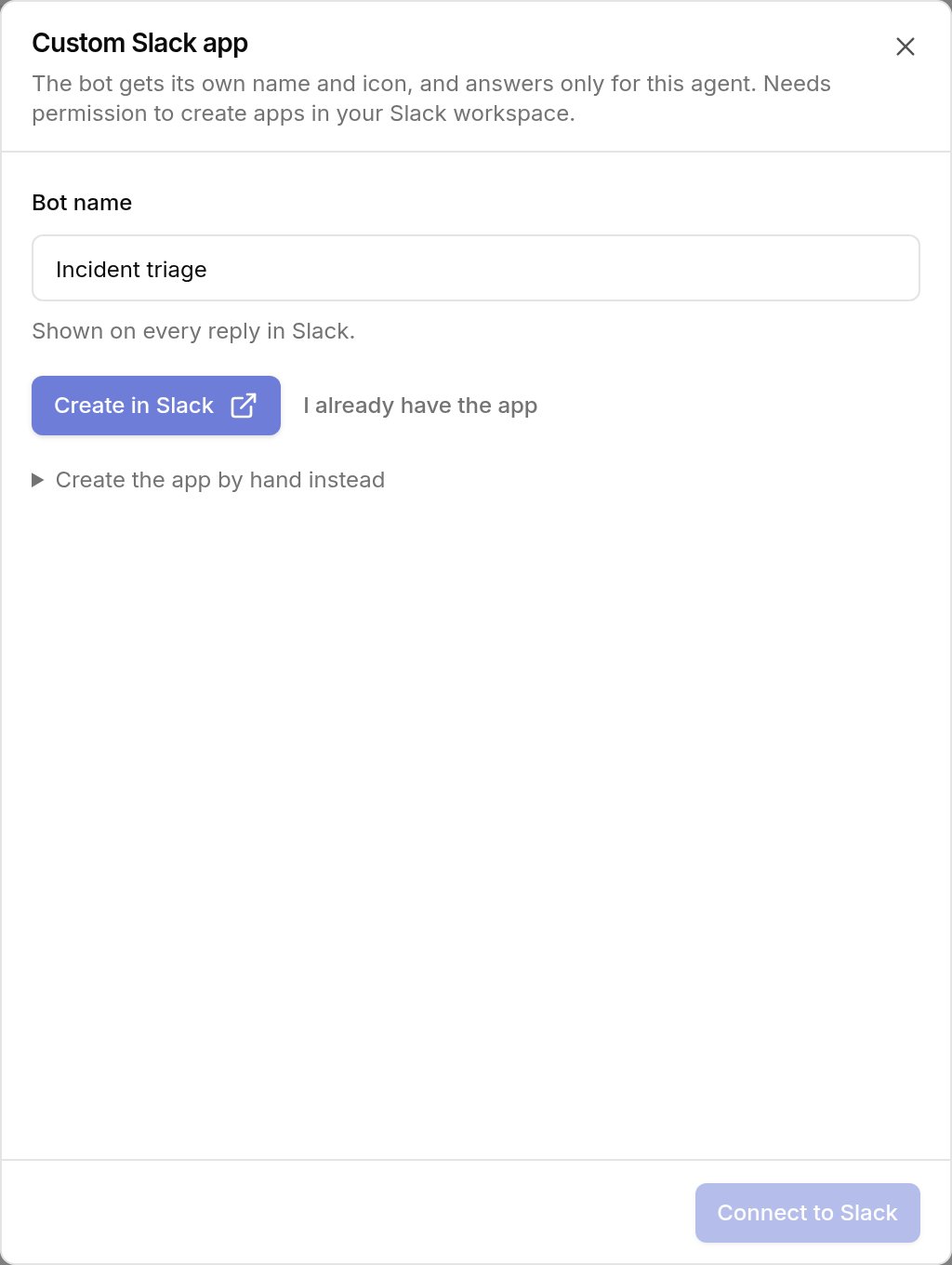
Channelstab. UnderCustom Slack app, clickConnect. You can also clickAdd bot → Custom botinAgents → Channelsand choose the agent. - Enter a
Bot name, clickCreate in Slack, and create the app. - From Slack’s
Basic Information → App Credentials, copy the client ID, client secret, and signing secret into Tracecat. - Click
Connect to Slackand approve. In Slack, invite the bot by name with/invite, then mention it to start a thread.
Socket Mode tokens and manual app setup
Socket Mode tokens and manual app setup
For Socket Mode, generate an app-level token with
connections:write and enter its access and refresh tokens.To use an unused app dedicated to this agent, copy the manifest under Create the app by hand instead, apply it in Slack, and select I already have the app in Tracecat. See Slack’s manifest guide.If a custom bot shows Update needed, copy the manifest under Slack settings for this app to the app’s App Manifest page in Slack, then click Reconnect to Slack.Earlier setup flow
Earlier setup flow
Some organizations see
Create app and Existing App on the agent’s Channels tab instead.- Choose
Create appto copy the manifest into Slack. Install the app, then clickNextin Tracecat. - Choose
Existing Appfor an app dedicated to this agent. Add the OAuth redirect URL underOAuth & Permissions. Use the endpoint URL for events and interactivity, and subscribe toapp_mention.
Connect to Slack. If you rotate the endpoint later, update both request URLs in Slack.Register the platform Slack app
On self-hosted Tracecat, a platform superuser registers the Tracecat app once for the deployment. Every organization then adds it to Slack from Add Tracecat to Slack. Tracecat Cloud registers the app for you.Prepare your deployment
SetTRACECAT__PUBLIC_API_URL on the API service before creating the app, for example https://tracecat.example.com/api. The installer’s browser must reach this URL. With HTTP (the default), Slack must reach it too.
Use Socket Mode
Use Socket Mode
Set
TRACECAT__SLACK_INGRESS_MODE=socket on the API service and apply the change before creating the app. Tracecat connects to Slack over an outbound socket.After creating the app, open Basic Information → App-Level Tokens in Slack. Generate a token with connections:write and copy the access token (xoxe.xapp-…) and refresh token into Tracecat.Register the app
- Open
Admin → Agent → Slack Appand clickCreate in Slack. Slack opens with everything filled in. Choose a Slack workspace your team owns and clickCreate. - In Tracecat, click
I already have the app. From Slack’sBasic Information → App Credentials, copy the app ID, client ID, client secret, and signing secret. - Click
Save. The card showsReady.
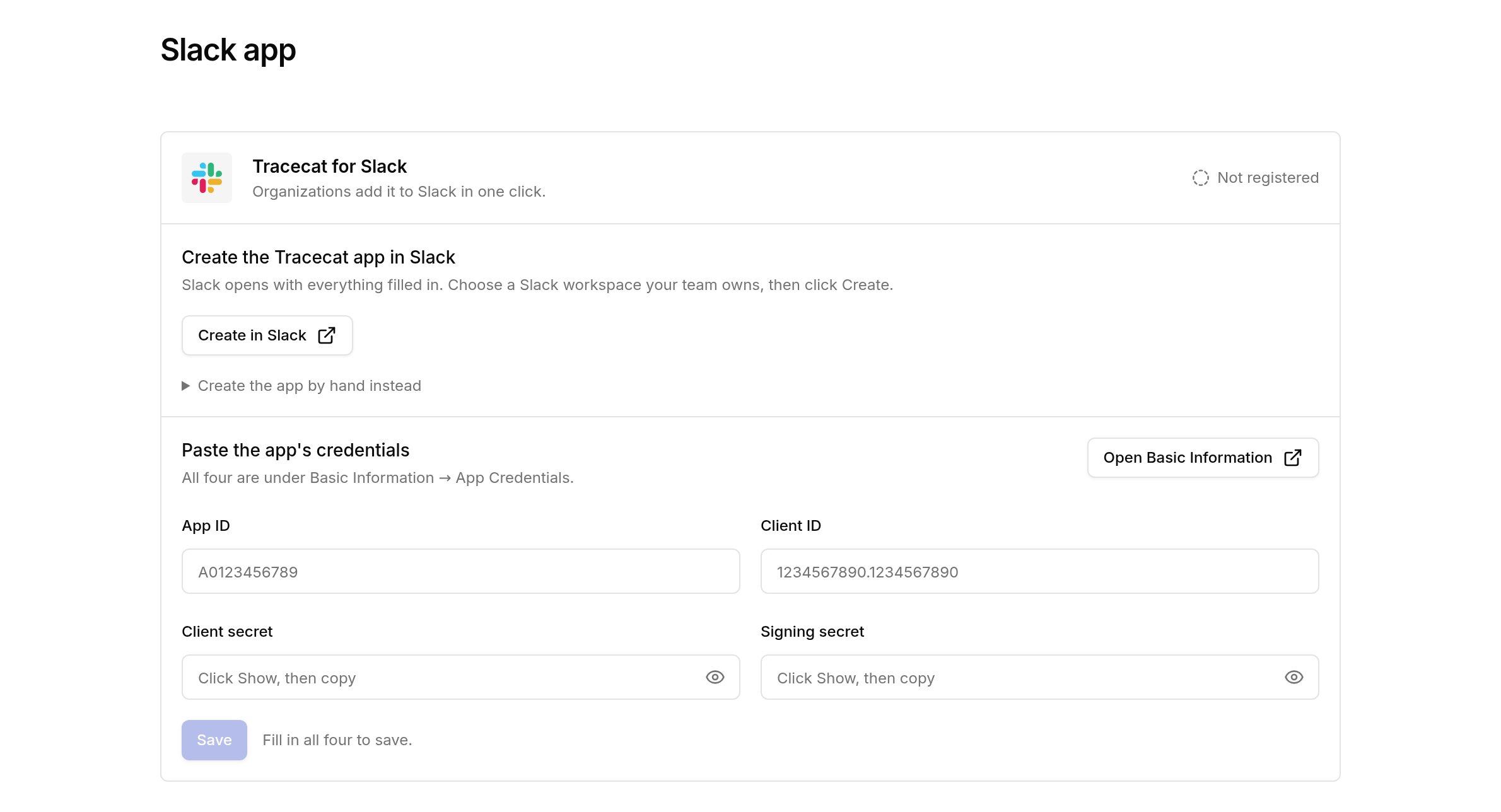
Manual app setup
Manual app setup
For an unused app dedicated to this deployment, copy the manifest under
Create the app by hand instead, apply it in Slack, and select I already have the app in Tracecat.For HTTP, use the manifest’s request URL for both events and interactivity. If verification fails, save the signing secret in Tracecat and retry in Slack.Allow other Slack workspaces
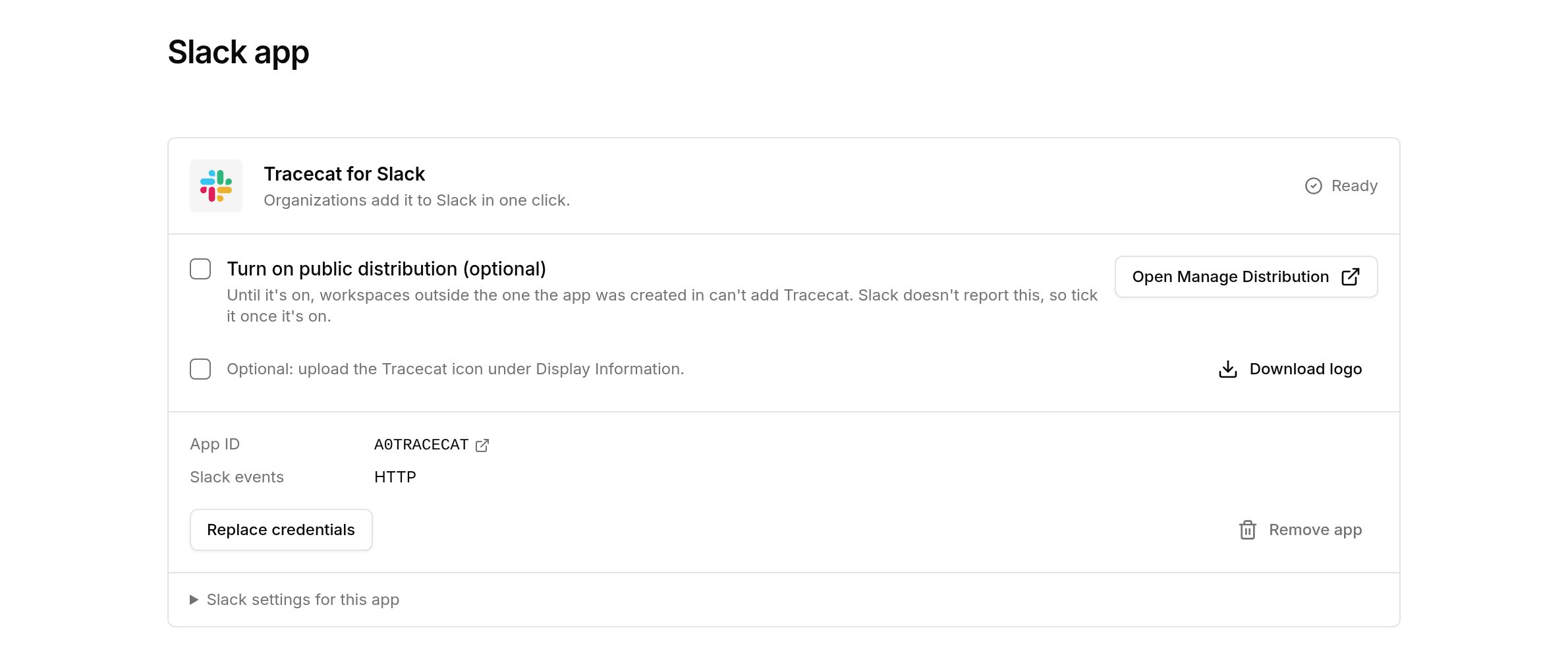
Skip this unless Slack workspaces other than the one where you created the app need to add Tracecat. Until you turn on public distribution, only that workspace can add it.- Click
Open Manage Distribution. In Slack, complete the checklist and clickActivate Public Distribution. - Return to Tracecat and tick
Turn on public distribution (optional). - Optional: click
Download logo, upload it in Slack underDisplay Information, and tick that step.
Limitations
- In a channel thread, mention the agent in every message you want it to answer. The agent doesn’t receive messages that don’t mention it.
- The agent reads message text only, not files or attachments.
- While a tool call awaits approval, the agent doesn’t accept new messages in that thread.
- To edit a tool call’s arguments before you approve it, use the agent inbox.
- Each Slack workspace connects to one Tracecat workspace through the Tracecat app.
Related pages
- See Connect to Slack to post messages and receive Slack events in workflows.
- See Human-in-the-loop for how tool approvals work across chat, Slack, and the inbox.