

Overview
Tracecat supports FIDO2 security keys and passkeys as a second factor at sign-in. Any WebAuthn authenticator that verifies the user with a PIN or biometric works, including:- Hardware keys such as the YubiKey 5 and Security Key series.
- Passkeys saved in Chrome and Google Password Manager, 1Password, iCloud Keychain, or Windows Hello.
Requirements
Browsers only offer security keys on HTTPS orlocalhost. Tracecat takes the relying party ID and origin from TRACECAT__PUBLIC_APP_URL, and keys stay bound to that host. If you change the domain, every user has to register their keys again. On a deployment served over plain HTTP or from an IP address, the MFA settings stay disabled and show the reason.
Register a security key
Open Settings, select Security, enter a name for the key, and selectAdd security key. Then follow your browser’s prompt to tap your key or confirm a passkey.
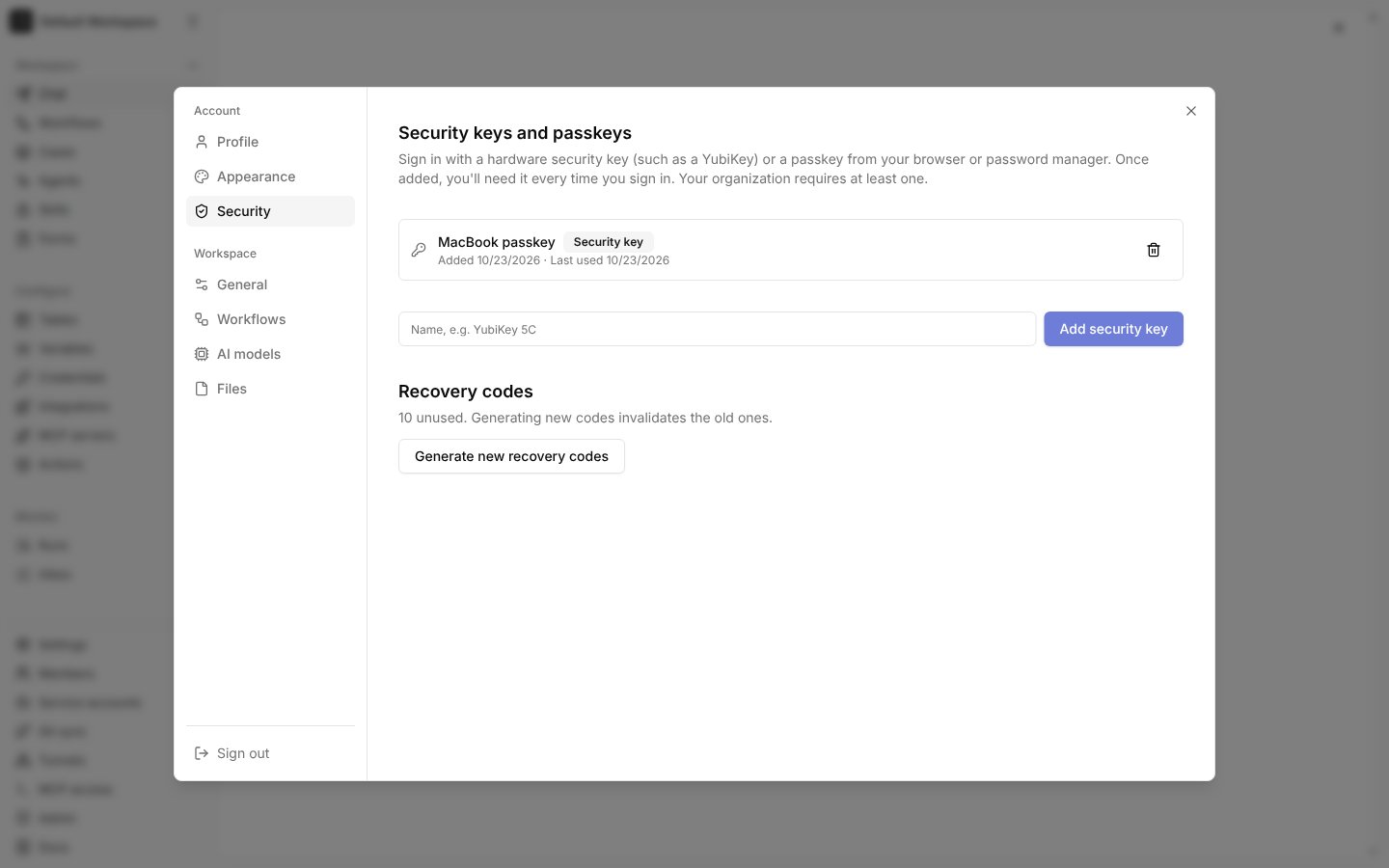
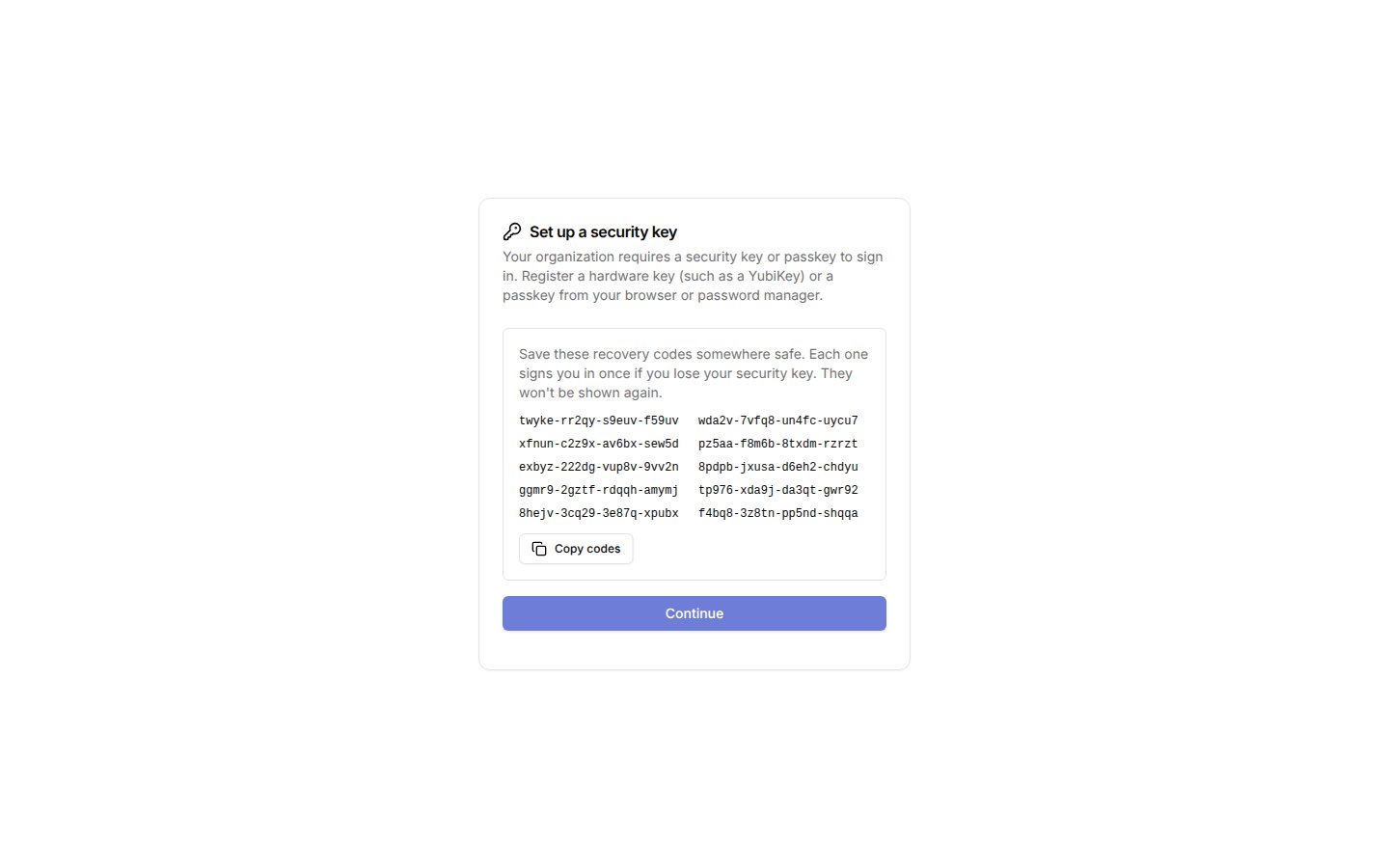
Generate new recovery codes to replace the whole set.
Sign in with a security key
After your password or SSO sign-in, Tracecat opens/mfa and asks for your key. Until you verify, the session can only reach the MFA screen and sign-out.
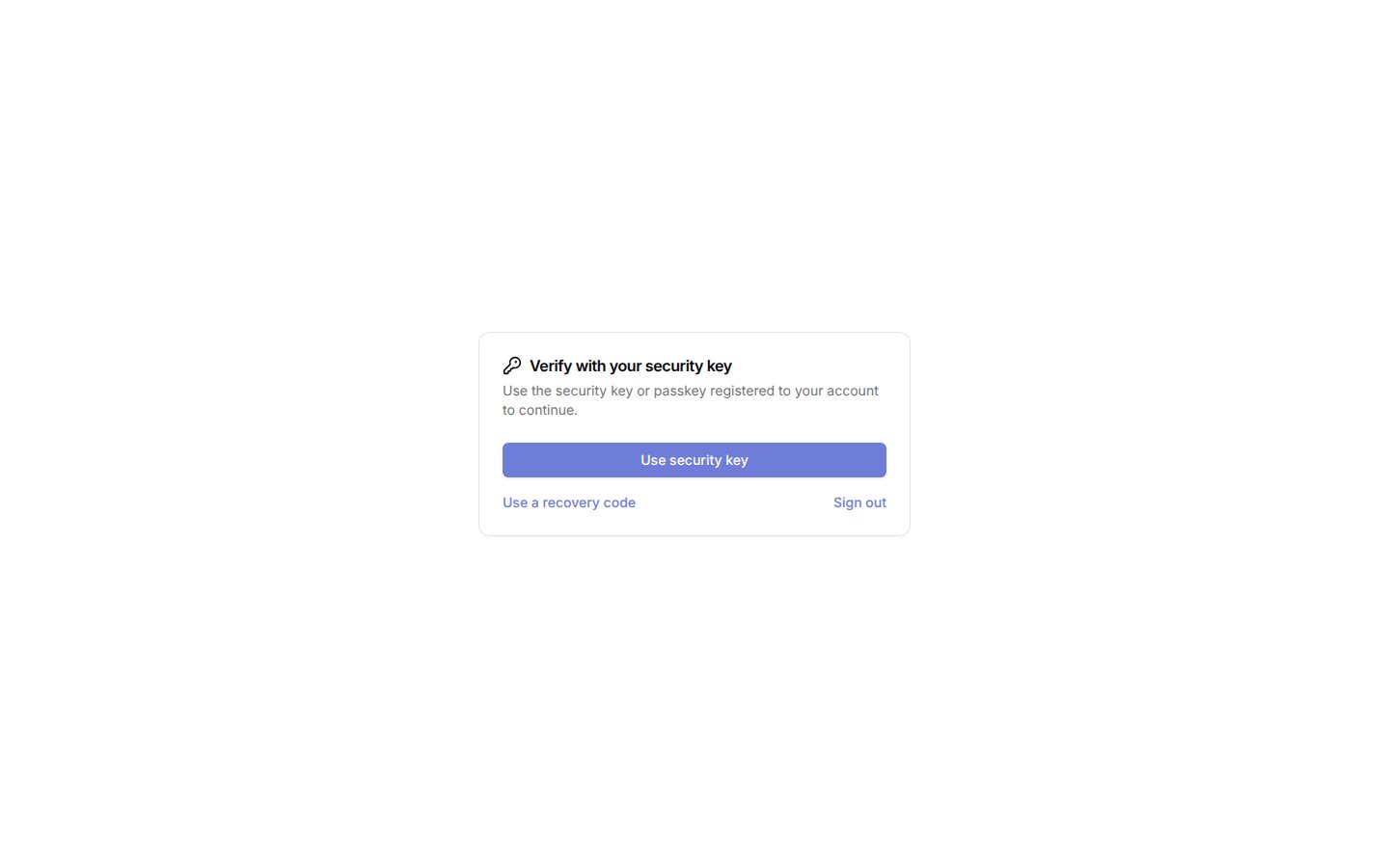
Use a recovery code and enter one of your saved codes.
Require MFA for an organization
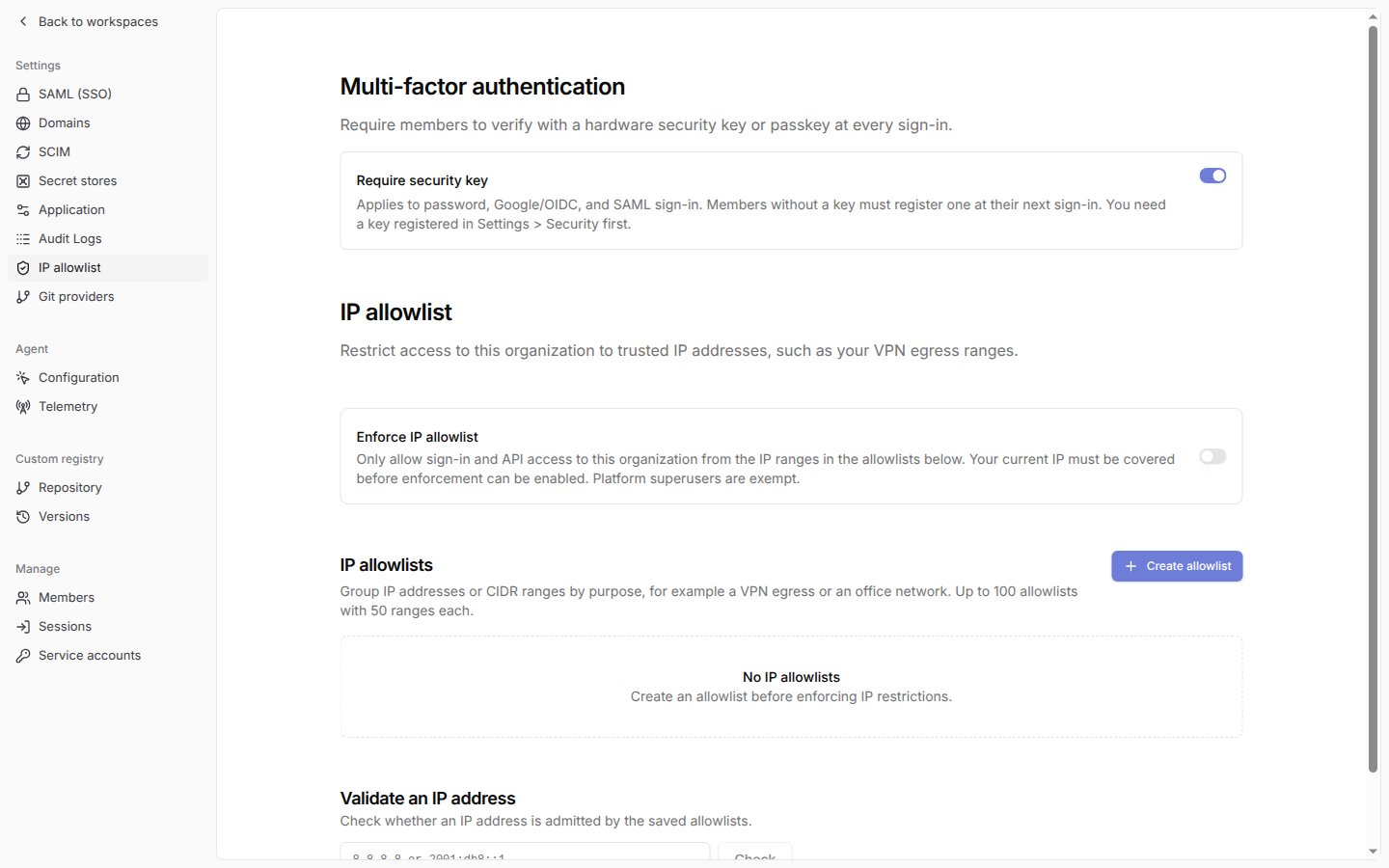
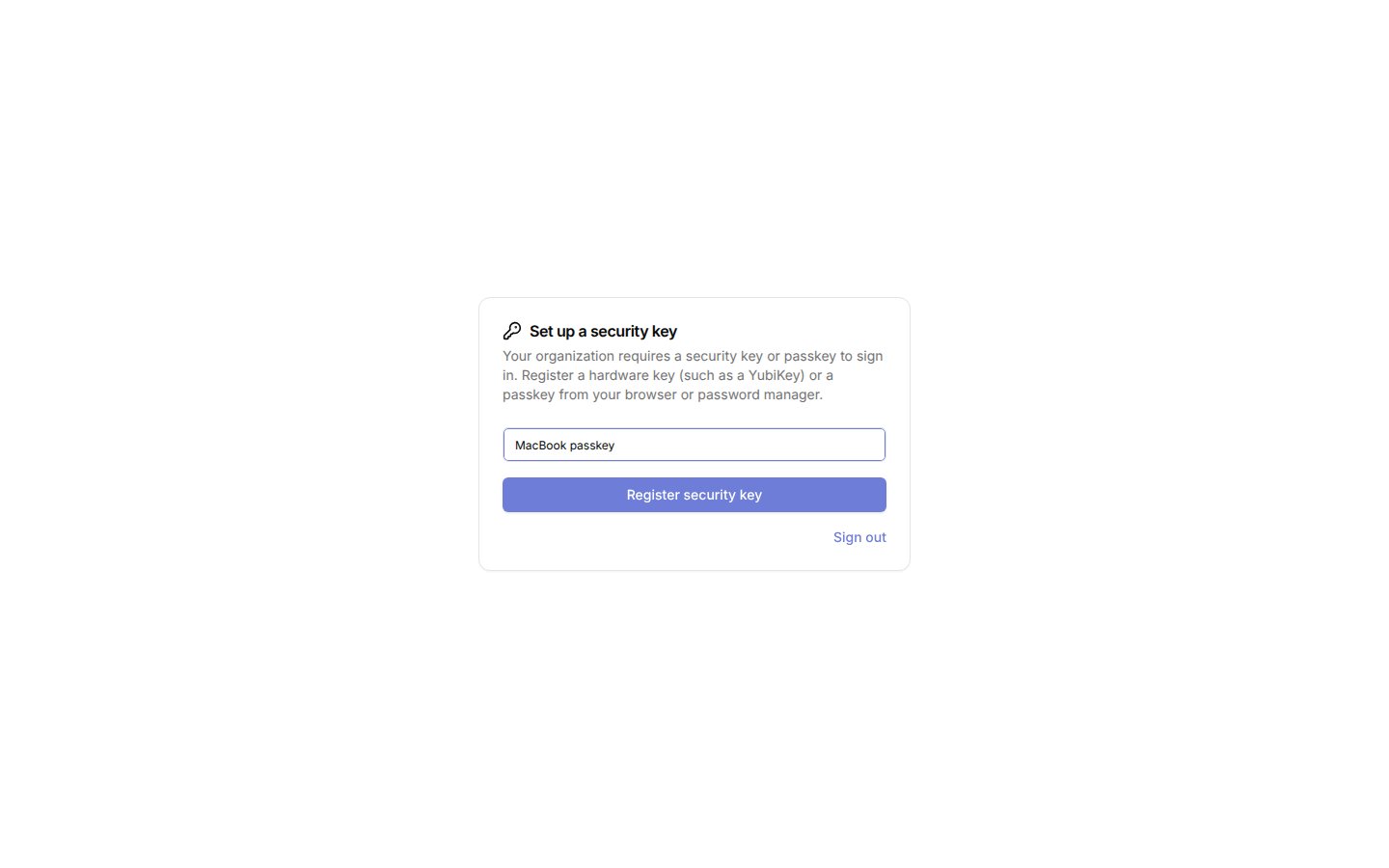
An organization administrator withorg:settings:update can turn on Require security key under Multi-factor authentication at /organization/settings/security. You must have registered a key yourself before you can turn it on.
Related pages
- See IP allowlist to restrict sign-in and admin access to approved addresses.
- See SAML and OIDC to configure single sign-on alongside security keys.