

Defaults
Subagents run inside their parent agent’s run and share its timeout.
Time spent waiting for a tool approval doesn’t count toward the agent timeout, and the resumed run gets the full timeout again.
Raise an agent action’s timeout
1
Open the action
Open the workflow in the builder and select the
ai.agent, ai.action, or ai.preset_agent action.2
Set the timeout
Select the 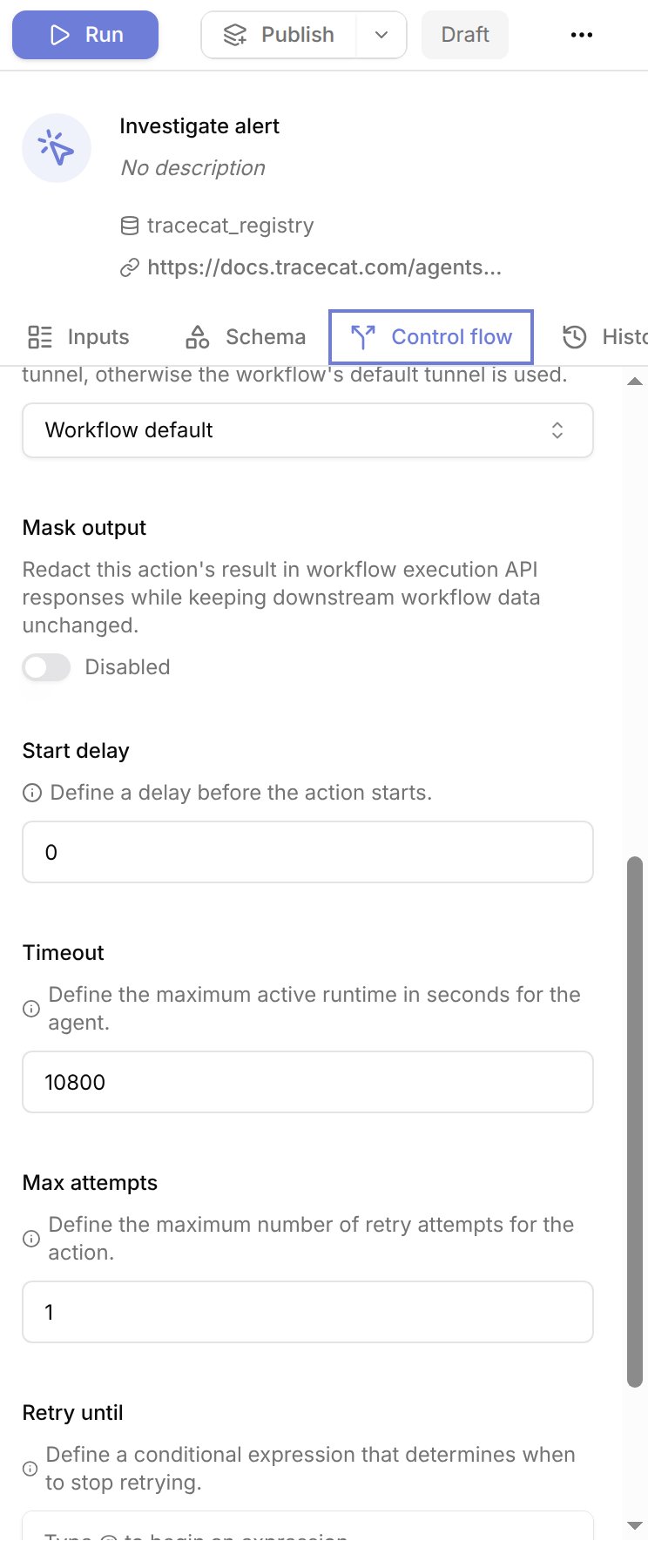
Control flow tab and enter the runtime in seconds under Timeout.
New agent actions start with the 7200 second default.3
Save the action
At run time, Tracecat clamps the value between
1800 seconds and the deployment ceiling. It never rejects a value.retry_policy.timeout:
10800 seconds, raise the ceiling first.
Raise the agent timeout ceiling
TRACECAT__AGENT_SANDBOX_TIMEOUT caps every agent action and chat turn.
A ceiling below 1800 seconds also lowers the default and the shortest explicit timeout to the ceiling.
- Docker Compose
- Helm
- Terraform (EKS)
- AWS Fargate
Set the variable in
.env, then recreate the services:TRACECAT__AGENT_EXECUTOR_GRACEFUL_SHUTDOWN_TIMEOUT also defaults to the ceiling plus 60 seconds.
Chat turns
Each turn in workspace chat, preset chat, or a channel runs for up to7200 seconds.
You can’t set a per-chat timeout. A ceiling below 7200 shortens chat turns to the ceiling.
Model response timeout
TRACECAT__LLM_PROXY_READ_TIMEOUT sets how long the agent’s LLM proxy waits for the next byte from the model provider or gateway.
It applies to each model request, not to the whole run, so raise it for slow reasoning models or self-hosted gateways that stream slowly.
See Custom LLM providers for gateway errors.
Tool call timeouts
Each registry action an agent calls as a tool runs with the default action timeout of300 seconds.
TRACECAT__EXECUTOR_CLIENT_TIMEOUT caps each call and can only shorten it.
To run longer work from an agent, call a workflow or a custom action that starts the work and returns.
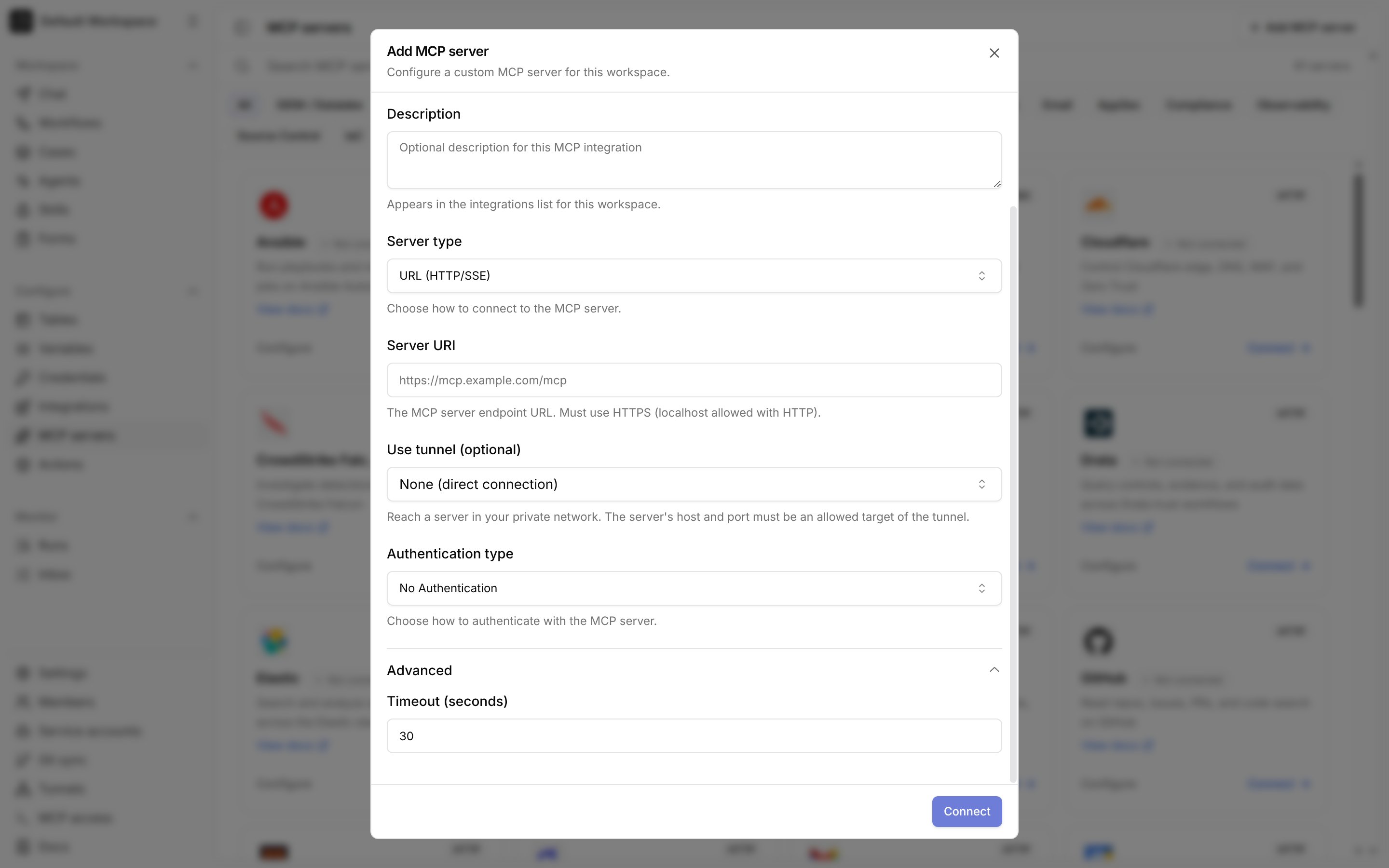
MCP integrations have their own Timeout (seconds), between 1 and 300, default 30.
Open MCP servers from the sidebar, click Add MCP server or edit an existing server, and set it under Advanced.
20 seconds, or the integration’s timeout if shorter, and 60 seconds for all servers in one run.
Workflow timeouts
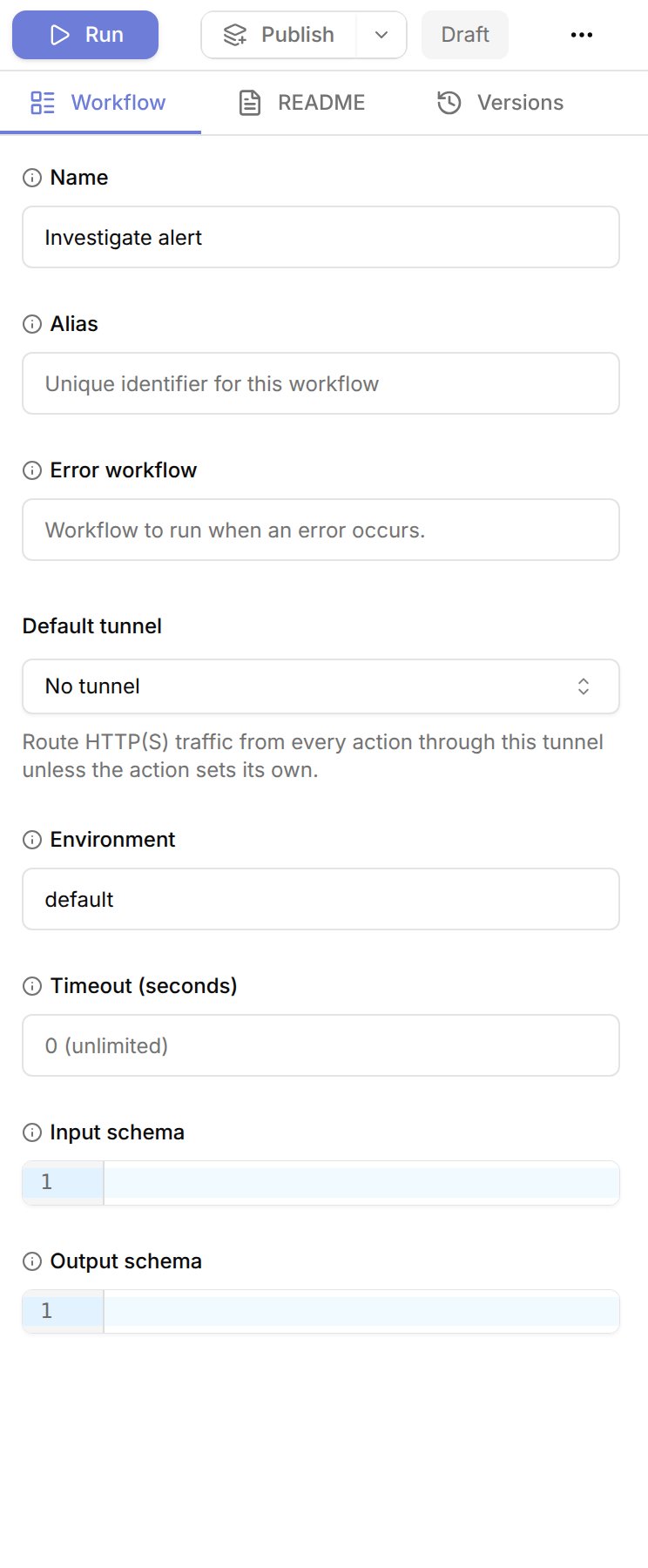
The workflow timeout bounds the whole workflow run, including agent actions and the time spent waiting for approvals. A long-running agent fails when the workflow times out, even if the agent’s own timeout hasn’t elapsed. Open the workflow and setTimeout (seconds) on the Workflow tab of the side panel. Click an empty spot on the canvas if an action is selected. 0 means unlimited.
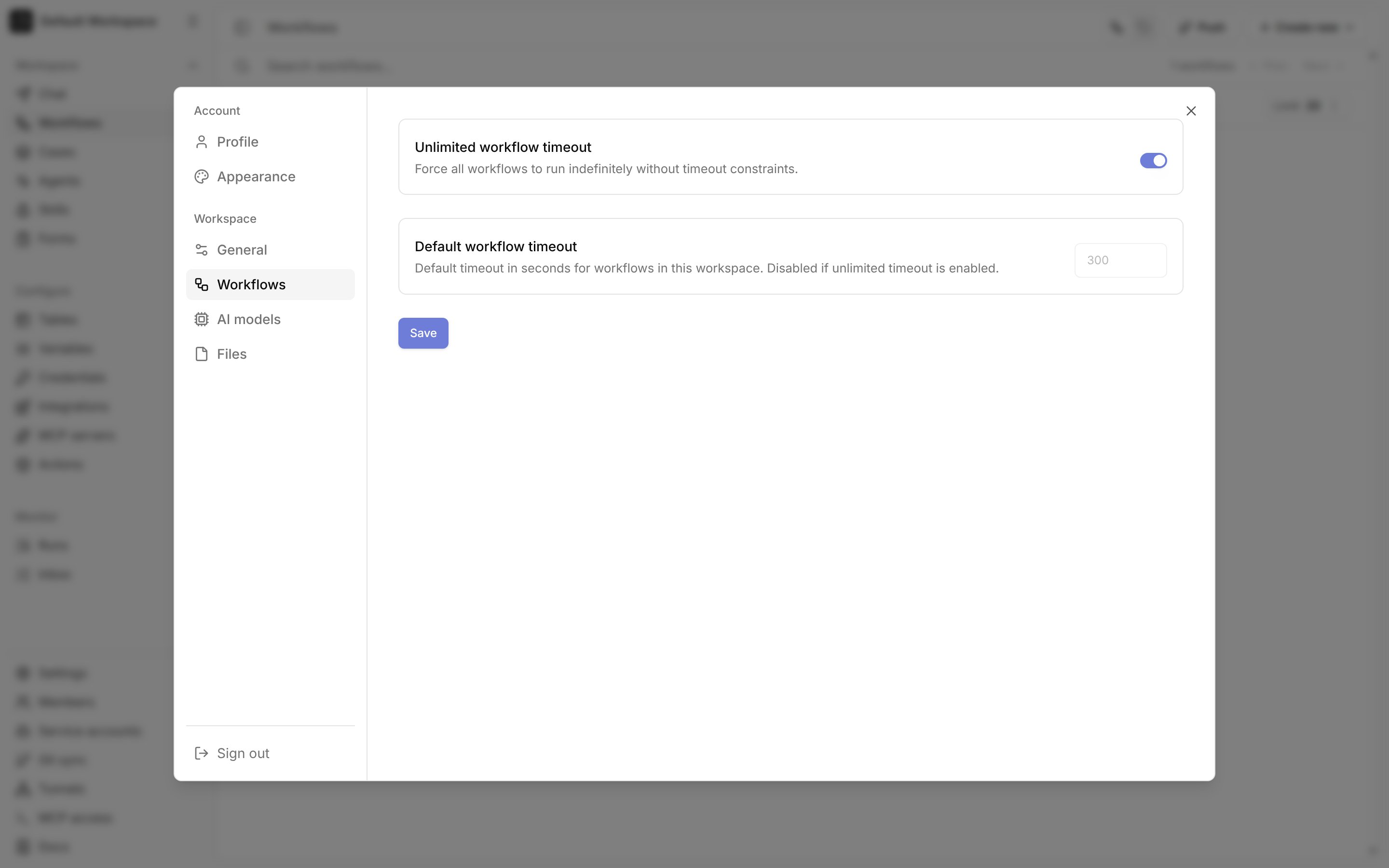
Unlimited workflow timeouton: Workflows run with no timeout, and each workflow’sTimeout (seconds)is ignored. New workspaces start with this on.Default workflow timeoutset: Every workflow in the workspace uses this value.- Neither set: Each workflow uses its own
Timeout (seconds).
Settings from the sidebar, then select Workflows under Workspace.
Timeout errors
Related pages
- See Actions for how
timeoutandmax_attemptsapply to every action. - See Human-in-the-loop for how approval waits interact with timeouts.
- See Environment variables for every deployment setting on this page.