

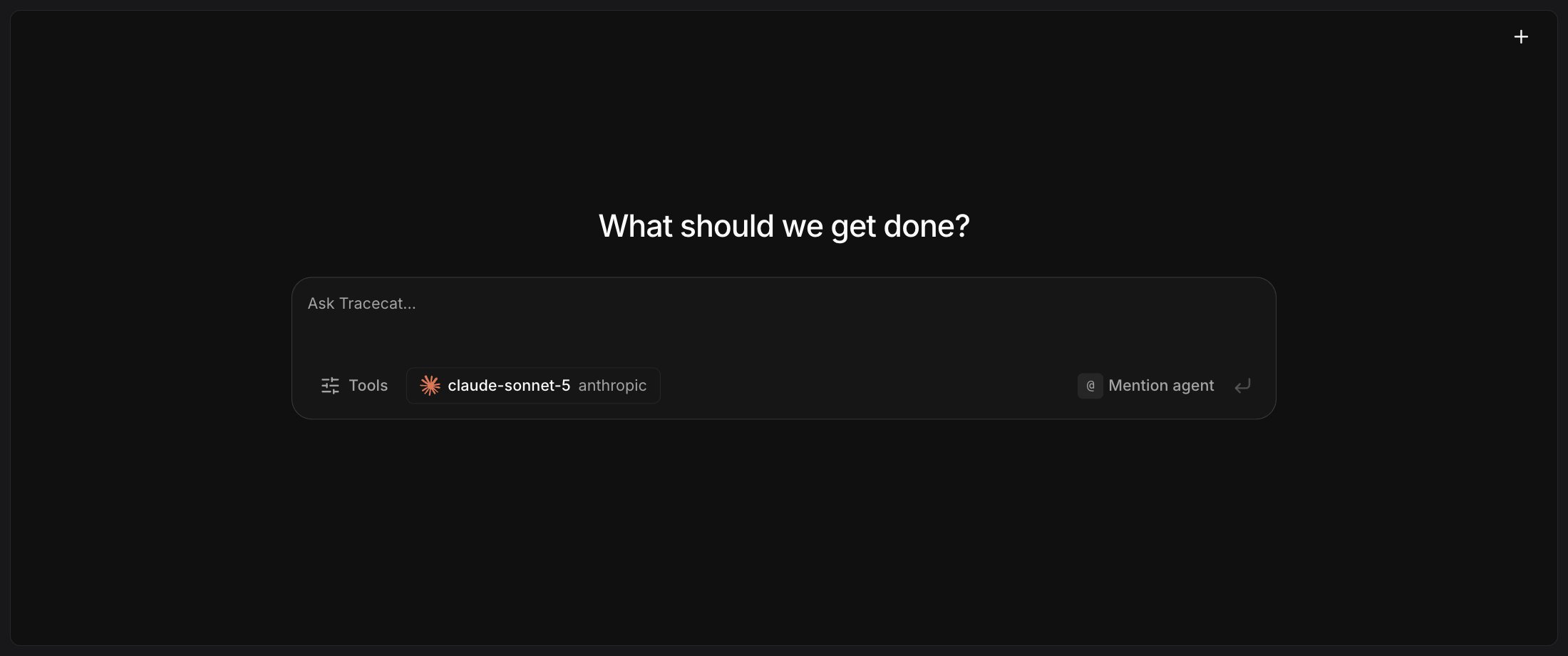
Chat in the workspace sidebar or as a side panel over the Tables pages.
Set the default model
Go toOrganization > Settings > Agent, connect a provider, and choose an organization default model. If the workspace uses a subset of the organization’s models, the default must be in it. A chat that uses the organization default stays disabled until both hold; a chat with a preset agent uses the preset’s model instead.
Your workspace role needs agent:read and agent:execute to open workspace chat, so workspace-editor and workspace-admin can use it and workspace-viewer cannot.
Choose tools and MCP integrations
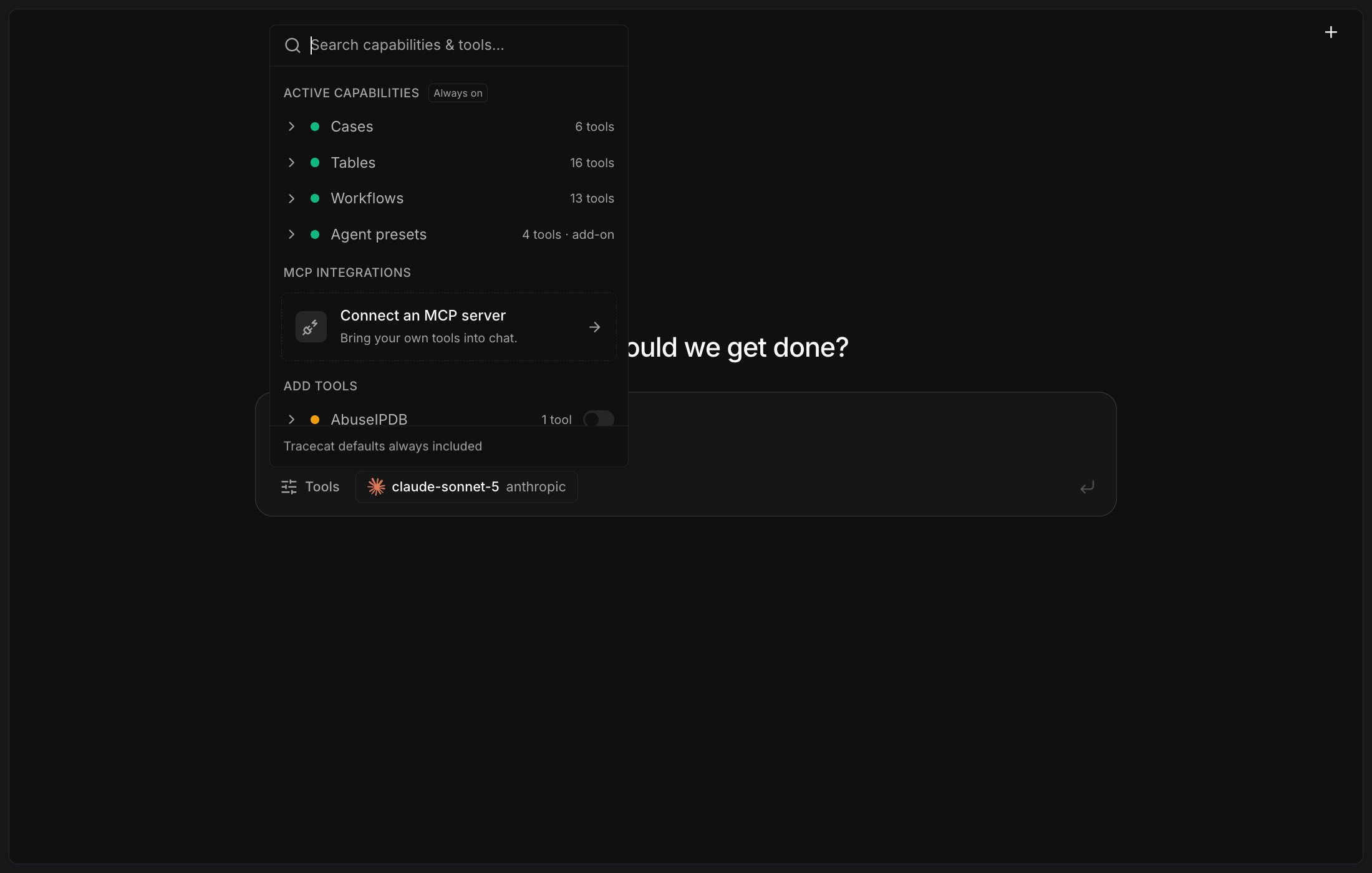
SelectTools to open the picker. Tracecat defaults are always included.
- In
Active capabilities,Cases,Tables, andWorkflowsare on by default. Tracecat drops any tool your workspace role could not run itself, so a restricted role sees fewer. - In
Add tools, toggle individual tool groups on or off.
Agent presets in Active capabilities lets the chat run your saved presets as tools.
MCP integrations lists the servers your workspace connected, including catalog connectors, and Connect an MCP server adds one; see MCP servers to connect a catalog, remote, or local server. Your workspace role needs integration:read to see the section.
Mention an agent
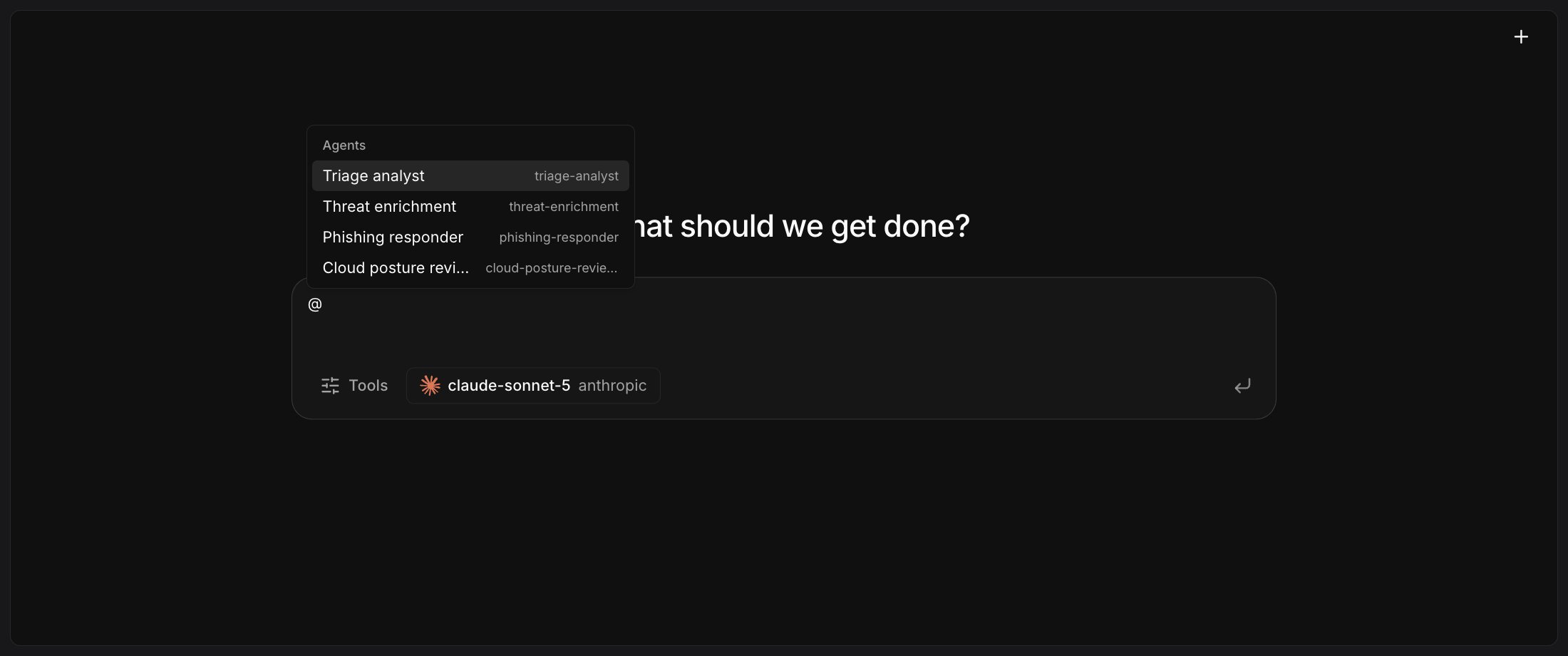
Enterprise Focus the empty composer to show the@ Mention agent hint, then type @ and select a preset agent from the list. Selecting the result sets that preset for the entire conversation, and the @Agent name text remains in the message you send.
The list keeps filtering as you type, including across the spaces in a name. It matches the agent name or its slug, which each row shows on the right.
Selecting a result is what binds the agent; typing a name as plain text does not.
A badge with the agent name replaces the hint until you clear it with ×. A preset supplies its own tools, so Tools is unavailable while an agent is set.
Your workspace role needs agent:read and agent:execute. Without Enterprise, @ opens the list with an Enterprise notice instead of agent names.
Related pages
- See Mention agents in case comments to invoke a preset agent from a case thread.
- See AI preset agent to configure a reusable agent preset.