

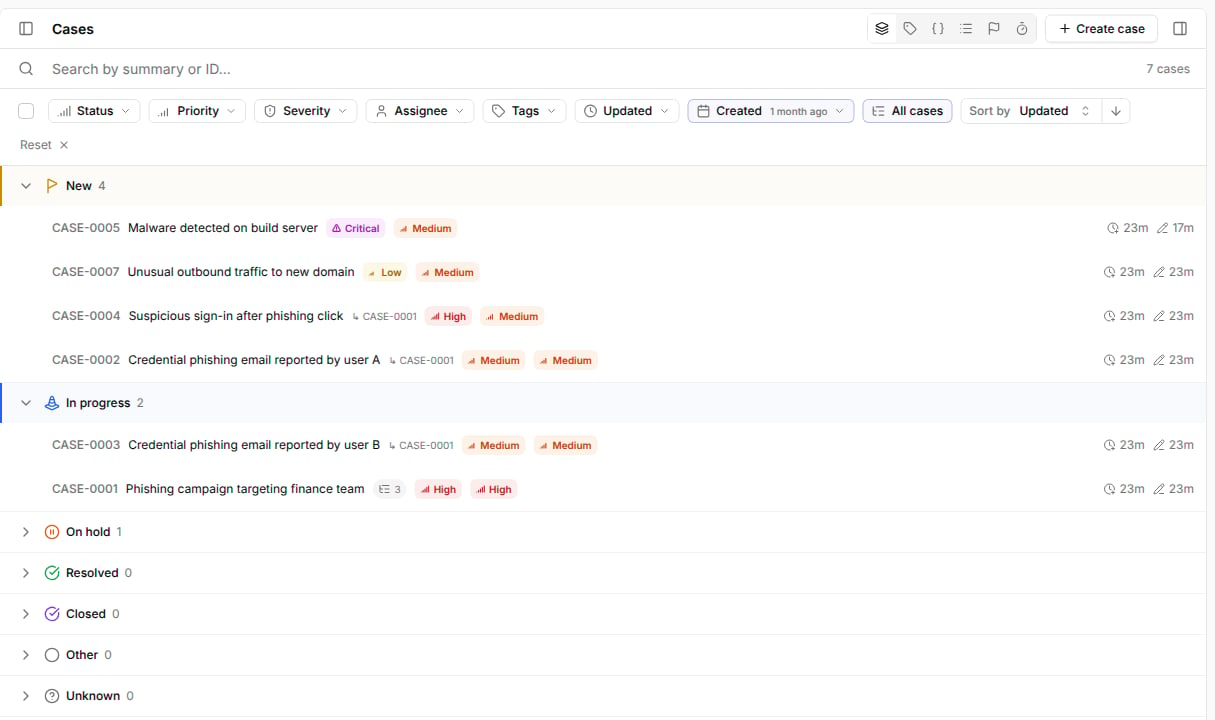
- A parent must be a top-level case.
- A sub-case can’t have its own sub-cases.
- A case that already has sub-cases can’t become a sub-case.
Group cases under a parent
1
Select the cases
On the Cases page, tick the cases you want to group.
2
Choose Group case
Click 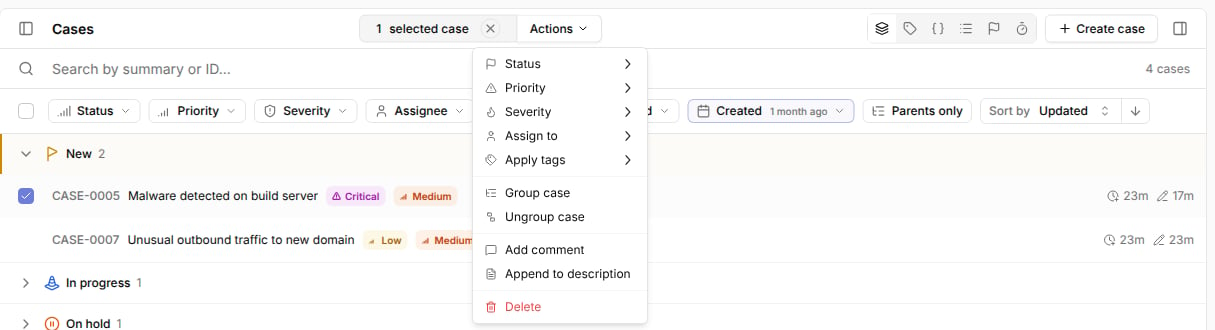
Actions and select Group case.3
Pick the parent
Search for the parent case by ID or summary, select it, and click 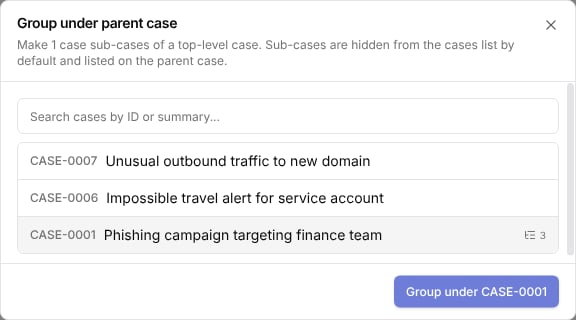
Group under CASE-XXXX.
Only top-level cases are listed. Cases that are already sub-cases of another parent move to the new parent.Add sub-cases.
View sub-cases
Open a parent case and select the sub-cases tab in the case toolbar. The tab lists every sub-case with its status and priority. UseSearch sub-cases... to filter by summary or ID, and click a row to open the sub-case.
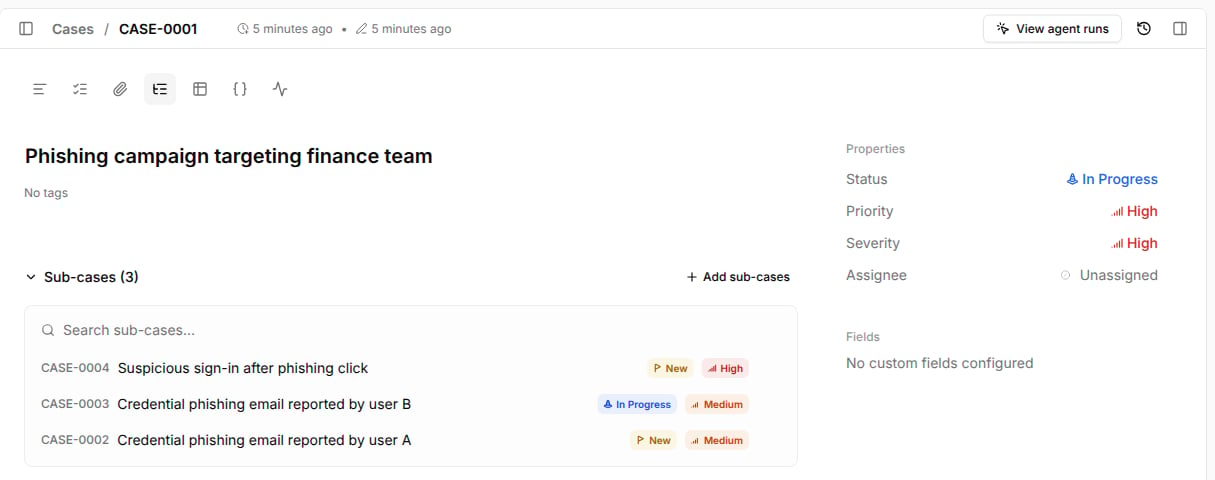
Sub-case of link to its parent above the summary.
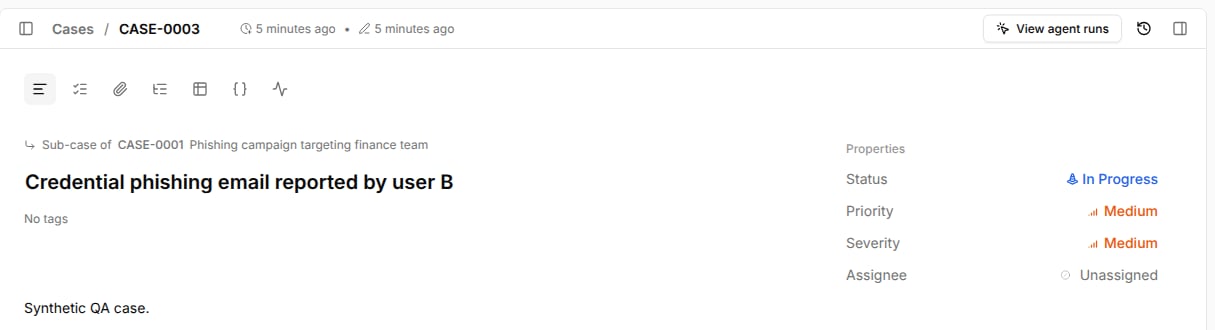
Show sub-cases in the cases list
Sub-cases are hidden from the Cases page by default, so the list shows one row per investigation. ClickParents only in the filter bar to switch to All cases.
Sub-cases then appear with their parent’s ID next to the summary, and parent cases show their sub-case count.
While a search term is applied, results always include sub-cases and the toggle is disabled.
Ungroup cases
To return sub-cases to the top level, show sub-cases in the list, tick the sub-cases, clickActions, and select Ungroup case.
You can also remove a single sub-case from the sub-cases tab of its parent.
Closing a parent case
Closing or resolving a parent case does not change its sub-cases. Sub-cases keep their own status, and open sub-cases don’t block closing the parent. Close each sub-case separately, or select them in the cases list and setStatus in bulk.
Use sub-cases from MCP
The Tracecat MCP server supports sub-cases:get_case, list_cases, and search_cases return parent and num_sub_cases for each case.
Related pages
- See Case management for an overview of case features.
- See Correlations to find other cases that link the same row.