

Create a dropdown
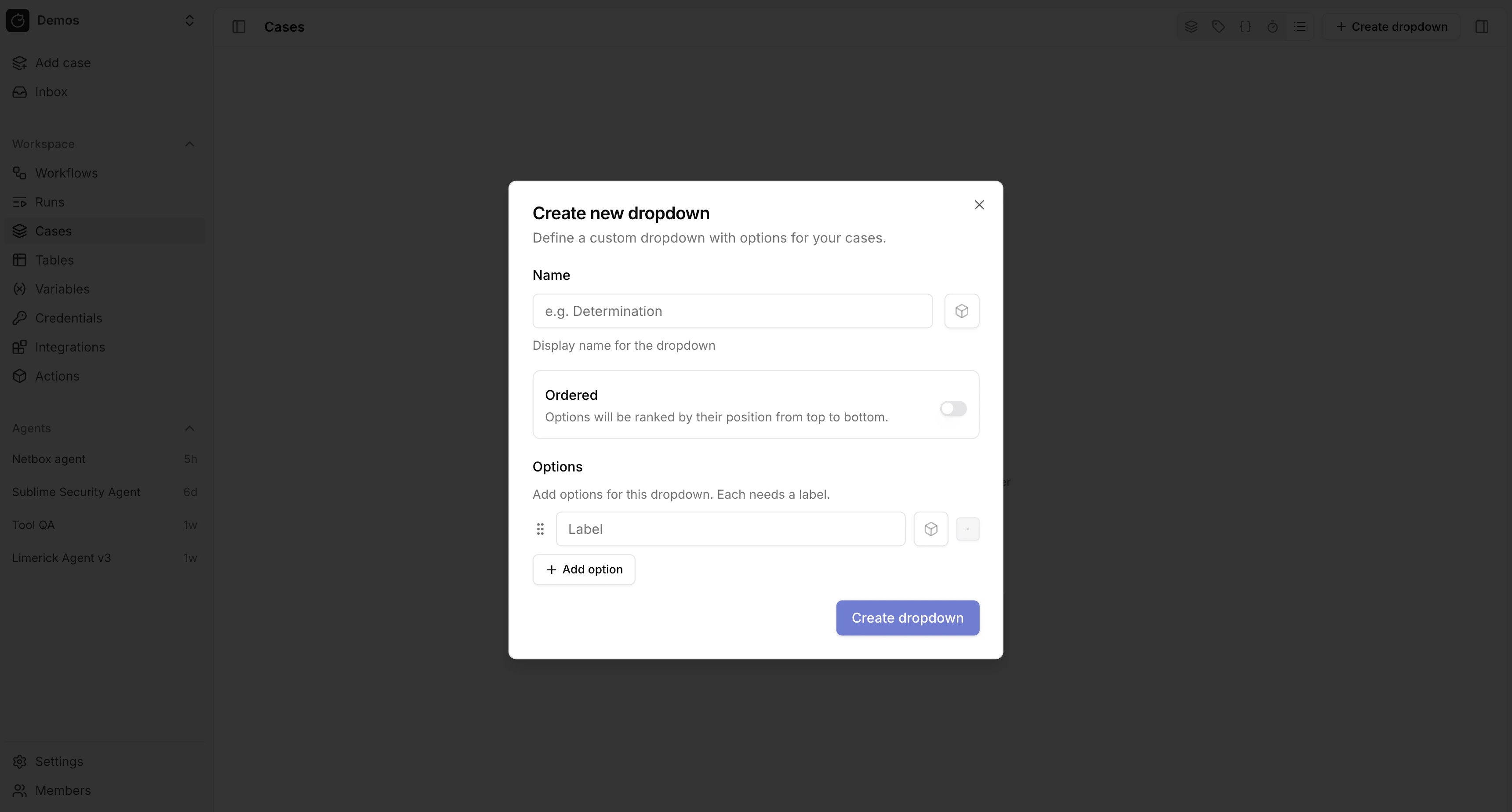
- Go to
Casesand open the dropdowns view from the header toolbar. - Select
Create dropdown. - Enter a name and choose an icon. Tracecat derives the reference from the name, such as
Escalation tier→escalation_tier. - Add options. Each option needs a label and can have a color.
- Turn on
Orderedwhen the options form a ranking, such asTier 1,Tier 2, andTier 3. Tracecat ranks ordered options by their position from top to bottom.
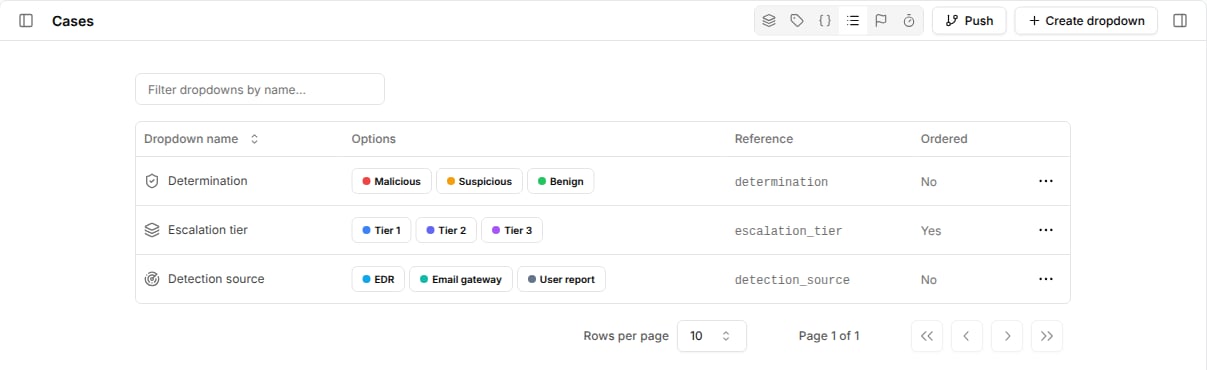
Copy reference, Edit dropdown, or Delete dropdown.
Set and filter values
Open a case and pick a value for each dropdown underProperties in the side panel.
A case holds at most one option per dropdown.
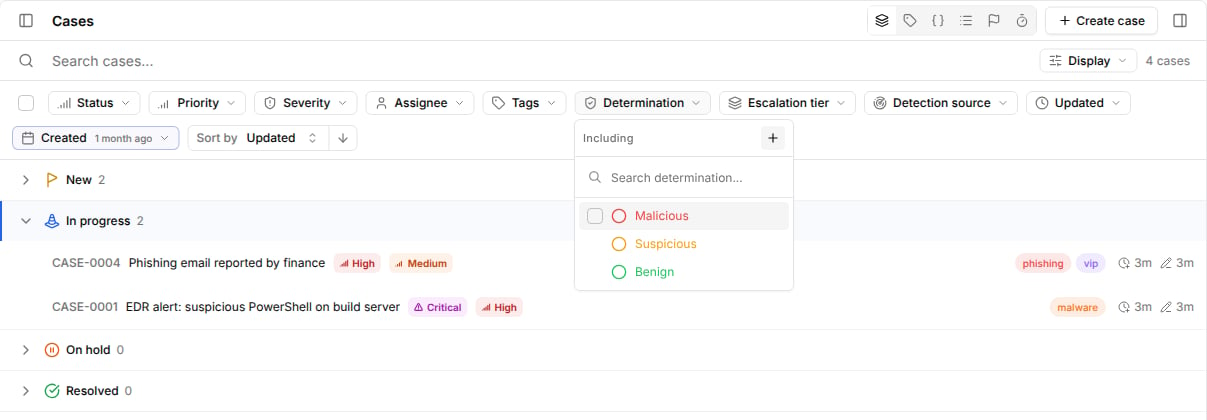
In the case list, each dropdown appears as a filter next to Status, Priority, Severity, Assignee, and Tags.
Select one or more options to show matching cases.
Set values from workflows
Passdropdown_values to core.cases.create_case or core.cases.update_case.
Each item needs either definition_ref or definition_id, and either option_ref or option_id.
Set option_ref to null to clear a value.
Email gateway → email_gateway.
To start a workflow when a dropdown value changes, select dropdown_value_changed in a case trigger.
Related pages
- See Closure requirements to require a dropdown value before a case is closed or resolved.
- See Durations to measure time until a dropdown changes to a specific option.
- See Cases for the full
dropdown_valuesinput reference.